





How to diagnose and fix gaming PC frame drops or stuttering issues?

Understanding Frame Drops and Stuttering
Few things are as frustrating for a PC gamer as experiencing frame drops or stuttering during intense gameplay. These issues can ruin immersion, impact performance in competitive titles, and generally make gaming an unpleasant experience. Frame drops refer to a sudden decrease in frames per second (FPS), while stuttering is often characterized by brief, irregular pauses or hitches in the visual presentation. Both indicate that your system is struggling to render frames consistently. The good news is that most such problems can be diagnosed and fixed with systematic troubleshooting.
Initial Diagnosis: Identifying the Root Cause
Before diving into specific fixes, it’s crucial to understand where the problem might lie. This involves monitoring your system’s performance.
Monitoring Tools are Your Best Friends
- MSI Afterburner (with RivaTuner Statistics Server): This indispensable tool allows you to monitor GPU usage, temperature, clock speed, CPU usage, RAM usage, and even frame rates in real-time, often as an overlay in your game.
- Task Manager (Windows): Use it to check CPU, GPU, Memory, and Disk usage to identify any background processes hogging resources.
- HWMonitor/HWInfo64: Excellent for comprehensive hardware monitoring, especially for temperatures and fan speeds.
Look for anomalies: Is your GPU usage consistently at 99% while FPS is low? Are your CPU or GPU temperatures excessively high? Is your RAM usage maxed out? Or is a specific core of your CPU hitting 100%?
Check System Requirements
Ensure your PC actually meets or exceeds the minimum and recommended specifications for the game you’re playing. Trying to run a demanding title on outdated hardware is a common cause of poor performance.
Common Software-Related Fixes
Many performance issues stem from software conflicts or outdated components.
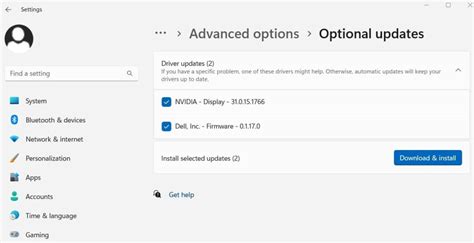
Update Graphics Drivers
This is often the first and most effective solution. Outdated or corrupt graphics drivers are a primary culprit for frame drops. Download the latest drivers directly from NVIDIA (GeForce Experience) or AMD (Radeon Software) websites. Perform a clean installation, especially if you’re experiencing persistent issues.
Optimize In-Game Settings
Lowering certain graphics settings can significantly improve frame rates. Experiment with:
- Resolution: A higher resolution demands more GPU power.
- Texture Quality: Impacts VRAM usage.
- Shadow Quality: Often a huge performance hog.
- Anti-aliasing: Can be very demanding.
- Render Scale: Lowering this can improve FPS but make the image blurry.
- View Distance/Draw Distance: Reduces the amount of detail rendered in the distance.
Start by lowering settings that have the biggest visual impact and test performance. You can often find a good balance between visual fidelity and frame rate.
Manage Background Applications and OS Updates
Close any unnecessary applications running in the background while gaming. Browsers with many tabs, streaming services, or other demanding software can consume valuable CPU, RAM, or GPU resources. Also, ensure your Windows OS is up-to-date, as updates often include performance enhancements and bug fixes.
Power Plan Settings
Ensure your Windows Power Plan is set to ‘High Performance’ or ‘Ultimate Performance’ (if available). The ‘Balanced’ or ‘Power Saver’ plans can throttle your CPU and GPU to save energy, leading to lower frame rates.
Addressing Hardware-Related Issues
If software tweaks don’t resolve the problem, hardware could be the bottleneck.
Overheating Components
High temperatures can cause your CPU (thermal throttling) or GPU (power throttling) to reduce their clock speeds to prevent damage, leading to significant performance drops. Regularly clean your PC to remove dust from fans and heatsinks. Consider upgrading your CPU cooler or adding more case fans if temperatures remain high. Reapplying thermal paste to your CPU or GPU can also make a big difference.
Insufficient RAM or Slow Storage
If your system is constantly hitting 100% RAM usage, it will offload data to the much slower page file on your storage drive, causing stuttering. Consider upgrading to 16GB or 32GB of RAM. If your games are installed on an older Hard Disk Drive (HDD), moving them to a Solid State Drive (SSD) or NVMe drive can drastically reduce load times and eliminate stuttering caused by slow asset loading.
Power Supply Unit (PSU)
An insufficient or failing PSU might not provide enough stable power to your components, especially during peak loads. This can lead to random shutdowns, reboots, or inconsistent performance like frame drops. Ensure your PSU has adequate wattage for your components and is a reputable brand.
Advanced Troubleshooting Steps
If the common fixes don’t work, it’s time to dig deeper.
Clean Driver Installation (DDU)
Sometimes, simply updating drivers isn’t enough. Using Display Driver Uninstaller (DDU) in Windows Safe Mode can completely remove all traces of previous graphics drivers, allowing for a truly clean installation of the latest version. This can resolve underlying driver conflicts.
Verify Game Files Integrity
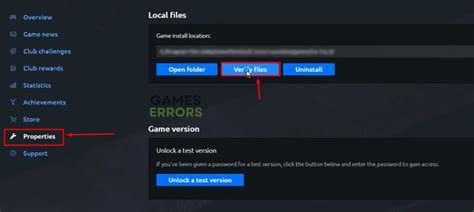
Corrupted game files can lead to inexplicable performance issues. Most game launchers (Steam, Epic Games, GOG, etc.) have an option to ‘Verify Integrity of Game Files’, which scans for and replaces any damaged or missing files.
BIOS/UEFI Settings
Check your BIOS/UEFI for settings like:
- XMP (Extreme Memory Profile): Ensure your RAM is running at its advertised speed.
- Resizable BAR/Smart Access Memory (SAM): If your CPU and GPU support it, enabling this can sometimes boost performance.
- CPU Virtualization: If enabled and not needed, can sometimes cause slight overhead.
Be cautious when changing BIOS settings, and only adjust those you understand.
Preventative Measures and Ongoing Maintenance
To keep your gaming PC running smoothly, adopt a routine of preventative maintenance:
- Regular Cleaning: Dust out your PC every few months.
- Driver Updates: Keep your GPU and chipset drivers current.
- Monitor Temperatures: Keep an eye on CPU and GPU temps.
- Storage Management: Ensure you have enough free space on your drives.
- Malware Scans: Periodically scan for viruses and malware.
Conclusion
Diagnosing and fixing frame drops or stuttering requires a systematic approach, starting with monitoring and moving through software and hardware checks. By carefully applying the steps outlined in this guide, you can identify the root cause of your performance issues and restore your gaming PC to its optimal state, ensuring a smooth and enjoyable gaming experience.


