





How to diagnose and fix intermittent FPS drops in PC competitive games?

Intermittent Frame Rate (FPS) drops can be one of the most frustrating issues for any PC gamer, especially in competitive titles where every millisecond counts. These sudden dips can turn a winning play into a lost match and ruin the overall gaming experience. Unlike consistent low FPS, intermittent drops are harder to pinpoint, often feeling random and unpredictable. This guide will walk you through a systematic approach to diagnose and fix these elusive performance hiccups.
Understanding Intermittent FPS Drops
Intermittent FPS drops are brief, sudden decreases in your game’s frame rate, often returning to normal shortly after. They can manifest as momentary stutters, freezes, or general sluggishness. The key differentiator from consistent low FPS is their irregular nature. While low FPS might indicate an underpowered system, intermittent drops usually point to specific bottlenecks or conflicting processes.
Common Culprits Behind FPS Drops
Identifying the root cause is crucial. Intermittent drops can stem from a variety of sources, both hardware and software related.
Hardware-Related Issues:
- Overheating: CPU or GPU throttling due to excessive temperatures can cause performance dips.
- Outdated or Corrupt Drivers: Graphics card, chipset, or even audio drivers can cause instability.
- Insufficient Power Supply (PSU): A struggling PSU might not provide stable power to components under load.
- RAM Instability: Faulty RAM sticks or incorrect XMP profiles can lead to system instability.
- Storage Performance: A slow or failing SSD/HDD can cause stutters during asset loading.
Software-Related Issues:
- Background Applications: Resource-intensive apps running in the background (browsers, antivirus scans, streaming software).
- Operating System Instability: Corrupt system files, recent Windows updates, or malware.
- Game-Specific Bugs: Certain game updates or settings might introduce performance issues.
- Power Management Settings: Windows power plans not set to ‘High Performance’.
- Overlays and Monitoring Software: Sometimes, these tools can conflict with games.
Step-by-Step Diagnosis and Fixes
A systematic approach is key. Don’t change multiple things at once; test after each potential fix to identify the exact cause.
1. Monitor Your System
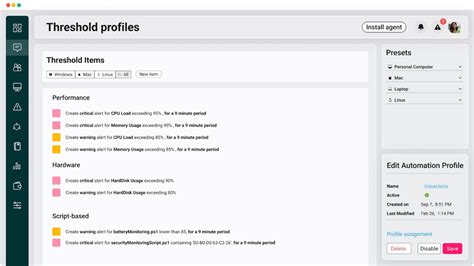
Begin by monitoring your CPU, GPU, and RAM usage, along with temperatures, while gaming. Tools like MSI Afterburner (with RivaTuner Statistics Server), HWMonitor, or CapFrameX can provide real-time data.
- Look for: Sudden temperature spikes (CPU/GPU), unusual drops in clock speed, or 100% usage spikes in any component right when the FPS drop occurs.
2. Update and Clean Drivers
Outdated or corrupt graphics drivers are a very common culprit.
- Graphics Drivers: Use Display Driver Uninstaller (DDU) in Windows Safe Mode to completely remove old drivers, then install the latest stable version directly from NVIDIA, AMD, or Intel’s website.
- Chipset Drivers: Update motherboard chipset drivers from your motherboard manufacturer’s website.
3. Check Temperatures and Cooling
High temperatures lead to thermal throttling.
- Clean Your PC: Dust accumulation can severely hinder cooling. Clean fans, heatsinks, and vents.
- Thermal Paste: Consider reapplying thermal paste on your CPU and GPU (if comfortable) if temperatures remain high.
- Fan Curves: Adjust fan curves for CPU and GPU in BIOS/UEFI or utility software to be more aggressive.
4. Optimize Background Processes and Startup Programs
Minimize what’s running alongside your game.
- Task Manager: Close unnecessary applications from the Task Manager (Ctrl+Shift+Esc).
- Startup Apps: Disable non-essential startup programs via Task Manager > Startup tab.
- Game Mode: Ensure Windows Game Mode is enabled (Settings > Gaming > Game Mode).
5. Adjust In-Game Settings
Sometimes, specific in-game settings can cause issues.
- Lower Settings: Temporarily lower graphics settings (shadows, anti-aliasing, view distance) to see if drops persist.
- Cap FPS: Try capping your FPS slightly below your monitor’s refresh rate (e.g., 141 FPS for a 144Hz monitor) or your average stable FPS using an in-game limiter or RivaTuner.
6. Power Management and BIOS Settings
Ensure your system is always delivering full power.
- Windows Power Plan: Set to ‘High Performance’ in Control Panel > Power Options.
- PCIe Power Management: In Power Options > Change advanced power settings > PCI Express > Link State Power Management, set to ‘Off’.
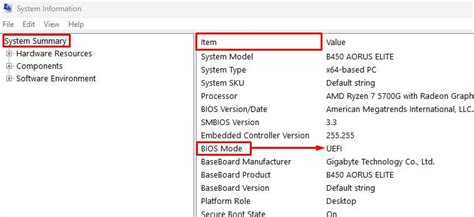
- BIOS/UEFI: Ensure XMP/DOCP is correctly set for your RAM. Disable any power-saving features that might aggressively downclock components.
7. Scan for Malware and Corrupt System Files
- Antivirus Scan: Run a full scan with your preferred antivirus software.
- SFC and DISM: Run
sfc /scannowandDISM /Online /Cleanup-Image /RestoreHealthin an elevated Command Prompt to repair corrupt Windows files.
Advanced Troubleshooting
If the above steps don’t resolve the issue, consider these more involved solutions.
Test Hardware Components
- Stress Test: Use FurMark for GPU, Prime95 for CPU, and MemTest86 for RAM to check for stability.
- Swap Components: If possible, test with a different GPU, RAM sticks, or even PSU to isolate a faulty component.
Reinstall the Game or Windows
- Game Reinstallation: A clean reinstall of the problematic game can fix corrupt game files.
- Fresh Windows Install: As a last resort, a clean installation of Windows can eliminate deep-seated software conflicts or corruption. Remember to back up your data.
Maintaining Performance
Preventative measures can help keep intermittent FPS drops at bay.
- Regularly clean your PC from dust.
- Keep drivers updated, but always check for stability reports before updating immediately.
- Monitor your system’s temperatures periodically.
- Avoid installing unnecessary software.

Conclusion
Intermittent FPS drops are a vexing problem, but with patience and a systematic approach, they are often solvable. By methodically diagnosing potential hardware and software conflicts, you can restore your PC’s peak performance and enjoy a smoother, more competitive gaming experience. Remember to test after each change to effectively identify the specific fix.


