





How to diagnose & fix common FPS drops in PC gaming setups?

There’s nothing more frustrating for a PC gamer than experiencing sudden, inexplicable drops in frame rate (FPS) during an intense gaming session. These dips can turn a smooth, immersive experience into a stuttering nightmare, impacting your performance and enjoyment. Identifying the root cause can be tricky, as many factors, both software and hardware related, can contribute to inconsistent FPS. This guide will walk you through a systematic approach to diagnose and resolve common FPS drop issues in your PC gaming setup.
Understanding FPS Drops
Before diving into fixes, it’s crucial to understand what FPS is and why consistent frame rates are vital. FPS, or frames per second, is the measure of how many individual frames a display can show in one second. Higher FPS generally translates to a smoother, more responsive gaming experience. Drops occur when your system struggles to render frames at a consistent rate, leading to visible stuttering or choppiness.
Diagnosing the Problem: A Systematic Approach
Troubleshooting FPS drops requires a methodical approach. Start with the easiest checks and gradually move to more complex diagnostics.
Software-Related Issues
- Outdated or Corrupt Drivers: Graphics card drivers are paramount for gaming performance. Outdated, corrupt, or incorrectly installed drivers are frequent culprits for FPS issues. Chipset and other peripheral drivers can also play a role.
- Background Applications: Resource-intensive applications running in the background (web browsers with many tabs, streaming software, antivirus scans, cloud storage syncs) can hog CPU and RAM, leaving fewer resources for your game.
- Game Settings: Running a game with settings too high for your hardware is a direct path to low FPS. Features like ultra textures, ray tracing, or high anti-aliasing demand significant GPU power.
- Operating System & Power Plan: An outdated Windows version can lack performance optimizations. Ensure your Windows power plan is set to “High Performance” or “Ultimate Performance” during gaming.
- Malware/Viruses: Malicious software can consume system resources, leading to performance degradation.

Hardware-Related Issues
- Overheating: When components like your CPU or GPU get too hot, they automatically “throttle” down their performance to prevent damage. This thermal throttling is a primary cause of sudden FPS drops.
- Inadequate Components: While modern GPUs are powerful, an older or lower-tier graphics card or CPU might simply not be powerful enough to run demanding new games at desired frame rates, especially at higher resolutions. Insufficient RAM (less than 16GB for many modern titles) can also cause stuttering.
- Power Supply Unit (PSU): An underpowered or failing PSU might not deliver stable power to your components, leading to instability and performance drops, particularly under load.
- Storage: While less impactful on in-game FPS, a slow hard drive can cause texture pop-in or stuttering during loading if game assets aren’t loading fast enough. Ensure games are on an SSD if possible.
Fixing FPS Drops: Practical Solutions
1. Update Your Drivers
Always ensure your graphics card drivers are up to date. Visit NVIDIA, AMD, or Intel’s official websites to download the latest stable drivers. Consider a clean installation using Display Driver Uninstaller (DDU) if previous installations were problematic.
2. Optimize Game Settings
Experiment with in-game settings. Start by lowering demanding options like texture quality, anti-aliasing, shadow quality, and view distance. Use benchmark tools or online guides specific to your game and GPU to find the sweet spot between visual fidelity and performance.
3. Close Background Applications
Before launching a game, close any unnecessary programs. Use Task Manager (Ctrl+Shift+Esc) to identify and end processes that are consuming significant CPU or RAM resources.
4. Monitor Temperatures
Use monitoring software like HWMonitor, MSI Afterburner, or NZXT CAM to keep an eye on your CPU and GPU temperatures during gaming. If temperatures consistently exceed 85°C (185°F), you have an overheating issue.
5. Improve Cooling & Clean Your PC
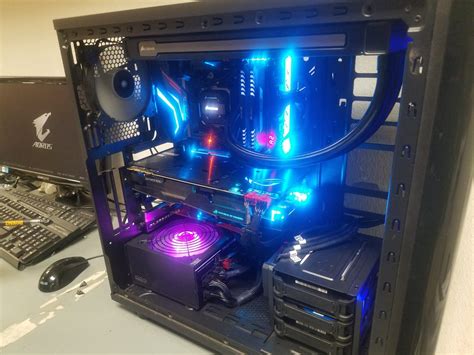
If overheating is an issue, improve your case airflow (add fans, reconfigure existing ones). Clean dust from CPU coolers, GPU heatsinks, and case fans. Consider reapplying thermal paste to your CPU or GPU if comfortable.
6. Adjust Power Settings
In Windows, navigate to Power Options and select a “High Performance” or “Ultimate Performance” plan. For NVIDIA GPUs, go to NVIDIA Control Panel > Manage 3D settings > Power management mode and set it to “Prefer maximum performance.” AMD users have similar options in Radeon Software.
7. Scan for Malware
Run a full system scan using a reputable antivirus program to rule out any malicious software impacting performance.
8. Upgrade Components (If Necessary)
If, after all troubleshooting, your hardware simply isn’t meeting the game’s requirements, a component upgrade (GPU, CPU, RAM) might be the only solution. Research benchmarks for your desired games and resolution to identify bottlenecks.
Conclusion
FPS drops can be infuriating, but with a systematic approach, most issues can be identified and resolved. By diligently checking your drivers, optimizing settings, monitoring temperatures, and ensuring your system is clean and free of background clutter, you can bring your PC gaming experience back to smooth, consistent frame rates. Happy gaming!


