How to effectively troubleshoot game mod conflicts for stability?
Modding games can vastly enhance your gaming experience, introducing new content, visual overhauls, and gameplay mechanics. However, with the freedom to customize comes the challenge of ensuring stability. Game mod conflicts are a common hurdle that can lead to crashes, freezes, corrupted saves, or unexpected in-game behavior. Understanding how to effectively troubleshoot these conflicts is crucial for any avid modder.
Understanding Mod Conflicts
Mod conflicts arise when two or more mods try to modify the same game file, script, or resource in incompatible ways. This can manifest in several forms:
- File Overwrites: When one mod replaces or alters a file that another mod also needs or modifies, often leading to only one mod’s changes taking effect, or worse, game instability.
- Load Order Issues: The order in which mods are loaded can dictate which mod ‘wins’ a conflict. An incorrect load order can cause features to break or games to crash.
- Script Conflicts: Multiple mods trying to execute conflicting scripts simultaneously can cause game logic to break.
- Missing Dependencies: Some mods require other specific mods or game versions to function correctly. Failing to meet these requirements often leads to immediate crashes.
- Incompatible Versions: Mods designed for older or newer game versions might not work with your current game version, or with other mods designed for different versions.

Initial Diagnostic Steps
When your game starts misbehaving after installing new mods, a systematic approach to diagnosis is key:
- Reproduce the Issue: Try to consistently trigger the crash or bug. Where and when does it happen? This helps narrow down the scope.
- Check Crash Logs: Many games or modding tools generate crash logs. These logs often provide valuable clues, pointing to specific files, scripts, or memory addresses involved in the crash. Learn to interpret them, or use tools that can parse them.
- Disable Recently Installed Mods: If the issue started after adding new mods, disable them one by one or in small batches to identify the culprit.
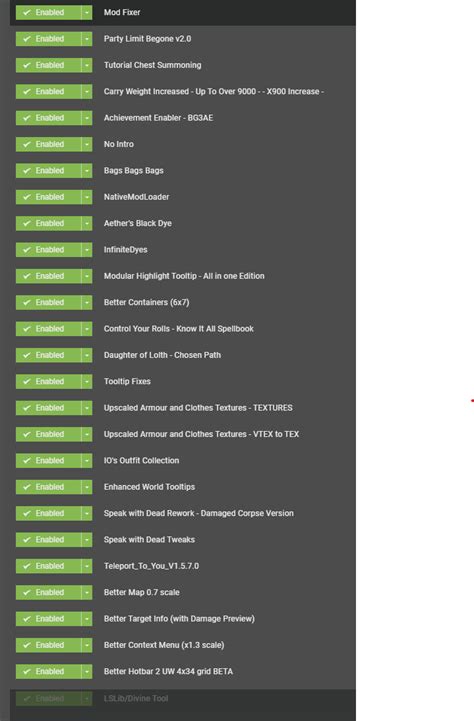
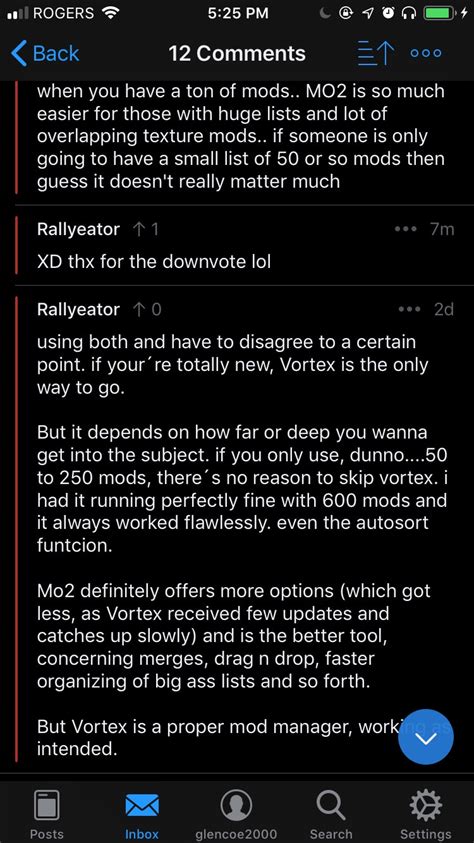
- Use a Mod Manager: Tools like Mod Organizer 2 (MO2) or Vortex are indispensable. They often have built-in conflict detection features, showing which files are being overwritten and by which mods. They also allow for easy enabling/disabling of mods and profile management.
Systematic Conflict Identification: The Binary Search Method
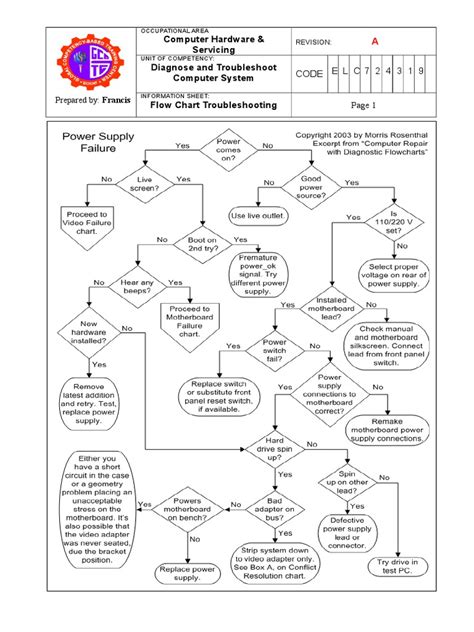
If the problem isn’t immediately obvious, the binary search method is a powerful technique for isolating problematic mods:
- Divide Your Mods: Disable half of your currently active mods.
- Test the Game: If the problem persists, the conflicting mod is in the half that is still enabled. If the problem is gone, it’s in the half you disabled.
- Repeat: Continue halving the problematic set of mods and testing until you’ve narrowed it down to a single mod or a very small group. This method significantly reduces the time it takes to find a specific conflict.
Resolution Strategies
Once you’ve identified the conflicting mods, here’s how to resolve them:
1. Load Order Management
For games like those from Bethesda (Skyrim, Fallout), load order is paramount. Tools like LOOT (Load Order Optimization Tool) can automatically sort your plugins for optimal stability. However, always review LOOT’s suggestions and make manual adjustments based on specific mod instructions or compatibility patches.
2. Compatibility Patches
Many popular mods have dedicated compatibility patches created by their authors or the community. Always check the mod pages for such patches, as they are often the easiest solution for known conflicts.
3. Manual Conflict Resolution (Advanced)
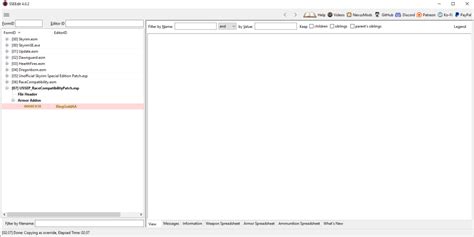
For more complex conflicts, especially with mods that modify the same records (e.g., changes to an NPC’s stats or an item’s properties), you might need to manually resolve them using tools like xEdit (for Bethesda games) or similar game-specific editors. This involves creating a ‘patch’ that combines the desired changes from both conflicting mods, ensuring both can coexist.
This is an highly advanced technique that requires careful attention and understanding of how game records work. Always back up your files before attempting manual resolution.
4. Read Mod Descriptions Thoroughly
The most basic, yet often overlooked, step. Mod authors frequently list known incompatibilities, required dependencies, and specific installation instructions on their mod pages. Reading these carefully can prevent many conflicts before they even occur.
Preventative Measures for a Stable Modded Game
Prevention is always better than cure. Adopt these habits to minimize future conflicts:
- Install One Mod at a Time: And test your game after each installation. This makes it incredibly easy to pinpoint a problematic mod immediately.
- Backup Regularly: Both your game saves and your modding profiles/installations.
- Use a Reputable Mod Manager: MO2 and Vortex are excellent choices that virtualize your mods, preventing direct alteration of your game’s data folder and making troubleshooting much cleaner.
- Stay Updated: Keep your game and essential modding tools updated, but also be cautious with new game updates, as they can break existing mods.
- Research Compatibility: Before downloading, quickly search for known conflicts between your desired mod and others you already have installed.

Conclusion
Troubleshooting game mod conflicts can seem daunting, but by adopting a systematic approach, understanding the common causes, and utilizing the right tools, you can resolve most issues. The key is patience, attention to detail, and a willingness to learn from your modding adventures. A stable modded game is a rewarding experience, so embrace the challenge and enjoy the vast worlds that modding opens up!