





How to enable G-Sync/FreeSync & maximize monitor refresh rates for smoother gaming?
Unlocking Ultra-Smooth Gaming: G-Sync, FreeSync, and High Refresh Rates
For PC gamers, achieving the smoothest possible gameplay is paramount. Screen tearing, stuttering, and input lag can break immersion and even impact performance in competitive titles. Fortunately, modern display technologies like NVIDIA’s G-Sync and AMD’s FreeSync, combined with high monitor refresh rates, offer solutions to these common frustrations. This guide will walk you through the steps to enable these features and ensure your monitor is running at its optimal refresh rate for an unparalleled gaming experience.
Understanding Adaptive Sync: G-Sync vs. FreeSync
At its core, adaptive sync technology (G-Sync and FreeSync) aims to synchronize your monitor’s refresh rate with the frame rate output by your graphics card. This eliminates visual artifacts like screen tearing, which occurs when your GPU renders frames faster or slower than your monitor can display them, and stuttering, which happens when frame rates fluctuate significantly. The result is buttery-smooth, tear-free visuals.
- NVIDIA G-Sync: NVIDIA’s proprietary solution, G-Sync, requires a special hardware module built into the monitor. It generally offers premium performance and features but comes at a higher cost.
- AMD FreeSync: Based on the VESA Adaptive Sync standard, FreeSync is an open-source alternative. It doesn’t require a dedicated hardware module, making FreeSync monitors generally more affordable and widely available.

Checking Your Monitor’s Capabilities and Current Refresh Rate
Before you begin, it’s crucial to confirm your monitor and graphics card support these technologies:
- Check Monitor Specs: Refer to your monitor’s documentation or the manufacturer’s website to see if it’s G-Sync Compatible, G-Sync Ultimate, or FreeSync/FreeSync Premium/FreeSync Premium Pro.
- Check GPU: NVIDIA GPUs (GTX 10-series or newer) support G-Sync/G-Sync Compatible. AMD GPUs (RX 400 series or newer) support FreeSync.
- Current Refresh Rate (Windows): Right-click on your desktop, select ‘Display settings’, scroll down to ‘Advanced display settings’. You’ll see your current refresh rate listed.
Enabling NVIDIA G-Sync
If you have an NVIDIA GPU and a G-Sync compatible monitor, follow these steps:
- Connect with DisplayPort: G-Sync requires a DisplayPort cable. Ensure it’s connected from your GPU to your monitor.
- Enable G-Sync on Monitor OSD: Access your monitor’s On-Screen Display (OSD) menu and ensure G-Sync (or ‘Adaptive Sync’ if it’s G-Sync Compatible) is enabled.
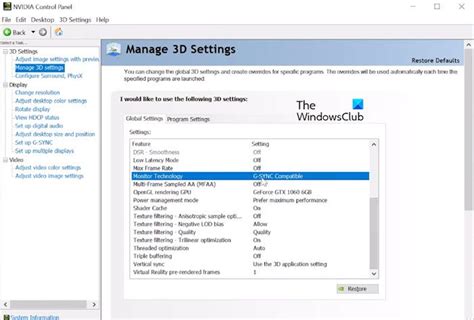
- Open NVIDIA Control Panel: Right-click on your desktop and select ‘NVIDIA Control Panel’.
- Set up G-Sync: In the left pane, navigate to ‘Display’ > ‘Set up G-SYNC’.
- Enable G-SYNC: Check the box for ‘Enable G-SYNC, G-SYNC Compatible’. You may also need to select your monitor from the list.
- Apply Settings: Choose whether to enable G-SYNC for full screen mode, windowed mode, or both, then click ‘Apply’.

Enabling AMD FreeSync
For AMD GPU users with a FreeSync compatible monitor:
- Connect with DisplayPort or HDMI: FreeSync works over both DisplayPort and HDMI (check monitor specs for HDMI FreeSync support). Use the recommended cable for your monitor’s highest refresh rate.
- Enable FreeSync on Monitor OSD: Access your monitor’s OSD menu and enable ‘FreeSync’ or ‘Adaptive Sync’.
- Open AMD Radeon Software: Right-click on your desktop and select ‘AMD Radeon Software’.
- Navigate to Display Settings: Click on the ‘Settings’ icon (gear) in the top right, then go to the ‘Display’ tab.
- Activate FreeSync: Ensure ‘Radeon FreeSync’ is toggled to ‘Enabled’ for your connected display.

Maximizing Your Monitor’s Refresh Rate
Even with adaptive sync, you’ll want to ensure your monitor is running at its highest possible refresh rate (e.g., 144Hz, 240Hz). Here’s how:
- Windows Display Settings:
- Right-click desktop > ‘Display settings’.
- Scroll down and click ‘Advanced display settings’.
- Under ‘Choose a refresh rate’, select the highest available option for your monitor.
- NVIDIA Control Panel:
- Open NVIDIA Control Panel > ‘Change resolution’ under ‘Display’.
- Select your display. Under ‘Refresh rate’, choose the highest available Hz.
- AMD Radeon Software:
- Open AMD Radeon Software > ‘Settings’ (gear icon) > ‘Display’ tab.
- Under ‘Display Options’, you’ll see a ‘Refresh Rate’ dropdown to select the maximum.
- Verify Cable: Ensure you’re using a cable that supports your desired refresh rate. DisplayPort is generally preferred for high refresh rates and resolutions. High-speed HDMI cables can also support high refresh rates, depending on the version.

Verifying Your Settings and Enjoying the Difference
After enabling G-Sync/FreeSync and setting the maximum refresh rate, you can verify it’s working:
- Monitor OSD: Some monitors have an on-screen indicator for G-Sync/FreeSync status.
- NVIDIA/AMD Software: The control panels often confirm active adaptive sync.
- Test Programs: Websites like TestUFO can help visualize refresh rates and frame rates.
- In-Game FPS Counter: Monitor your in-game frame rate to ensure it’s close to or below your monitor’s maximum refresh rate for optimal adaptive sync performance.
The difference will be immediate: fluid motion, no tearing, and a significantly more responsive feel that enhances both competitive and casual gaming alike.
Troubleshooting Common Issues
- Black Screen/No Signal: Ensure your display cable is firmly seated and of the correct type (DisplayPort for most G-Sync, high-bandwidth for high refresh rates).
- Adaptive Sync Not Appearing: Check your monitor’s OSD to ensure the feature is enabled there first. Update your graphics drivers to the latest version.
- Lower Refresh Rate Than Expected: Your cable might not support the full bandwidth required for high resolutions and refresh rates. Try a different cable.

Conclusion
Enabling G-Sync or FreeSync and maximizing your monitor’s refresh rate are among the most impactful upgrades you can make to your PC gaming experience, short of a new GPU. These settings eliminate distracting visual artifacts, improve input responsiveness, and ultimately provide a smoother, more immersive, and more enjoyable gameplay environment. By following these steps, you’ll be well on your way to experiencing your favorite games exactly as their developers intended – with unparalleled fluidity and visual fidelity.


