





How to find quality, compatible game mods & troubleshoot installation issues?
Embrace the World of Game Modding
Game modding breathes new life into your favorite titles, offering everything from subtle visual tweaks and quality-of-life improvements to entirely new quests, characters, and gameplay mechanics. However, navigating the vast universe of user-created content can be daunting. Finding mods that are not only high-quality but also compatible with your game version and other installed modifications is key to a stable and enjoyable experience. This guide will help you confidently explore, install, and troubleshoot game mods.

Identifying & Sourcing Quality Mods
The first step to a successful modding journey is knowing where to look and what to look for. Not all mods are created equal, and some can cause more headaches than they’re worth. Reliable sources are paramount.
Where to Find Them:
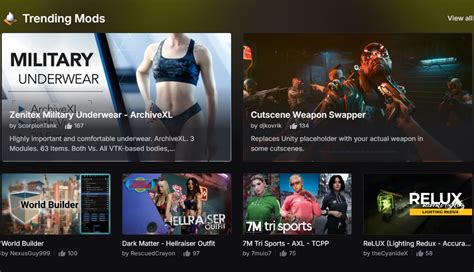
- Nexus Mods: Arguably the largest and most well-organized modding hub for a vast array of games. It features robust community tools, tracking, and mod managers.
- Steam Workshop: Convenient for many games, as mods integrate directly with Steam. While easy to use, detailed compatibility information can sometimes be less prominent.
- Official Game Forums & Communities: Many games have dedicated subreddits or official forums where modders share their creations and offer support.
- ModDB: Another long-standing platform, particularly good for older titles and total conversions.
What Defines Quality:
- Endorsements & Downloads: High numbers often indicate a popular, well-received, and stable mod.
- Active Development & Updates: Mods frequently updated by their creators are more likely to be stable, fix bugs, and adapt to game patches. Check the ‘Last Updated’ date.
- Clear Descriptions & Instructions: A good mod page will clearly explain what the mod does, its requirements, compatibility notes, and detailed installation steps.
- User Reviews & Bug Reports: Read through comments. They often highlight common issues, workarounds, or confirm the mod’s stability.
- Mod Author Reputation: Experienced mod authors often have a history of releasing reliable content.
Ensuring Mod Compatibility
Compatibility is the cornerstone of a stable modded game. Ignoring it is a recipe for crashes, glitches, and corrupted save files. Always assume mods will conflict until proven otherwise.
Read Mod Descriptions Thoroughly:
This cannot be stressed enough. Mod authors often list specific requirements (e.g., a certain DLC, another framework mod like SKSE for Skyrim), known conflicts with other popular mods, and the exact game version their mod supports. If a mod hasn’t been updated for a new game patch, it might not work correctly, or worse, it could break your game.
Utilize Mod Managers:
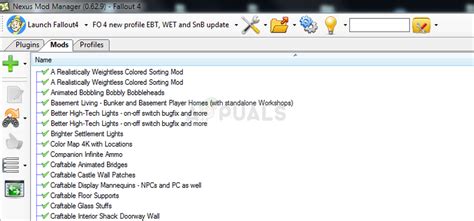
For complex modding, especially with games like Skyrim or Fallout, mod managers like Vortex or Mod Organizer 2 (MO2) are indispensable. They manage installations, detect conflicts, handle load orders, and allow for easy enabling/disabling of mods without affecting your game’s core files.
Manage Load Order:
The order in which mods load can significantly impact compatibility. Some mods need to load before others to function correctly or to ensure their changes are applied. Mod managers usually have built-in tools for optimizing load order (e.g., LOOT for Bethesda games), but manual adjustments may sometimes be necessary based on specific mod instructions.
Conflict Resolution:
Even with careful planning, conflicts can arise. Tools like FO4Edit/SSEEdit can help identify exactly which records are conflicting between mods, allowing you to create a patch or decide which mod’s changes you want to prioritize.
Troubleshooting Common Installation Issues
Even seasoned modders encounter problems. Knowing how to diagnose and fix them is a crucial skill.
Common Symptoms:
- Game Crashes to Desktop (CTD): Often indicative of severe conflicts, missing masters, or an unstable mod.
- Missing Textures/Meshes: Objects appearing purple, pink, or invisible. Usually means a file isn’t where it should be or a texture path is incorrect.
- Incorrect Behavior/Glitches: NPCs acting strangely, quests not progressing, or abilities not working as described.
- Game Won’t Launch: A very serious conflict or a core game file modification gone wrong.
Basic Troubleshooting Steps:
- Re-read Mod Instructions: Did you miss a critical step, like installing a prerequisite or running a patcher?
- Verify Game Files: Use your game client (Steam, Epic, GOG) to verify the integrity of your game files. This can fix issues caused by corrupted vanilla files.
- Disable Mods Incrementally: If your game is crashing, disable recently installed mods one by one to identify the culprit. Start with the most recent additions.
- Check Load Order: Ensure your load order is optimized. Use tools like LOOT if available for your game.
- Clean Installation: For persistent issues, a complete clean install of the game (uninstall, manually delete residual folders, reinstall) followed by a careful re-installation of mods can resolve deep-seated problems.

Seeking Community Support:
Don’t suffer in silence! The modding community is often incredibly helpful. When seeking help:
- Provide Details: State your game, game version, mod list, mod manager used, and a clear description of the problem, including any error messages.
- Check Mod Pages: Often, common issues are already addressed in the mod’s comment section or FAQ.
- Relevant Forums/Subreddits: Post your issue on Nexus Forums, game-specific subreddits, or official modding discords.

Conclusion
Modding offers unparalleled freedom to customize your gaming experience, but it requires patience, attention to detail, and a systematic approach. By carefully selecting quality mods, prioritizing compatibility, and understanding basic troubleshooting techniques, you can transform your favorite games into truly unique and stable adventures. Happy modding!

