





How to fix high ping in online games? Router settings, Ethernet vs Wi-Fi tips?
High ping, often referred to as “lag,” is the bane of any online gamer’s existence. It manifests as delays between your actions and what happens in the game, leading to frustrating disconnects, missed shots, and an overall terrible experience. Understanding why ping is high and how to mitigate it is crucial for a smooth and enjoyable gaming session. This guide will walk you through various strategies, from optimizing your router settings to understanding the fundamental differences between Ethernet and Wi-Fi connections.
What Causes High Ping and Why it Matters?
Ping is a measurement of the time it takes for a data packet to travel from your computer to a game server and back, measured in milliseconds (ms). A lower ping is always better. High ping can be caused by various factors including slow internet speeds, an overloaded home network, outdated router firmware, physical distance to the game server, or even issues with your Internet Service Provider (ISP).
Optimize Your Router Settings
Your router is the central hub of your home network, and its settings can significantly impact your gaming performance. Tweaking a few things can yield substantial improvements.

Update Router Firmware
Router manufacturers frequently release firmware updates that can improve performance, security, and stability. Check your router’s administration page (usually via a web browser using an IP like 192.168.1.1 or 192.168.0.1) for update options, or visit the manufacturer’s website.
Enable Quality of Service (QoS)
QoS is a feature on many modern routers that allows you to prioritize certain types of network traffic. By enabling QoS and prioritizing your gaming device or specific game traffic, you ensure that your game’s data packets are sent ahead of less time-sensitive data, like streaming video or large downloads.
Change Wi-Fi Channels
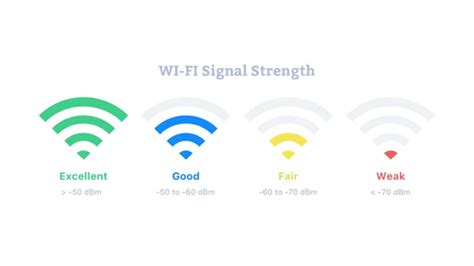
If you’re using Wi-Fi, interference from neighboring networks can degrade your signal. Most routers operate on 2.4GHz and 5GHz bands, each with multiple channels. Use a Wi-Fi analyzer tool on your smartphone to identify less congested channels in your area and manually switch your router to one of them. The 5GHz band generally offers faster speeds and less interference, making it better for gaming if your device is close to the router.
Adjust DNS Settings
Your router uses a Domain Name System (DNS) server to translate website names into IP addresses. While your ISP provides a default DNS, using a faster, public DNS like Google DNS (8.8.8.8 and 8.8.4.4) or Cloudflare DNS (1.1.1.1 and 1.0.0.1) can sometimes reduce latency by improving the speed of these lookups.
Proper Router Placement
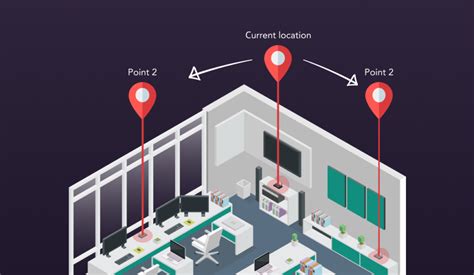
For Wi-Fi users, placing your router in a central location, elevated, and away from obstructions (walls, large appliances, metal objects) can significantly improve signal strength and reduce latency. The closer your gaming device is to the router, the better.
Reboot Your Router Regularly
A simple reboot can often resolve many temporary network issues. Just like a computer, routers can accumulate errors or get bogged down over time. Unplugging it for 30 seconds and plugging it back in can clear its cache and refresh its connection.
Ethernet vs. Wi-Fi: The Definitive Choice for Gaming
This is arguably the most impactful change you can make. While Wi-Fi offers convenience, it simply cannot match the stability and speed of a wired Ethernet connection for online gaming.
Why Ethernet Wins
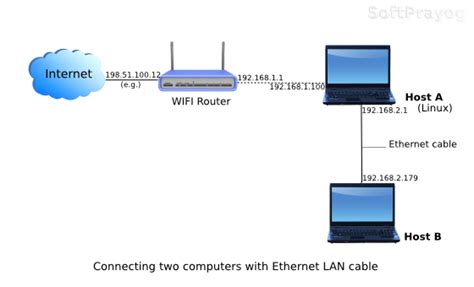
Ethernet cables provide a direct, physical connection between your gaming device and the router. This eliminates many common sources of latency and packet loss inherent in wireless connections:
- Stability: Wired connections are not susceptible to wireless interference from other devices (microwaves, cordless phones, neighbor’s Wi-Fi) or physical obstructions.
- Lower Latency: Data travels more directly and reliably, resulting in consistently lower ping.
- Higher Bandwidth: Ethernet typically offers faster, more consistent speeds, which, while not as critical as latency for gaming, ensures ample bandwidth for game data.
When Wi-Fi Might Be Okay (and how to optimize it)
If running an Ethernet cable isn’t feasible, you can try to optimize your Wi-Fi:
- Use 5GHz Band: If your router and device support it, use the 5GHz band for less interference and higher speeds, but remember its range is shorter.
- Minimize Distance: Keep your gaming device as close to the router as possible.
- Reduce Interference: Avoid placing your router near other electronics or large metal objects.
- Mesh Wi-Fi/Powerline Adapters: Consider these solutions to extend coverage or create a wired-like connection where direct Ethernet isn’t possible.
Additional Tips to Reduce Ping
Beyond your router and connection type, several other factors can influence your in-game latency.
Close Background Applications
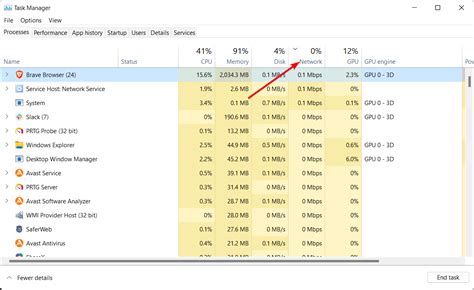
Ensure no other applications on your gaming device are consuming significant bandwidth (e.g., large downloads, streaming services, cloud backups). Close them before gaming.
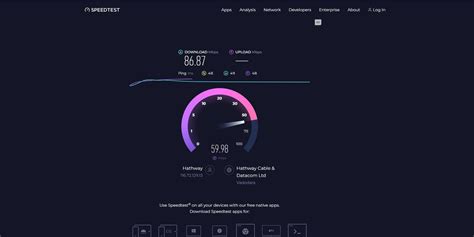
Check Your Internet Speed and ISP Plan
While extremely high speeds aren’t always necessary for low ping, a very slow connection can certainly be a bottleneck. Contact your ISP to verify your current speeds and consider upgrading if they are consistently low or if you have many users on your network.
Select the Right Game Server Region
Many online games allow you to select a server region. Always choose the server geographically closest to you for the lowest possible ping. Playing on servers across continents will almost always result in high ping.
Update Network Drivers
Ensure your network adapter drivers on your PC are up to date. Outdated drivers can sometimes cause performance issues or inefficiencies in data handling.
Avoid VPNs for Gaming (Usually)
While VPNs offer privacy, they typically add an extra hop and encryption overhead to your connection, increasing ping. Only use a VPN for gaming if it specifically routes you through a faster path to a geographically distant server, which is rare.
Conclusion
Tackling high ping in online games often requires a multi-faceted approach. By systematically optimizing your router settings, prioritizing a wired Ethernet connection, and implementing additional network best practices, you can significantly reduce latency and enjoy a much smoother, more responsive gaming experience. Start with the simplest fixes, like a router reboot or switching to Ethernet, and work your way through more advanced settings to pinpoint and resolve your specific lag issues.


