





How to fix low FPS in PC games after driver update?

Updating graphics drivers is usually a routine maintenance task aimed at improving game performance, stability, and compatibility with new titles. However, it’s not uncommon for a driver update to unexpectedly lead to a drop in frame rates (FPS) in your favorite PC games. This can be frustrating, turning an anticipated upgrade into a perplexing downgrade. Fortunately, most low FPS issues after a driver update are fixable with a methodical approach.
Why Does This Happen?
Several factors can contribute to a performance dip after a driver update. The new driver might contain a bug specific to your hardware configuration, or it might not have installed cleanly, leaving behind corrupted files or conflicting settings from the previous version. Sometimes, the update simply resets your in-game or control panel settings to defaults that aren’t optimal for performance. Identifying the root cause is the first step towards a solution.
Step 1: Roll Back Your Driver
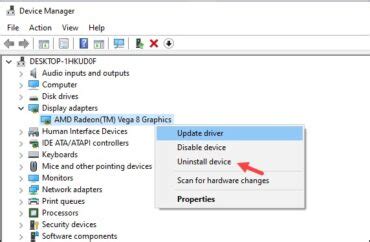
If your low FPS issue began immediately after a driver update, the quickest fix is often to revert to the previous stable driver version. Windows provides a built-in option to roll back drivers:
- Press
Windows Key + Xand select ‘Device Manager’. - Expand ‘Display adapters’, right-click on your graphics card, and select ‘Properties’.
- Go to the ‘Driver’ tab and click ‘Roll Back Driver’.
- Follow the on-screen prompts. If the option is greyed out, Windows may not have a previous driver version stored.
If rolling back isn’t an option or doesn’t resolve the issue, you’ll need to proceed with a clean installation.
Step 2: Perform a Clean Driver Installation
A clean installation ensures that all remnants of old drivers are removed before the new driver is installed, preventing conflicts. This is often the most effective solution.
Using DDU (Display Driver Uninstaller)
DDU is a third-party utility highly recommended for completely uninstalling graphics drivers:
- Download the latest version of Display Driver Uninstaller (DDU).
- Download the stable graphics driver version from your GPU manufacturer’s website (NVIDIA, AMD, Intel) that you wish to install.
- Disconnect your internet to prevent Windows from automatically installing drivers.
- Reboot your PC into Safe Mode (Search “msconfig”, go to Boot tab, check “Safe boot”).
- Run DDU, select your GPU manufacturer and choose ‘Clean and restart’.
- Once restarted in normal mode, install the downloaded graphics driver. Choose ‘Custom’ or ‘Advanced’ installation and check the ‘Perform a clean installation’ box if available (NVIDIA).
- Reconnect to the internet.
Step 3: Check In-Game and Graphics Control Panel Settings
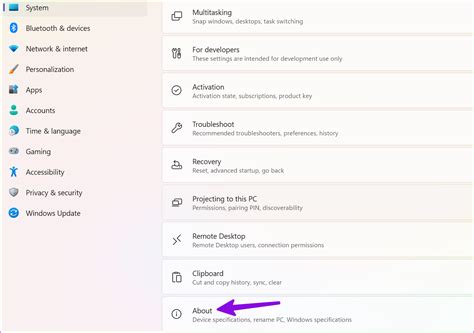
Sometimes, driver updates can reset your graphics settings to sub-optimal defaults. Make sure to:
- Verify In-Game Settings: Open your game and check that resolution, texture quality, anti-aliasing, and other graphics options are set appropriately for your hardware. Sometimes, an update might default to higher settings than your system can handle.
- Review Graphics Control Panel: Open NVIDIA Control Panel or AMD Radeon Software. Ensure that global settings and program-specific settings for your games are optimized for performance, not quality. Look for settings like ‘Power management mode’ (set to ‘Prefer maximum performance’ for NVIDIA) or ‘Anti-Lag’/’Radeon Boost’ (AMD).
Step 4: Monitor System Temperatures and Power Settings
Overheating can lead to thermal throttling, where your CPU or GPU reduces its clock speed to prevent damage, resulting in lower FPS. Check your temperatures while gaming using monitoring software like HWMonitor or MSI Afterburner. Ensure your PC is adequately cooled.
Also, verify your Windows Power Plan. Go to Control Panel > Hardware and Sound > Power Options and select a ‘High performance’ or ‘Ultimate performance’ plan if available. For laptops, ensure it’s plugged in and set to performance mode.
Step 5: Disable Overlays and Background Applications
Overlays from Steam, Discord, Xbox Game Bar, or even third-party recording software can consume system resources and sometimes interfere with game performance, especially after a driver update. Temporarily disable these to see if performance improves. Similarly, close any unnecessary background applications before launching your game.
Step 6: Update Other System Drivers and BIOS (If Applicable)
While less common, an outdated chipset driver or BIOS version could potentially cause conflicts with a new graphics driver. Check your motherboard manufacturer’s website for any available updates for your chipset, audio, and network drivers, as well as BIOS updates. Proceed with caution when updating BIOS, as an improper update can brick your motherboard.
Step 7: Reinstall the Game (Last Resort)
In rare cases, game files themselves might become corrupted or incompatible with the new driver update. As a last resort, try uninstalling and then reinstalling the problematic game. Make sure to back up any save files if they are not cloud-synced.
Conclusion
Experiencing low FPS after a graphics driver update can be annoying, but it’s a common issue with a range of potential solutions. By systematically working through these troubleshooting steps—starting with rolling back, performing a clean installation, and checking your settings—you should be able to identify and resolve the problem, getting your gaming performance back on track. Patience and a methodical approach are key to restoring smooth gameplay.


