How to fix micro-stuttering for smoother PC gaming performance?

Understanding Micro-Stuttering in PC Gaming
Micro-stuttering is a frustrating phenomenon that can plague PC gamers, turning an otherwise smooth experience into a jarring series of subtle hitches. Unlike obvious low frame rates (FPS) where the entire game feels sluggish, micro-stuttering often manifests as brief, intermittent pauses or skips in an otherwise high-FPS environment. It can be incredibly difficult to diagnose because monitoring tools might report a high average FPS, yet the visual experience feels inconsistent and choppy. This article will delve into the causes of micro-stuttering and provide actionable steps to resolve it, ensuring a consistently fluid gaming experience.

Identifying the Root Causes
Pinpointing the exact cause of micro-stuttering can be challenging as it can stem from a variety of hardware, software, or driver-related issues. Understanding the common culprits is the first step towards a fix:
- Outdated or Conflicting Drivers: Graphics card drivers are often the primary suspect, but chipset, audio, and network drivers can also contribute. Conflicting driver versions or corrupted installations can lead to instability.
- Software Conflicts and Background Processes: Resource-intensive applications running in the background, antivirus software, or even gaming overlays (like Discord, Steam, GeForce Experience) can steal CPU cycles or GPU resources, causing momentary hitches.
- Power Management Settings: Your operating system’s power plan might be set to a balanced or power-saving mode, preventing your CPU or GPU from reaching their full potential during gaming.
- Hardware Bottlenecks: While less common for micro-stuttering specifically, an underpowered CPU struggling to keep up with a powerful GPU, insufficient or slow RAM, or even a slow storage drive (HDD over SSD) can introduce delays.
- In-Game Settings and Sync Technologies: Incorrectly configured V-Sync, G-Sync, or FreeSync settings, or overly aggressive in-game frame limits, can sometimes exacerbate stuttering instead of preventing it.
- Overheating: Components (especially CPU and GPU) throttling their performance due to high temperatures can cause sudden drops in frame delivery.
Systematic Troubleshooting Steps
To effectively combat micro-stuttering, a systematic approach is key. Start with the easiest and most common fixes, then move to more involved diagnostics.
1. Update and Clean Install Drivers
Always keep your graphics drivers up to date. Use the clean installation option when updating NVIDIA or AMD drivers to remove old, potentially conflicting files. Also, ensure your motherboard’s chipset drivers are current, as these facilitate communication between your CPU and other components. Don’t forget audio and network drivers.
2. Optimize Power Settings
Navigate to Windows ‘Power & Sleep settings’ > ‘Additional power settings’ and select the ‘High Performance’ plan. For NVIDIA GPUs, open the NVIDIA Control Panel, go to ‘Manage 3D settings’, then ‘Power management mode’ and set it to ‘Prefer maximum performance’. AMD has similar settings in Radeon Software.
3. Manage Background Processes and Overlays
Before launching a game, close any unnecessary applications from your taskbar or Task Manager. Disable gaming overlays from Discord, Steam, Xbox Game Bar, and GeForce Experience/Radeon Software, as these can sometimes interfere with game performance. Consider temporarily disabling antivirus software (at your own risk) to see if it’s a culprit.
4. Tweak In-Game and Sync Settings
Experiment with V-Sync. If you have a G-Sync or FreeSync monitor, enable it and disable V-Sync in-game, allowing the adaptive sync technology to manage screen tearing and frame pacing. If you don’t have adaptive sync, try enabling V-Sync (or Fast Sync/Enhanced Sync) through your GPU control panel instead of in-game. Setting a frame rate cap slightly below your monitor’s refresh rate can also improve frame pacing.
5. Check Hardware and Temperatures
- RAM: Ensure your RAM is running at its advertised speed (XMP/DOCP profile enabled in BIOS). Insufficient or faulty RAM can cause issues.
- Storage: Games installed on an old or nearly full HDD can introduce stutter. An SSD is highly recommended for gaming. Check the health of your drives using tools like CrystalDiskInfo.
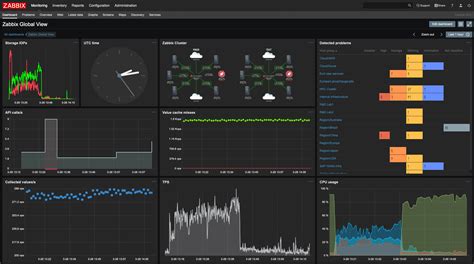
- CPU & GPU Temperatures: Use monitoring software like MSI Afterburner, HWMonitor, or HWiNFO64 to check your CPU and GPU temperatures during gaming. High temperatures leading to thermal throttling are a common cause of performance drops. Ensure good airflow in your case and clean any dust from fans and heatsinks.
- BIOS/UEFI Update: In rare cases, an outdated motherboard BIOS can cause compatibility or stability issues. Proceed with caution when updating BIOS.
6. Windows Optimization
- Game Mode: Ensure Windows Game Mode is enabled (Settings > Gaming > Game Mode).
- Notifications: Disable notifications and focus assist during gaming.
- Hardware-accelerated GPU scheduling: Try toggling this setting (Settings > System > Display > Graphics settings) on or off to see if it helps.
Conclusion: A Smooth Gaming Horizon
Micro-stuttering can be incredibly frustrating, but by systematically addressing potential causes, you can significantly improve your PC gaming experience. Start with driver updates and power settings, move on to managing background processes, and then delve into hardware checks and advanced Windows optimizations. Patience and careful observation using monitoring tools are your best allies in banishing those irritating hitches and enjoying the smooth, immersive gameplay you deserve.