





How to fix mod load order CTD issues?

Navigating the Modding Minefield: Understanding CTD Issues
Modding a game can transform it into an entirely new experience, adding new content, improving graphics, or even altering fundamental gameplay mechanics. However, this power comes with a common frustration: the dreaded Crash to Desktop (CTD). While CTDs can stem from various sources, one of the most prevalent and often perplexing causes is an incorrect mod load order. This article will guide you through understanding, diagnosing, and ultimately fixing these challenging issues to help you enjoy your heavily modded games.
The Core Problem: Why Load Order Leads to Crashes
At its heart, a mod load order dictates the sequence in which your game loads and applies changes from different modifications. When multiple mods attempt to alter the same aspect of the game (e.g., character stats, world geometry, script behavior), conflicts arise. If these conflicts are not resolved or handled in a logical order, the game engine can encounter unexpected data, leading to instability and, inevitably, a CTD. Dependencies also play a crucial role; if a mod requires another file (a “master” file) to function but loads before it, the game will crash.
Understanding which mod should “win” a conflict or which mod needs to load after its masters is fundamental. A proper load order ensures that all mods have their necessary dependencies met and that conflicting changes are applied in a way that maintains game integrity, often by allowing a preferred mod to overwrite others.
Your Arsenal Against CTDs: Essential Mod Management Tools
Fortunately, the modding community has developed powerful tools to assist in managing complex load orders:
- Mod Organizers (e.g., Mod Organizer 2, Vortex): These tools manage your mods in virtual directories, preventing direct alterations to your game’s data folder. This makes installation, uninstallation, and conflict resolution much safer and easier. They also allow for the creation of separate mod profiles, ideal for testing.
- Load Order Optimization Tools (e.g., LOOT – Load Order Optimization Tool): LOOT reads your installed mods and automatically sorts them based on a vast, community-maintained database of rules. It also flags potential issues like missing masters, dirty edits, or incompatibilities. While LOOT is an excellent starting point, it’s not always a perfect solution and sometimes requires manual adjustments.
- Conflict Resolution Tools (e.g., xEdit/SSEEdit/FO4Edit): These advanced tools allow you to directly view and edit the records within your plugin files, helping you identify exact conflicts between mods and create “patch” files to resolve them manually.
Diagnosing and Resolving Load Order Conflicts
Fixing CTDs is a systematic process that requires patience. Here’s a step-by-step guide:
1. Start Simple: The “Half-and-Half” Method
If you’ve recently added many mods and are experiencing CTDs, the quickest way to identify the culprit is to disable half of your mods. If the crash stops, the problem mod is in the disabled half. If it persists, the problem is in the enabled half. Repeat this process, halving the problematic set each time, until you pinpoint the mod or small group of mods causing the issue.
2. Check for Missing Masters
Always ensure all necessary master files (.esm, .esl, or .esp marked as master) are loaded before any mod that depends on them. Mod organizers and LOOT will typically flag these errors. A mod will crash if its required masters are missing or load after it.
3. Utilize LOOT for Initial Sorting
Run LOOT. It will provide a suggested load order, clean dirty plugin flags, and report any critical errors or warnings. Apply LOOT’s sorting and then test your game. Often, this resolves many basic load order issues.

4. Deep Dive with xEdit (or Equivalent)
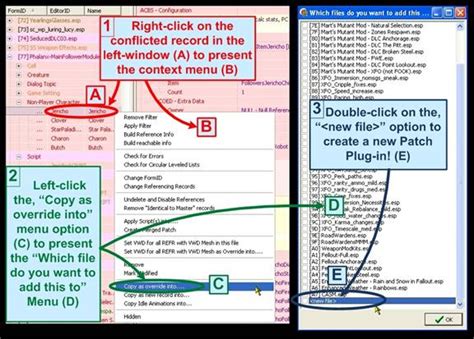
If CTDs persist, it’s time for xEdit. Load all your plugins into xEdit. Mods with conflicts will appear in red or orange. You can then navigate to conflicting records and determine which mod’s changes you want to prioritize. For complex conflicts, creating a “merged patch” or “bashed patch” can combine desirable changes from multiple mods into a single new plugin.
5. Test Iteratively
After each change (disabling a mod, re-running LOOT, making an xEdit patch), test your game. Don’t make too many changes at once, or you won’t know which specific action fixed or broke something. Keep a dedicated save file for testing, avoiding your main playthrough saves during troubleshooting.
Maintaining a Stable Modded Game: Prevention is Key
- Read Mod Descriptions Thoroughly: Always check for compatibility notes, required patches, and recommended load order positions.
- Install Mods One at a Time: This makes it much easier to identify a problematic mod immediately after installation.
- Regularly Clean Save Games: Tools like FallrimTools (for Bethesda games) can help remove unattached scripts and other junk from your save files, reducing bloat and potential instability.
- Backup Your Game and Mod Profiles: Before undertaking major modding sessions, create a backup of your game folder and your mod manager’s profile. This provides a safe rollback point if things go wrong.
![Game Backup Monitor [Manual]](/images/aHR0cHM6Ly90czQubW0uYmluZy5uZXQvdGg/aWQ9T0lQLnRlakVMdW9KaHVsNUdfOUxhcVBmMHdIYUZLJnBpZD0xNS4x.webp)
Seeking Community Support
If you’ve exhausted all troubleshooting steps, don’t hesitate to reach out to the modding community. Forums like Nexus Mods, Reddit communities for specific games (e.g., r/skyrimmods, r/falloutmods), and Discord servers are invaluable resources. When asking for help, provide as much detail as possible:
- Your full mod list (often available through your mod organizer).
- Your load order.
- A description of when and where the CTD occurs.
- Any relevant crash logs (if your game generates them).

Conclusion: Mastering Your Modded Experience
Fixing mod load order CTD issues can be daunting, but with the right tools, a systematic approach, and a good dose of patience, it’s a solvable problem. By understanding the principles of load order, leveraging mod organizers and sorting tools, and knowing when to dive into conflict resolution, you can transform your modding experience from a source of frustration into a rewarding journey. Happy modding!


