





How to fix random FPS drops in PC games for smoother gameplay?

Random FPS drops can turn an enjoyable PC gaming session into a frustrating stutter-fest. Whether you’re in the heat of battle or exploring a vast open world, sudden performance dips can severely impact your experience. Fortunately, most FPS drop issues are fixable with a systematic approach to troubleshooting your hardware and software.
Diagnosing the Problem: Identify the Culprit
Before diving into solutions, it’s crucial to understand what’s causing the drops. Monitoring your system’s performance metrics like CPU usage, GPU usage, temperature, and RAM usage can provide valuable insights. Tools like MSI Afterburner, HWiNFO, or even Task Manager can help you track these statistics in real-time while gaming.
Pay attention to when the drops occur. Are they consistent in certain games, or random across all titles? Do they happen after a specific duration of playtime, suggesting overheating? Or do they occur during intense action sequences, pointing towards a hardware bottleneck?
Hardware-Related Fixes for Performance Drops
Update Graphics Card Drivers
Outdated or corrupted graphics drivers are a common cause of performance issues. Always ensure you have the latest stable drivers for your NVIDIA, AMD, or Intel GPU. Visit the official manufacturer’s website to download and install them. A clean installation is often recommended to remove any old, conflicting driver files.
Check for Overheating
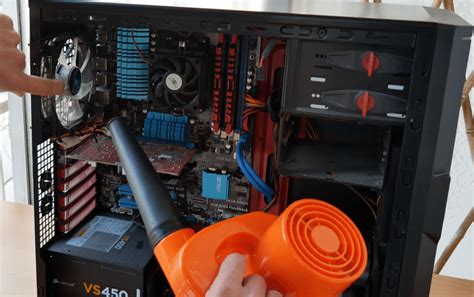
High temperatures can cause your CPU and GPU to “throttle” their performance to prevent damage, leading to FPS drops. Monitor your component temperatures. Ensure your PC’s case has good airflow, clean dust from fans and heatsinks, and consider reapplying thermal paste if temperatures remain high after cleaning.
Inspect RAM and Storage
Insufficient or faulty RAM can lead to stuttering. Ensure you have enough RAM for the games you play (16GB is often the sweet spot for modern titles). Also, check your storage drive health, especially if your games are installed on an older HDD; an SSD generally offers much faster loading and can sometimes prevent stutter in open-world games.
Verify your power supply unit (PSU) is adequate for your components. An underpowered PSU can lead to instability and performance issues, especially when components demand peak power.
Software and System Optimization
Adjust In-Game Settings
High graphics settings can overwhelm your GPU. Experiment by lowering demanding settings like anti-aliasing, shadow quality, texture resolution, and view distance. Finding the right balance between visual fidelity and performance is key to smoother gameplay.
Close Background Applications
Apps running in the background consume CPU, RAM, and GPU resources. Close unnecessary browsers, streaming services, communication apps (like Discord, if not in use), and any other non-essential software while gaming.
Optimize Windows Settings
- Power Plan: Set your Windows power plan to “High Performance” or “Ultimate Performance” to ensure your CPU isn’t being throttled.
- Game Mode: Ensure Windows Game Mode is enabled. While its effectiveness is debated, it aims to prioritize gaming performance.
- Disable Startup Programs: Use Task Manager to disable unnecessary programs from launching with Windows.
Keep Your OS Up-to-Date
While some updates can occasionally cause issues, keeping Windows up-to-date generally ensures you have the latest bug fixes and performance improvements. Always install system-critical updates.
Advanced Troubleshooting and Last Resorts
Verify Game File Integrity
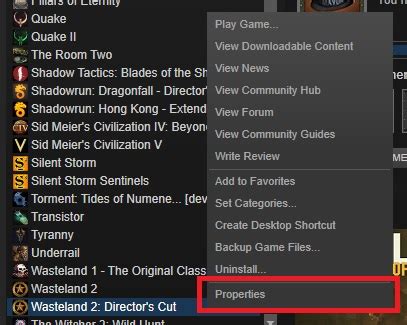
Corrupted game files can cause various issues, including FPS drops. Use your game launcher (Steam, Epic Games, GOG, etc.) to verify the integrity of game files. This process checks for and replaces any damaged files.
Consider a Clean Operating System Install
If all else fails and you suspect deep-seated software conflicts or corruption, a clean installation of Windows can often resolve persistent performance issues by providing a fresh slate. This is a last resort, but it can be highly effective.
Conclusion
Random FPS drops are a common but frustrating problem for PC gamers. By systematically monitoring your system, updating drivers, managing temperatures, optimizing game and system settings, and considering hardware upgrades, you can significantly improve your gaming experience. Patience and thorough troubleshooting are key to identifying and resolving the root cause, leading to consistent, smoother gameplay.


