





How to maximize gaming FPS: essential Windows settings & GPU optimizations?

Unlock Higher FPS: A Comprehensive Guide to PC Gaming Optimization
For any serious PC gamer, Frame Rate Per Second (FPS) is the holy grail. Higher FPS translates to smoother gameplay, more responsive controls, and a significant competitive edge. While powerful hardware is a good starting point, even the most robust systems can benefit from fine-tuning. This article will guide you through essential Windows settings and crucial GPU optimizations to squeeze every last frame out of your gaming rig, transforming your gaming experience.
Streamlining Windows for Peak Gaming Performance
Your operating system, Windows, is constantly running background processes that can eat into your valuable CPU and GPU cycles. Optimizing these settings is the first step towards a smoother gaming experience.
1. Enable Game Mode
Windows 10 and 11 come with a dedicated Game Mode designed to prioritize your gaming experience. When active, it attempts to prevent Windows Update from installing drivers and sending restart notifications, while also allocating more CPU and GPU resources to your game.
- Go to
Settings > Gaming > Game Modeand ensure it’s toggled On.
2. Adjust Power Plan to High Performance
By default, Windows often uses a balanced power plan to save energy. For gaming, you want your CPU and GPU to operate at their maximum potential.
- Search for
Choose a power planin the Windows search bar. - Select High performance or Ultimate Performance (if available).
- Alternatively, go to
Settings > System > Power & battery, expandPower modeand select Best performance.
3. Disable Background Apps
Many apps continue to run in the background, consuming resources even when not actively in use.
- Go to
Settings > Privacy > Background apps(for Windows 10) orSettings > Apps > Apps & features > Advanced app settings(for Windows 11). - Toggle off apps you don’t need running in the background.
4. Optimize Visual Effects for Performance
Windows’ aesthetic visual effects can impact performance. Sacrificing some eye candy can free up resources.
- Search for
Adjust the appearance and performance of Windows. - In the
Performance Optionswindow, select Adjust for best performance or manually uncheck effects likeAnimate windows when minimizing and maximizingorSmooth edges of screen fonts.
5. Manage Startup Programs and Notifications
Minimize programs launching with Windows and reduce distractions.
- Open Task Manager (Ctrl+Shift+Esc), go to the
Startuptab, and disable unnecessary programs. - Use
Focus assist(Windows 10/11:Settings > System > Focus assist) to suppress notifications during gaming.
GPU Optimizations: Unleashing Your Graphics Card’s Power
Your Graphics Processing Unit (GPU) is the heart of your gaming performance. Proper driver management and control panel settings are paramount.
1. Keep GPU Drivers Updated
Graphics card manufacturers (NVIDIA, AMD, Intel) frequently release driver updates that include performance optimizations for new games and bug fixes. Always use the latest stable drivers.
- NVIDIA: Use GeForce Experience or download directly from NVIDIA’s website.
- AMD: Use AMD Software: Adrenalin Edition or download from AMD’s website.
2. Fine-Tune GPU Control Panel Settings (NVIDIA & AMD)
Dive into your graphics card’s control panel for crucial adjustments.
NVIDIA Control Panel:
- Open the NVIDIA Control Panel.
- Under
3D Settings > Manage 3D settings, go to theProgram Settingstab and select your game, or apply global settings underGlobal Settings. - Power management mode: Set to
Prefer maximum performance. - Texture filtering – Quality: Set to
High performance. - Low Latency Mode: Experiment with
Ultrafor competitive games, as it can reduce input lag at the cost of slight FPS instability for some systems. - Shader Cache Size: Set to
Unlimited.
AMD Software: Adrenalin Edition:
- Open AMD Software: Adrenalin Edition.
- Go to the
Gamingtab, thenGraphics. - Radeon Anti-Lag: Enable for reduced input lag.
- Radeon Boost: Enable for dynamic resolution scaling during fast motion (can boost FPS).
- Texture Filtering Quality: Set to
Performance. - Ensure
Enhanced SyncandRadeon Chillare off unless you specifically want to limit FPS.
3. Consider Overclocking (Advanced Users)
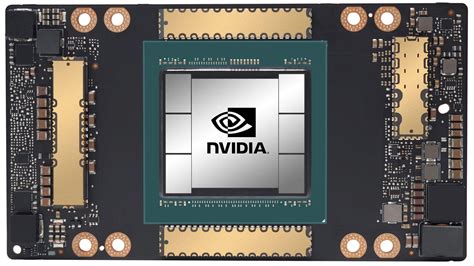
Overclocking your GPU can provide a significant performance boost, but it comes with risks. It involves increasing clock speeds and potentially voltage, which can lead to instability or hardware degradation if not done carefully. Use reputable software like MSI Afterburner or AMD WattMan and proceed with caution, monitoring temperatures closely.
In-Game Settings: The Final Frontier
While external optimizations are crucial, don’t forget the power of in-game settings. Often, the biggest FPS gains come from adjusting these:
- Resolution: Lowering resolution provides the most substantial FPS boost.
- Graphics Quality Presets: Start with ‘Medium’ or ‘Low’ and gradually increase settings until you find a balance.
- Specific Settings: Shadows, reflections, anti-aliasing (AA), ambient occlusion, and post-processing effects are typically the most demanding. Reduce or disable them for better performance.

Hardware Maintenance and Best Practices
Beyond software, physical maintenance and good habits also contribute to sustained high FPS.
- Keep Your PC Clean: Dust buildup can hinder cooling, causing components to throttle performance. Regularly clean your case fans, CPU cooler, and GPU heatsink.
- Ensure Proper Cooling: Good airflow in your case is essential. Consider upgrading case fans or your CPU cooler if temperatures are consistently high.
- Use an SSD: While an SSD doesn’t directly increase FPS, it dramatically improves game load times and overall system responsiveness, which indirectly enhances the gaming experience.
- Close Unnecessary Programs: Before launching a game, close web browsers, streaming apps, and any other programs that consume RAM or CPU resources.
- Monitor Your System: Tools like MSI Afterburner, HWMonitor, or the Task Manager can help you keep an eye on CPU/GPU usage, temperatures, and RAM consumption to identify bottlenecks.
Conclusion
Maximizing your gaming FPS is an ongoing process that involves a combination of smart Windows configurations, meticulous GPU optimizations, and mindful hardware maintenance. By systematically applying the tips outlined above, you can significantly enhance your gaming performance, enjoying smoother visuals and a more responsive experience without necessarily needing to upgrade your hardware. Remember to test changes one by one to understand their impact and find the sweet spot for your specific system and games.



