How to minimize input lag for competitive PC gaming on a high refresh rate monitor?
Understanding Input Lag and Its Impact
Input lag is the delay between your action (like a mouse click or keyboard press) and that action appearing on your screen. In competitive PC gaming, even milliseconds of delay can mean the difference between victory and defeat. While high refresh rate monitors significantly improve visual fluidity, they don’t inherently eliminate input lag from other components in your system. Minimizing this latency requires a holistic approach, touching on hardware, software, and display settings.

Essential Hardware Considerations
Your Monitor Settings
High refresh rate monitors are a great start, but ensure they are configured correctly. Verify that your monitor’s refresh rate is set to its maximum (e.g., 144Hz, 240Hz, 360Hz) in Windows Display Settings and your GPU control panel (NVIDIA Control Panel or AMD Radeon Software). Enable any ‘Game Mode’ or ‘Low Input Lag Mode’ features your monitor offers. These modes often bypass image processing, reducing latency at the cost of some visual fidelity, which is a worthwhile trade-off for competitive play.
Graphics Card (GPU) and Processor (CPU)
A powerful GPU is crucial for rendering frames at a high rate, consistently matching your monitor’s refresh rate. If your GPU can’t keep up, you’ll experience micro-stutters and increased frame times, which contribute to perceived lag. Similarly, a strong CPU ensures that game logic and other processes don’t bottleneck your GPU. Ensure your drivers are always up-to-date for optimal performance.
Input Devices: Mouse and Keyboard
Invest in gaming-grade peripherals. High-polling-rate mice (1000Hz or more) and keyboards with low debounce times or optical switches can reduce the inherent latency of these devices. Wired peripherals generally offer lower latency than wireless ones, though modern wireless gaming gear has significantly closed this gap.
Connection Types and Cables
Always use DisplayPort or HDMI 2.0+ for high refresh rates. Cheap or faulty cables can introduce issues. Ensure your mouse and keyboard are connected directly to motherboard USB ports if possible, avoiding USB hubs which can add minuscule delays.
Software Optimizations for Lower Latency
In-Game Settings
Prioritize frame rate over graphical fidelity. Lower graphics settings, especially shadow quality, anti-aliasing, and post-processing effects, can significantly boost your FPS. Disable V-Sync unless you experience severe screen tearing and your GPU consistently exceeds your monitor’s refresh rate, as V-Sync inherently introduces input lag.
Operating System Tweaks
- Game Mode: Ensure Windows Game Mode is enabled.
- Disable Fullscreen Optimizations: For some games, disabling this setting in the executable’s properties can help.
- Power Plan: Set your Windows power plan to ‘High Performance’ or ‘Ultimate Performance’.
- Background Processes: Close unnecessary background applications and services before gaming.
Graphics Driver Settings
Both NVIDIA and AMD offer settings to minimize latency:
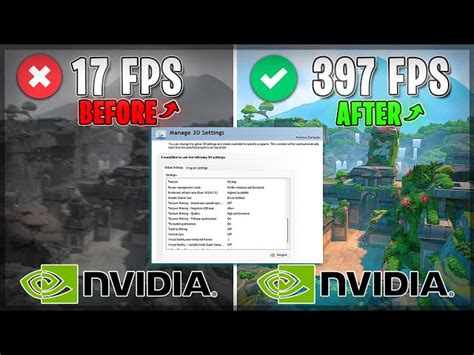
- NVIDIA Reflex Low Latency Mode: Enable this in supported games and your NVIDIA Control Panel. It works by reducing render queue latency between the CPU and GPU.
- AMD Radeon Anti-Lag: Similar to Reflex, Anti-Lag helps reduce input-to-display response time.
- Low Latency Mode (NVIDIA) / Radeon Boost (AMD): Experiment with these global settings, especially ‘Low Latency Mode’ set to ‘Ultra’ in NVIDIA, which can further reduce CPU bottlenecking.

Advanced Techniques and Maintenance
Firmware and Drivers
Keep your monitor’s firmware, GPU drivers, motherboard chipset drivers, and input device drivers updated. Manufacturers frequently release updates that improve performance and reduce latency.
Regular System Hygiene
A clean operating system is a fast operating system. Regularly clear temporary files, run disk cleanup, and ensure your storage drives (especially SSDs) have sufficient free space. Malware and viruses can also consume system resources and increase latency.
Overclocking (Cautiously)
Overclocking your CPU, GPU, or even RAM can provide a performance boost, leading to higher frame rates and potentially lower input lag. However, this should only be attempted by experienced users who understand the risks of instability and potential hardware damage.
Conclusion
Minimizing input lag for competitive PC gaming is an ongoing process that involves careful attention to both hardware and software. By optimizing your monitor, choosing high-performance components, tweaking in-game and OS settings, and utilizing manufacturer-specific latency reduction technologies, you can achieve a highly responsive gaming experience. Every millisecond shaved off contributes to a more precise and competitive edge, allowing your skill to truly shine without hardware limitations holding you back.