





How to optimize display refresh rate & input lag for competitive gaming?
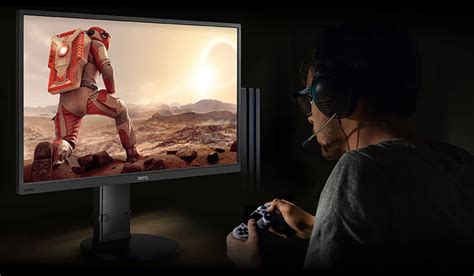
In the high-stakes world of competitive gaming, every millisecond counts. The difference between victory and defeat can often boil down to the responsiveness of your system, particularly your display. Two crucial elements at play are your monitor’s refresh rate and the dreaded input lag. Understanding and optimizing these factors can provide a significant edge over the competition, allowing for smoother gameplay, faster reactions, and a more immersive experience.
Understanding Display Refresh Rate
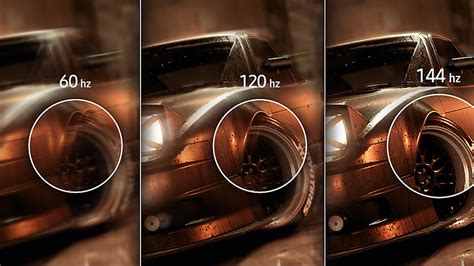
Refresh rate, measured in Hertz (Hz), refers to the number of times your monitor updates its image per second. A higher refresh rate means a smoother, more fluid visual experience. For competitive gamers, this translates into seeing enemy movements earlier, tracking targets more precisely, and reacting to on-screen events with greater accuracy. While 60Hz has long been the standard, competitive gamers often opt for 144Hz, 240Hz, or even 360Hz monitors.
- 60Hz: Standard, often suitable for casual gaming or single-player experiences.
- 144Hz: A significant upgrade, offering noticeable smoothness and responsiveness, ideal for most competitive players.
- 240Hz/360Hz: The pinnacle for competitive esports, providing the absolute smoothest visuals, though requiring a powerful GPU to consistently hit such high frame rates.
It’s important to remember that a high refresh rate monitor is only effective if your graphics card can consistently render frames at or above that rate. Your frames per second (FPS) should ideally match or exceed your monitor’s refresh rate to fully capitalize on its capabilities.
The Impact of Input Lag
Input lag is the delay between an action performed by the player (e.g., clicking a mouse, pressing a key) and that action being reflected on the screen. It’s a cumulative effect caused by various components, including your peripherals, computer processing, and most critically, your display. High input lag can make your game feel unresponsive and sluggish, directly hindering your reaction time and precision.
Several factors contribute to input lag:
- Monitor Processing: The time it takes for your monitor to process and display the image received from your GPU.
- Graphics Card Rendering: The time it takes for your GPU to render a frame.
- Peripheral Delay: Wireless peripherals, older hardware, or cheap components can introduce small delays.
- Software Processes: Background applications, operating system overhead, and certain game settings (like V-Sync) can add to the total lag.
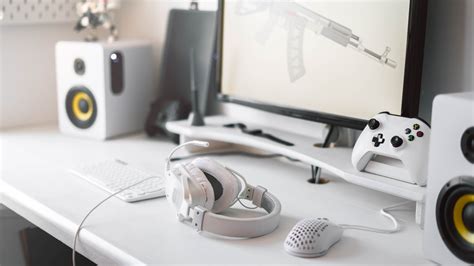
![What Is Input Lag And How Important Is It For Gaming? [Simple Guide]](/images/aHR0cHM6Ly90czQubW0uYmluZy5uZXQvdGg/aWQ9T0lQLmlYdmo4bW9aN2ZNOVU1QjVrNC1SN0FIYUNGJnBpZD0xNS4x.webp)
Optimizing Refresh Rate Settings
To ensure you’re getting the most out of your high-refresh-rate monitor, verify that it’s correctly configured in your system settings:
- Windows Display Settings: Right-click on your desktop > Display settings > Advanced display settings. Select your monitor and change the ‘Refresh rate’ dropdown to the highest available option.
- GPU Control Panel:
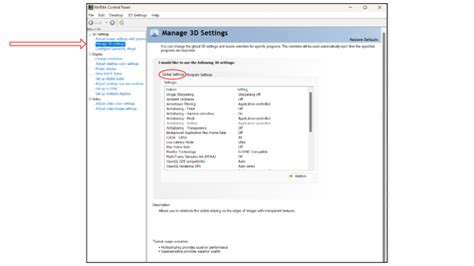
- NVIDIA Control Panel: Go to ‘Change resolution’ under ‘Display’. Select your monitor and choose the native resolution, then pick the highest refresh rate from the dropdown.
- AMD Radeon Software: Navigate to ‘Display’ > ‘Custom Resolutions’ or ensure the proper refresh rate is selected in the main display settings.
- In-Game Settings: Many games have their own refresh rate or display mode settings. Always ensure these match your monitor’s configured refresh rate.
Minimizing Input Lag Strategies
Reducing input lag involves a multi-pronged approach, targeting various sources of delay:
Monitor Settings
- Game Mode: Many modern gaming monitors have a ‘Game Mode’ or similar setting that bypasses some image processing to reduce input lag. Enable this.
- Response Time: Set your monitor’s response time to its fastest setting (e.g., ‘Extreme’ or ‘Ultra Fast’), but be wary of inverse ghosting or overshoot artifacts.
- Overdrive: Experiment with overdrive settings if available, finding a balance between speed and visual clarity.
Software & GPU Settings
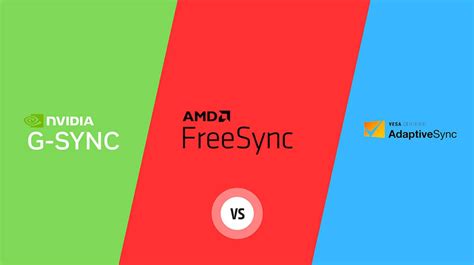
- Adaptive Sync (G-Sync/FreeSync): These technologies synchronize your monitor’s refresh rate with your GPU’s frame rate, eliminating screen tearing and often reducing perceived input lag compared to traditional V-Sync.
- Disable V-Sync: While V-Sync prevents screen tearing, it often introduces significant input lag. If you experience tearing, consider adaptive sync or alternative V-Sync modes like NVIDIA’s Fast Sync or AMD’s Enhanced Sync, which offer a compromise.
- Low Latency Modes: NVIDIA’s ‘Low Latency Mode’ (Ultra) and AMD’s ‘Anti-Lag’ are designed to reduce input lag by optimizing frame buffering.
- Reduce Graphics Settings: Lowering in-game graphics settings can help your GPU render frames faster, reducing the time between input and display.
Hardware & Peripherals
- Wired Peripherals: Whenever possible, use wired mice and keyboards. Wireless technology has improved, but a wired connection generally offers lower and more consistent latency.
- High-Quality Cables: Use display cables (DisplayPort or HDMI 2.1) that fully support your monitor’s resolution and refresh rate.
- Stable FPS: Ensure your system can consistently achieve high frame rates. Frame rate drops can introduce inconsistent lag.
Conclusion
Optimizing your display’s refresh rate and minimizing input lag are not merely about having the latest hardware; they’re about fine-tuning your entire gaming ecosystem. By meticulously configuring your monitor, GPU, and in-game settings, and choosing the right peripherals, you can create a highly responsive setup that gives you a tangible advantage in competitive play. Dedicate some time to experimentation, find the settings that work best for your specific hardware and games, and prepare to elevate your gaming performance to the next level.


