How to optimize display settings for competitive FPS gaming performance?
The Foundation: Understanding Your Monitor’s Capabilities
In competitive First-Person Shooter (FPS) games, every millisecond and pixel can mean the difference between victory and defeat. While powerful GPUs and CPUs are crucial, optimizing your display settings is equally vital for a smooth, responsive, and visually clear gaming experience. This guide will walk you through the essential display adjustments to give you a genuine competitive edge.
Refresh Rate and Resolution: The Core of Fluidity
Your monitor’s refresh rate (measured in Hertz, Hz) dictates how many times per second the display updates its image. For competitive FPS, a higher refresh rate (144Hz, 240Hz, or even 360Hz) is paramount. It results in smoother motion, reduced ghosting, and quicker target acquisition. Ensure your operating system and game settings are configured to utilize your monitor’s maximum refresh rate.
Resolution, on the other hand, determines the number of pixels displayed. While 4K offers stunning visuals, it demands significant GPU power, potentially reducing frame rates. For competitive play, 1080p or 1440p often provides the best balance of visual clarity and high frame rates, which is more critical for responsiveness.
Response Time and Input Lag: Minimizing Delays
Response time refers to how quickly pixels can change color (typically from gray to gray, GtG). A lower response time (1ms GtG is ideal) minimizes motion blur and ghosting, making fast-moving targets appear sharper. Many monitors have an ‘Overdrive’ or ‘Response Time’ setting in their OSD (On-Screen Display). Experiment with these; too high, and it can introduce inverse ghosting.
Input lag, a distinct but related factor, is the delay between your action (e.g., mouse click) and that action appearing on screen. While harder to measure directly, monitors designed for gaming typically have very low input lag. Avoid any post-processing features on your monitor that might increase this delay.
Adaptive Sync Technologies: G-Sync and FreeSync
Adaptive Sync technologies like NVIDIA G-Sync and AMD FreeSync synchronize your monitor’s refresh rate with your GPU’s frame rate, eliminating screen tearing and reducing stutter. For most gamers, these technologies offer a significantly smoother experience. However, in extremely competitive FPS scenarios where every frame matters, some pros opt to disable adaptive sync to achieve the absolute lowest input lag, relying on their GPU to consistently push frames above the monitor’s refresh rate or utilizing V-Sync OFF with an FPS limiter.

Calibrating Color and Brightness for Visibility
While cinematic games thrive on vibrant colors, competitive FPS prioritizes visibility. Adjusting your monitor’s brightness, contrast, and gamma can significantly impact target detection, especially in darker areas. Too bright or too dark can strain your eyes and obscure details.
- Brightness: Set to a comfortable level that doesn’t cause eye strain but allows details in bright and dark areas.
- Contrast: Adjust to differentiate between light and dark shades without crushing blacks or blowing out whites.
- Gamma: Often the most critical for competitive play. A lower gamma (e.g., 2.0 or 2.2) can lighten shadows, revealing enemies hiding in dark corners. Experiment to find your optimal setting.
- Digital Vibrance (NVIDIA) / Saturation (AMD): Increasing this slightly can make enemies stand out more from the background without making colors overly unnatural.
- Black Equalizer/Shadow Boost: Many gaming monitors have a specific setting to lighten dark areas without affecting the rest of the image. This can be a huge advantage.

In-Game Display Settings: Fine-Tuning Your Experience
Beyond your monitor’s OSD, in-game settings offer further optimization opportunities:
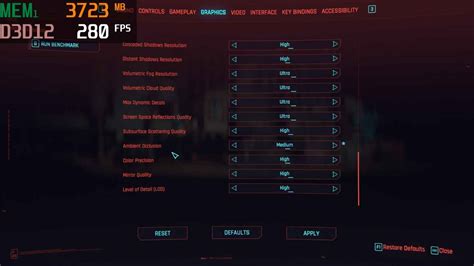
- Field of View (FOV): A higher FOV allows you to see more of your surroundings, which is beneficial for situational awareness. However, it can make distant targets appear smaller. Find a balance that suits your playstyle.
- Motion Blur: Always disable motion blur in competitive FPS. It adds visual noise and makes targets harder to track.
- V-Sync (In-Game): Disable V-Sync in-game if you’re using adaptive sync or want the absolute lowest input lag, even if it means slight tearing. It introduces input lag.
- Render Scale/Resolution Scale: If your frames per second (FPS) are dipping, slightly lowering this setting (e.g., to 90% or 80%) can provide a significant performance boost at a minimal visual quality cost.
Leveraging GPU Control Panels: NVIDIA and AMD
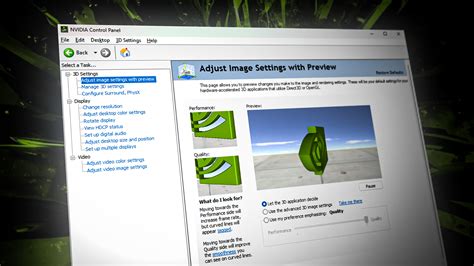
Both NVIDIA Control Panel and AMD Radeon Software Adrenalin Edition offer system-wide display and performance settings that can further optimize your competitive FPS experience.
- Set Max Refresh Rate: Ensure your monitor is set to its highest available refresh rate in your GPU control panel.
- Low Latency Mode (NVIDIA) / Anti-Lag (AMD): These settings aim to reduce input lag by optimizing frame rendering. Experiment with ‘On’ or ‘Ultra’/’Enabled’.
- Image Sharpening: While some prefer a sharper image, be cautious not to overdo it, as it can introduce artifacts.
- GPU Scaling: For some competitive players, scaling done by the GPU can offer a slight input lag advantage over monitor scaling, especially when playing at non-native resolutions.
Conclusion: Experimentation is Key
Optimizing your display settings for competitive FPS gaming is an ongoing process that often requires experimentation. Start with the core settings like refresh rate and response time, then move on to adaptive sync, color calibration, and in-game specific adjustments. Remember that what works best for one player might not be ideal for another. Take the time to fine-tune each setting to your preference, ensuring maximum visibility, minimal delay, and the smoothest possible gameplay, ultimately giving you the edge you need to climb the ranks.