How to optimize gaming monitor settings (Hz, FreeSync, HDR) for competitive play?
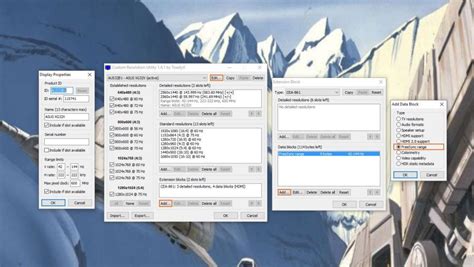
In the high-stakes world of competitive gaming, every millisecond and visual detail can mean the difference between victory and defeat. Your gaming monitor is a critical component of your setup, and simply plugging it in isn’t enough. To truly gain an edge, you need to understand and optimize its core settings: refresh rate (Hz), adaptive sync technologies like FreeSync/G-Sync, and High Dynamic Range (HDR).
Mastering Your Refresh Rate (Hz)
The refresh rate, measured in Hertz (Hz), indicates how many times your monitor can update the image on the screen per second. For competitive play, a higher refresh rate is almost always better, as it provides a smoother, more fluid visual experience, reducing input lag and making it easier to track fast-moving targets.
Steps to Optimize Refresh Rate:
- Verify Monitor Capability: Check your monitor’s specifications to confirm its maximum refresh rate (e.g., 144Hz, 240Hz, 360Hz).
- Update Graphics Drivers: Ensure your GPU drivers are up-to-date.
- Windows Display Settings: Right-click on your desktop, go to Display settings > Advanced display settings, and select the highest available refresh rate for your monitor.
- NVIDIA Control Panel / AMD Radeon Software: Access your GPU’s control panel and set the refresh rate there as well, ensuring it matches Windows settings.
- In-Game Settings: Many games have their own refresh rate or frame rate limiters. Ensure these are set to match or exceed your monitor’s refresh rate. Aim for consistent frames per second (FPS) that meet or exceed your monitor’s refresh rate for the best experience.

Harnessing Adaptive Sync (FreeSync/G-Sync)
Screen tearing – a visual artifact where multiple frames are displayed on the screen simultaneously – can be incredibly distracting and detrimental in competitive scenarios. Adaptive Sync technologies like AMD FreeSync and NVIDIA G-Sync eliminate screen tearing by synchronizing your monitor’s refresh rate with your graphics card’s frame rate.
How to Enable and Optimize Adaptive Sync:
- Check Compatibility: Confirm your monitor supports either FreeSync or G-Sync, and that your graphics card is compatible with that standard. NVIDIA GPUs can use G-Sync Compatible monitors (which are often FreeSync monitors).
- Connect with DisplayPort: For optimal performance, especially with G-Sync, use a DisplayPort cable. HDMI can also support adaptive sync, but DisplayPort is often preferred for higher refresh rates and resolutions.
- Enable on Monitor: Access your monitor’s On-Screen Display (OSD) menu and enable FreeSync or G-Sync.
- Enable in GPU Software:
- NVIDIA: Open NVIDIA Control Panel > Set up G-SYNC. Check ‘Enable G-SYNC, G-SYNC Compatible’ and select your monitor. You may also need to go to ‘Manage 3D settings’ > Vertical sync and set it to ‘On’ or ‘Fast’.
- AMD: Open AMD Radeon Software > Gaming > Display. Enable Radeon FreeSync.
- Frame Rate Capping: To keep adaptive sync within its effective range and prevent input lag, it’s often recommended to cap your in-game FPS slightly below your monitor’s maximum refresh rate (e.g., if you have a 144Hz monitor, cap at 141-143 FPS).

Strategic Use of HDR (High Dynamic Range)
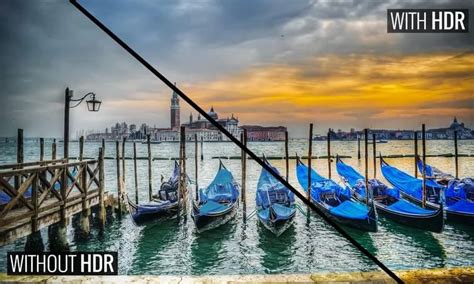
HDR offers a broader range of colors, brighter whites, and deeper blacks, leading to a more immersive and visually stunning experience. However, for competitive gaming, its utility can be a double-edged sword.
Considerations for Competitive HDR Usage:
- Visual Advantage vs. Input Lag: While HDR can make details pop, especially in darker areas, some implementations can introduce a small amount of input lag, and the increased brightness might be fatiguing during long sessions.
- Game Support: Not all competitive games fully support HDR, and some implementations are better than others.
- Monitor Quality: A monitor with a low HDR certification (e.g., DisplayHDR 400) might not offer a significant competitive advantage over SDR and could even look worse due to poor contrast or limited brightness zones. True competitive HDR often requires DisplayHDR 1000 or higher.
- Recommendation: For pure competitive advantage, it’s often best to disable HDR unless the game’s specific implementation significantly aids visibility without adding noticeable input lag, and your monitor has excellent HDR capabilities. Test it in-game to see if you prefer the visual fidelity for identification or if standard SDR provides a clearer, less distracting experience.
Other Critical Monitor Settings for Competitive Play
Beyond the big three, a few other settings can fine-tune your competitive edge:
Response Time and Overdrive
Monitor response time (measured in milliseconds, ms) refers to how quickly pixels can change from one color to another. A lower response time reduces motion blur and ghosting. Many monitors have an ‘Overdrive’ or ‘Response Time’ setting in their OSD. Experiment with this setting; too low and you might get ghosting, too high and you could introduce ‘inverse ghosting’ or ‘overshoot’, where pixels briefly display the wrong color.
Color Calibration and Black Stabilizer
While accurate colors are great for content creation, for competitive gaming, you might adjust settings for visibility. ‘Black Stabilizer’ or ‘Shadow Boost’ settings can brighten dark areas without overexposing bright ones, potentially revealing enemies hiding in shadows. Calibrate your colors to ensure clarity, but prioritize visibility over perfect color accuracy.
Low Input Lag Mode
Some monitors feature a ‘Low Input Lag’ or ‘Game Mode’ setting. This bypasses certain image processing features to reduce the delay between your input and what appears on screen. Always enable this if available.

Conclusion
Optimizing your gaming monitor settings is not a one-size-fits-all process. It requires understanding your hardware, your games, and your personal preferences. Prioritize a high refresh rate and reliable adaptive sync for smoothness and tear-free visuals. Experiment with HDR cautiously, and fine-tune response time and other visibility-enhancing features. By taking the time to properly configure your monitor, you’ll ensure you’re getting the most out of your hardware and giving yourself the best possible chance to excel in competitive play.