





How to optimize gaming PC settings for better FPS and lower latency?
Achieving optimal performance in PC gaming isn’t just about having the latest hardware; it’s also about fine-tuning your system’s software and settings. By meticulously adjusting various aspects of your gaming PC, you can significantly boost your Frames Per Second (FPS) and reduce input latency, leading to a much smoother and more competitive gaming experience. This guide will walk you through the essential steps to squeeze every ounce of performance out of your rig.
Start with the Basics: Drivers and Updates
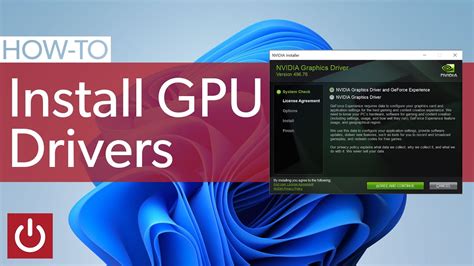
Before diving into specific settings, ensure your system’s foundational software is up to date. Outdated drivers are a common bottleneck for performance.
- Graphics Card Drivers: This is paramount. NVIDIA GeForce and AMD Radeon release optimized drivers regularly for new game titles. Always download the latest stable version directly from their official websites. Performing a clean installation is often recommended to remove any lingering old driver files.
- Windows Updates: While sometimes problematic, keeping Windows up to date ensures you have the latest performance enhancements and security patches.
- Chipset Drivers: For AMD users, updating chipset drivers from your motherboard manufacturer or AMD’s website can also improve system stability and performance.
Fine-Tuning In-Game Settings
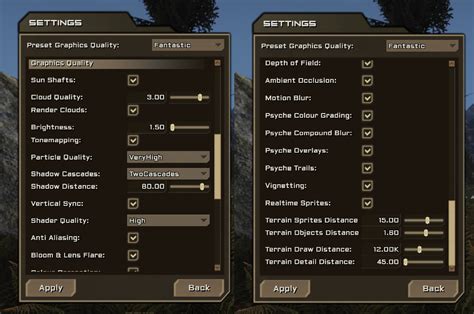
Your game’s graphics settings are the most direct way to impact FPS. Prioritize these adjustments:
- Resolution: Lowering your display resolution (e.g., from 4K to 1440p or 1080p) will drastically increase FPS. Aim for your monitor’s native resolution if possible, then scale down if needed.
- Texture Quality: While higher textures look better, they consume significant VRAM. If you’re VRAM-limited, reduce this setting.
- Shadows: Shadows are incredibly demanding. Lowering shadow quality or resolution can yield significant FPS gains with minimal visual impact, especially for competitive play.
- Anti-Aliasing (AA): Techniques like MSAA or TAA smooth jagged edges but are resource-intensive. Experiment with lower settings or alternatives like FXAA or SMAA, or disable it entirely if FPS is critical.
- Post-Processing Effects: Bloom, depth of field, motion blur, and lens flares can look cinematic but often incur a performance cost. Disabling these can improve both FPS and clarity.
- V-Sync, G-Sync, FreeSync: V-Sync eliminates screen tearing but can introduce input lag. If you have a G-Sync or FreeSync monitor, enable it for a tear-free, low-latency experience. If not, consider disabling V-Sync and cap your FPS slightly below your monitor’s refresh rate using in-game or driver settings.
- Field of View (FOV): While not directly a graphical setting, a wider FOV renders more of the environment, potentially reducing FPS. Find a balance that suits your playstyle and performance.
Leveraging Your GPU Control Panel (NVIDIA/AMD)
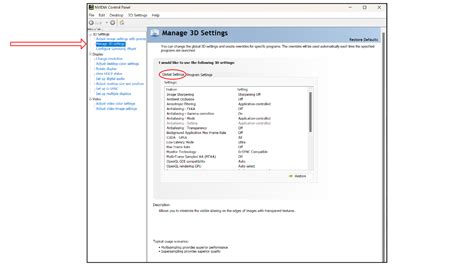
Beyond in-game settings, your graphics card’s control panel offers system-wide optimizations.
- NVIDIA Control Panel:
- Power Management Mode: Set to ‘Prefer maximum performance’ under ‘Manage 3D settings’ to prevent your GPU from downclocking during gameplay.
- Low Latency Mode: Experiment with ‘On’ or ‘Ultra’ for supported games to reduce input lag.
- Image Sharpening: Can make games look crisper, but use sparingly as it can sometimes affect performance or introduce artifacts.
- AMD Radeon Software:
- Radeon Anti-Lag: Enables faster click-to-response times by reducing input lag.
- Radeon Boost: Dynamically lowers resolution in fast-motion scenes to improve FPS.
- Image Sharpening: Similar to NVIDIA’s, helps improve clarity.
Optimizing Windows Settings for Gaming
Windows itself can be a performance hog if not configured correctly.
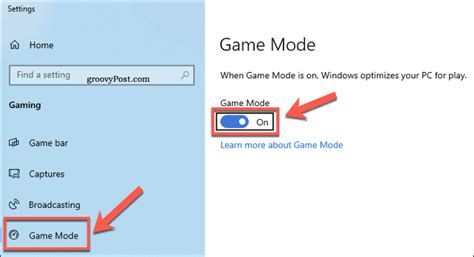
- Game Mode: Ensure Windows Game Mode is enabled (Settings > Gaming > Game Mode). It prioritizes system resources for games.
- Power Plan: Set your power plan to ‘High performance’ or ‘Ultimate performance’ (if available) in Control Panel > Power Options. This ensures your CPU and GPU aren’t throttled.
- Background Apps: Disable unnecessary background apps (Settings > Privacy > Background apps) that consume CPU and RAM.
- Startup Programs: Use Task Manager to disable non-essential programs from launching at startup, freeing up resources.
- Notifications: Turn off notifications during gaming sessions (Settings > System > Focus assist) to prevent interruptions and potential performance dips.
- Disk Cleanup & Defragmentation: Regularly clean temporary files (Disk Cleanup) and, if you’re using an HDD, defragment it. SSDs do not need defragmentation.
Network Optimization for Lower Latency
For online gaming, latency (ping) is crucial. While hardware plays a role, several settings can help.
- Wired Connection: Always use an Ethernet cable instead of Wi-Fi for online gaming. It’s more stable and has lower latency.
- Quality of Service (QoS): If your router supports it, enable QoS and prioritize your gaming PC’s traffic. This ensures your game data gets priority over other network activities.
- Router Firmware: Keep your router’s firmware updated for the latest performance and security enhancements.
- Disable VPNs: While useful for privacy, VPNs often add latency. Disable them for competitive online gaming.
- Close Bandwidth-Hogging Apps: Ensure no other applications (streaming, large downloads, cloud backups) are consuming bandwidth while you’re gaming.
Conclusion
Optimizing your gaming PC is an ongoing process that requires patience and experimentation. By systematically working through your drivers, in-game settings, GPU control panel, and Windows configurations, you can achieve a significant boost in both FPS and responsiveness. Remember to test changes one by one to identify which adjustments yield the best results for your specific hardware and games. A finely tuned PC won’t just run games; it will let you dominate them.



