





How to optimize GPU drivers for max FPS & prevent in-game stutter on PC?
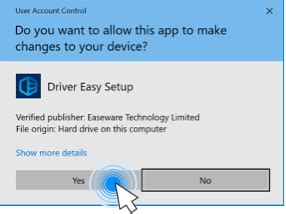
The Critical Role of GPU Driver Optimization for PC Gamers
For any PC gamer, the pursuit of higher frame rates (FPS) and a smooth, stutter-free experience is a never-ending quest. While powerful hardware is a fundamental starting point, the true potential of your graphics card often lies dormant until its drivers are properly configured. GPU drivers act as the crucial bridge between your operating system, games, and the graphics hardware. An unoptimized or outdated driver can bottleneck even the most robust system, leading to frustrating performance drops, visual glitches, and inconsistent frame delivery.
This guide will walk you through the essential steps and advanced settings to fine-tune your GPU drivers, ensuring your games run at their absolute best, delivering both peak FPS and a consistently fluid gameplay experience.
Step 1: Always Keep Your GPU Drivers Up-to-Date
This is arguably the most fundamental and impactful step. Graphics card manufacturers (NVIDIA, AMD, and Intel) regularly release new driver versions that include performance optimizations for new game titles, bug fixes, and general stability improvements. Running on outdated drivers is a common culprit for poor performance and stuttering.
How to Update Your Drivers:
- NVIDIA: Use the GeForce Experience application or download directly from the NVIDIA website.
- AMD: Use the AMD Radeon Software or download directly from the AMD support page.
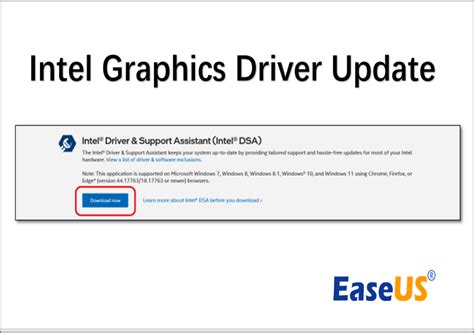
- Intel: Use the Intel Driver & Support Assistant or download directly from the Intel download center.
For optimal results, especially when encountering issues or major updates, consider performing a “clean installation” using a tool like Display Driver Uninstaller (DDU) in Safe Mode. This thoroughly removes all traces of previous drivers before installing the new ones, preventing potential conflicts.
Step 2: Dive into Your GPU Control Panel Settings
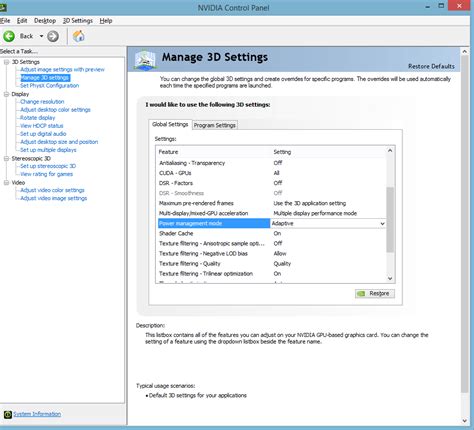
Beyond simply updating, both NVIDIA’s Control Panel and AMD’s Radeon Software offer a wealth of granular settings that can significantly impact performance and alleviate stutter. Access these by right-clicking on your desktop and selecting the respective option.
Key NVIDIA Control Panel Settings for Performance:
- Image Sharpening: Generally leave off or use in-game alternatives.
- Low Latency Mode: Set to ‘Ultra’ for maximum input responsiveness and reduced latency, which can also help with perceived smoothness.
- Max Frame Rate: Capping your FPS slightly below your monitor’s refresh rate (or a stable average if you have an adaptive sync monitor) can improve frame pacing and reduce stutter, especially in variable demanding titles.
- Power Management Mode: Set to ‘Prefer Maximum Performance’. This prevents the GPU from downclocking when under load, ensuring consistent clock speeds.
- Texture Filtering – Quality: Set to ‘High Performance’ for a slight FPS boost, though ‘Quality’ typically has minimal impact on modern GPUs.
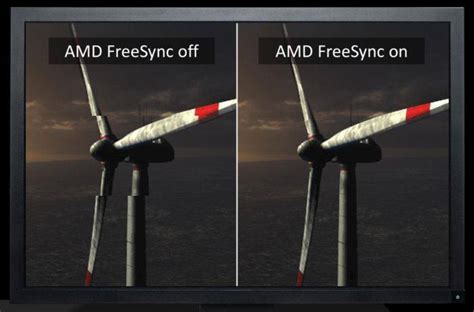
- Vertical Sync (V-Sync): Generally ‘Off’ unless you suffer from severe screen tearing and don’t have adaptive sync. With G-Sync/FreeSync, ensure it’s enabled in the NVIDIA/AMD control panel and disabled in-game.
Key AMD Radeon Software Settings for Performance:
- Radeon Anti-Lag: Enables a dynamic low-latency mode to reduce input lag.
- Radeon Boost: Dynamically lowers resolution in fast-motion scenes for increased FPS. Use with caution.
- Radeon Image Sharpening: Enhances visual clarity. Use sparingly as it can increase latency.
- Wait for Vertical Refresh (V-Sync): Similar to NVIDIA, generally ‘Off’ or managed by FreeSync/Enhanced Sync.
- Frame Rate Target Control (FRTC): Caps FPS, useful for maintaining consistent frame times below your monitor’s refresh rate.
- Power Tuning: Adjust power limits and clock speeds for sustained performance. (Advanced users only).
Step 3: Harmonizing Driver and In-Game Settings
It’s crucial to understand the interplay between your GPU driver settings and a game’s internal graphics options. As a general rule:
- Prioritize Driver Settings for Global Impact: Settings like Power Management Mode or Low Latency Mode in your driver control panel will affect all games.
- Use In-Game Settings for Specific Visuals: Resolution, texture quality, anti-aliasing, and shadows are best managed within the game itself, as they are tailored to the game engine.
- Avoid Conflicts: If you’ve set a specific option (e.g., V-Sync, FPS cap) in your driver settings, ensure it’s either off or set to an ‘application controlled’ equivalent in-game to prevent conflicts that can cause stutter.
Experimentation is key. Start with global driver optimizations, then fine-tune individual game settings to find the best balance of visual fidelity and performance for your system.
Step 4: Monitor, Test, and Troubleshoot
Optimization is an ongoing process. After making changes, it’s vital to test them. Use in-game FPS counters (often accessible via Steam Overlay, GeForce Experience, or AMD Radeon Software) or third-party tools like MSI Afterburner to monitor your frame rate and frame times.
- Consistent FPS vs. High Average FPS: Focus on smooth, consistent frame times rather than just a high average FPS. Spikes in frame time (ms) directly correlate to perceived stutter.
- Driver Rollback: If a new driver version causes issues, don’t hesitate to roll back to a previous, stable version. Both NVIDIA and AMD provide older drivers on their websites.
- Clean Installation: If you suspect driver corruption, a clean installation using DDU is always a good troubleshooting step.

Conclusion: Unlock Your Gaming Potential
Optimizing your GPU drivers is not a one-time task but a continuous effort that can dramatically enhance your PC gaming experience. By keeping drivers updated, meticulously configuring control panel settings, understanding the interaction with in-game options, and diligently monitoring performance, you can unlock maximum FPS, eliminate frustrating stutter, and enjoy your favorite titles as they were meant to be played. Take the time to fine-tune your setup, and your graphics card will reward you with unparalleled smoothness and responsiveness.


