





How to optimize GPU drivers for peak gaming FPS and stability?
Unleashing Your GPU’s Full Potential
Your Graphics Processing Unit (GPU) is the heart of your gaming PC, responsible for rendering every pixel you see on screen. However, its raw power isn’t fully realized without properly optimized drivers. GPU drivers are the software bridge between your operating system and your graphics card, dictating how efficiently your hardware communicates and performs. Neglecting these can lead to lower frame rates (FPS), stuttering, crashes, and a generally suboptimal gaming experience. This guide will walk you through the essential steps to ensure your GPU drivers are finely tuned for peak performance and unwavering stability.

Regular Updates: Your First Line of Defense
The single most crucial step in GPU optimization is keeping your drivers up to date. Graphics card manufacturers like NVIDIA, AMD, and Intel constantly release new driver versions that include performance enhancements for the latest games, bug fixes, and stability improvements. Running outdated drivers can mean missing out on significant FPS gains and encountering compatibility issues.
Always download drivers directly from the official manufacturer’s website:
- NVIDIA: nvidia.com/drivers
- AMD: amd.com/en/support
- Intel: intel.com/content/www/us/en/download/driver-support.html
Avoid relying solely on Windows Update for graphics drivers, as these often lag behind the official releases and may not include all performance optimizations.

The Power of a Clean Installation
While standard driver installations often offer an ‘Express’ option, performing a ‘Custom’ or ‘Clean’ installation is highly recommended, especially when upgrading to a significantly newer driver version or troubleshooting issues. A clean installation removes all previous driver files and settings, preventing potential conflicts and ensuring a fresh start.
For the most thorough clean install, consider using Display Driver Uninstaller (DDU) in Windows Safe Mode. DDU is a popular third-party utility that meticulously removes every trace of old graphics drivers, leaving your system pristine for the new installation. After running DDU and restarting, install the latest drivers from your GPU manufacturer’s website.

Deep Dive into Driver Settings
Beyond simply updating, both NVIDIA and AMD offer extensive control panel settings that can significantly impact gaming performance and visual quality. Access these by right-clicking on your desktop and selecting either ‘NVIDIA Control Panel’ or ‘AMD Radeon Software’.
NVIDIA Control Panel Optimization:
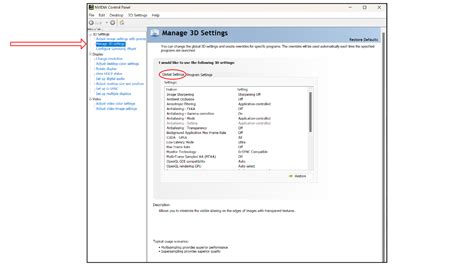
- Manage 3D Settings > Global Settings:
- Power Management Mode: Set to ‘Prefer maximum performance’. This ensures your GPU always runs at its highest clock speeds.
- Low Latency Mode: Experiment with ‘On’ or ‘Ultra’ for reduced input lag, especially in competitive titles.
- Texture filtering – Quality: Set to ‘High performance’ for a slight FPS boost at the cost of minimal visual fidelity.
- Vertical Sync: Generally ‘Off’ unless you experience severe screen tearing and your monitor lacks G-Sync/FreeSync.
AMD Radeon Software Optimization:
- Gaming > Global Graphics:
- Radeon Anti-Lag: Enables low latency for a more responsive gaming experience.
- Radeon Image Sharpening: Enhances visual clarity with minimal performance impact. Adjust to your preference.
- Radeon Boost: Dynamically lowers resolution during fast motion to increase FPS, excellent for competitive games.
- Enhanced Sync / FreeSync: Use ‘Enhanced Sync’ if you don’t have a FreeSync monitor to reduce tearing without V-Sync input lag. Enable FreeSync if your monitor supports it.
- Power Efficiency: Turn ‘Off’ for maximum performance, or ‘On’ for power saving.
Monitoring and Troubleshooting
After optimizing your drivers and settings, monitor your performance in-game using tools like MSI Afterburner (which works with both NVIDIA and AMD cards) or the performance overlay built into AMD Radeon Software. Pay attention to FPS, GPU utilization, temperatures, and clock speeds. This helps confirm that your changes are having the desired effect and can pinpoint bottlenecks.
If you encounter instability, crashes, or performance degradation after a driver update, don’t panic. Both NVIDIA and AMD drivers typically include an option to ‘Roll Back Driver’ in the Device Manager (under Display Adapters). This allows you to revert to a previous, stable driver version while waiting for a fix from the manufacturer.

Conclusion: A Smooth Gaming Experience Awaits
Optimizing your GPU drivers is an ongoing process that requires regular attention. By keeping your drivers updated, performing clean installations, and fine-tuning your graphics control panel settings, you can unlock significant performance gains and enjoy a smoother, more stable gaming experience. Remember that a balanced approach, considering both in-game settings and driver configurations, will always yield the best results for your specific hardware and gaming preferences. Happy gaming!


