





How to optimize GPU drivers & in-game settings for maximum gaming FPS?
Achieving the smoothest, most responsive gaming experience often hinges on more than just powerful hardware. Smart optimization of your graphics processing unit (GPU) drivers and meticulous adjustments to your in-game settings can significantly boost your frames per second (FPS), transforming a stuttering experience into fluid gameplay. This guide will walk you through the essential steps to squeeze every last frame out of your gaming rig.
1. Driver Optimization: The Foundation of Performance
Your GPU drivers are the bridge between your hardware and your games. Keeping them updated and correctly configured is paramount.
Update Your Drivers Regularly
Both NVIDIA and AMD frequently release new driver versions that include performance optimizations for the latest games, bug fixes, and general improvements.
- NVIDIA: Use GeForce Experience or download directly from the NVIDIA website.
- AMD: Use AMD Radeon Software or download from the AMD website.
Always perform a clean installation to avoid potential conflicts with previous driver files.
Configure Your GPU Control Panel
Beyond simple updates, your GPU’s control panel offers a suite of settings that can dramatically impact performance. Access it by right-clicking on your desktop (NVIDIA Control Panel / AMD Radeon Software).
Key Settings to Adjust (General Guidelines):
- Power Management Mode (NVIDIA) / Power Limit (AMD): Set to “Prefer maximum performance” or increase the power limit to ensure your GPU always operates at its peak clock speeds.
- Texture Filtering Quality: Set to “High Performance” or “Performance” for a slight FPS boost at the cost of minimal visual fidelity.
- Low Latency Mode (NVIDIA) / Radeon Anti-Lag (AMD): Enable these features to reduce input lag, especially in competitive titles. “Ultra” for NVIDIA offers the lowest latency but might slightly impact FPS on older cards.
- VSync: Generally, disable VSync in the control panel and only enable it in-game if you experience screen tearing and have a monitor with a refresh rate significantly higher than your average FPS. FreeSync/G-Sync users should keep VSync off in the control panel and enable G-Sync/FreeSync.
- Image Sharpening: While enhancing clarity, it can slightly impact performance. Experiment with it.
- Anisotropic Filtering: Often has a low performance impact for a significant visual improvement. Set it to x8 or x16 unless you’re desperate for frames.
2. Mastering In-Game Settings: Precision Tuning
Once your drivers are optimized, the real granular work begins within each game’s graphics settings menu. This is where you balance visual quality with desired frame rates.
Resolution and Render Scaling
- Resolution: Playing at your monitor’s native resolution is ideal for image clarity. Dropping resolution dramatically boosts FPS but makes the image blurry.
- Render Scaling/Resolution Scale: Many games offer a “render scaling” option. Setting it below 100% renders the game at a lower internal resolution and then upscales it, providing a significant FPS boost with less blurriness than changing the overall resolution. Try 80-90% for a good balance.
Graphics Quality Presets vs. Customization
Most games offer “Low,” “Medium,” “High,” and “Ultra” presets. While convenient, they rarely offer the best balance. Customizing individual settings is key.
Key Settings to Prioritize (or deprioritize for FPS)
Certain settings have a disproportionately high impact on FPS. Focus on lowering these first:
- Shadow Quality: Often the biggest performance hog. Lowering shadows from “Ultra” to “High” or even “Medium” can yield massive FPS gains with a still acceptable visual quality.
- Anti-Aliasing (AA): Techniques like MSAA or SSAA are very demanding. FXAA or TAA offer a softer image with less performance cost. If desperate, turn it off.
- Post-Processing Effects: Bloom, Motion Blur, Depth of Field, Lens Flare – these can be quite taxing and are often purely aesthetic. Disabling them usually gives a nice FPS bump.
- Volumetric Lighting/Fog: Can be extremely demanding. Lowering this can free up significant resources.
- Ambient Occlusion (AO): SSAO, HBAO, Ray-Traced AO are all graphically intensive. Lowering or disabling can help.
- View Distance / Object Detail: These affect how far into the distance objects and details are rendered. Lowering them can help, especially in open-world games.
- Reflections: Real-time reflections, especially ray-traced ones, are very costly. Lower or disable if possible.
Settings that generally have less impact:
- Texture Quality: Primarily depends on VRAM. If you have enough VRAM, set this to High/Ultra. If not, lower it.
- Filtering (Anisotropic Filtering): As mentioned, usually a low performance cost for good visual improvement. Keep it high.
3. Additional Tips for Maximizing FPS
Beyond drivers and in-game options, a few other system-level adjustments can contribute to smoother gameplay.
Close Background Applications
Ensure no unnecessary applications, web browsers with many tabs, or streaming software are running in the background while gaming. These consume CPU, RAM, and sometimes even GPU resources.
Monitor Temperatures
Overheating components can throttle performance. Ensure your PC has adequate cooling and periodically clean dust from fans and heatsinks. Monitoring tools can help identify thermal issues.
Game Mode & System Updates
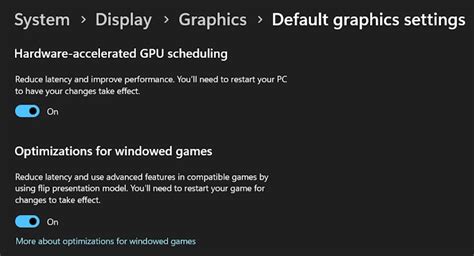
Windows Game Mode can prioritize game resources. Keep your operating system updated, as updates sometimes include performance improvements or driver compatibility fixes.
Optimizing your GPU drivers and in-game settings is a continuous process of tweaking and testing. By understanding which settings have the most impact and systematically adjusting them, you can achieve a significantly smoother and more enjoyable gaming experience without necessarily upgrading your hardware. Experiment with different combinations, monitor your FPS, and find the perfect balance that suits your preferences and system capabilities. Happy gaming!



