





How to optimize GPU settings for higher FPS in competitive games?
Introduction to GPU Optimization for Competitive Edge
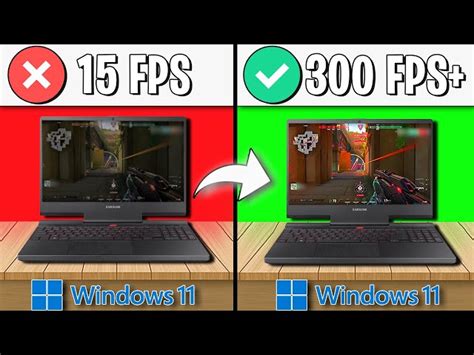
In the high-stakes world of competitive gaming, every frame per second (FPS) counts. A higher, more stable frame rate provides a smoother visual experience, reduces input lag, and can give you a crucial advantage in fast-paced scenarios. While a powerful GPU is the foundation, simply having one isn’t enough; proper optimization of your graphics card settings is key to unlocking its full potential.
Essential First Steps: Drivers and Base Settings
Update Your Graphics Drivers
The single most important step for GPU optimization is keeping your graphics drivers up to date. Both NVIDIA and AMD frequently release driver updates that include performance enhancements and bug fixes, specifically tailored for popular competitive titles. Always download the latest stable drivers directly from the official NVIDIA or AMD website.
In-Game Graphics Settings
While this might seem obvious, many players overlook the granular control offered by in-game settings. Prioritize settings that directly impact FPS over purely aesthetic ones. Reduce shadows, ambient occlusion, anti-aliasing (or use less demanding options like TAA instead of MSAA), and post-processing effects. Textures and draw distance often have less impact on FPS than lighting and particle effects, so experiment to find your balance.

NVIDIA Control Panel Optimization
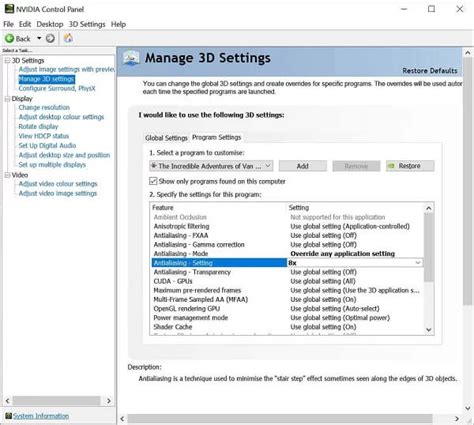
For NVIDIA users, the NVIDIA Control Panel offers a wealth of options to fine-tune your GPU’s behavior. Navigate to ‘Manage 3D settings’ and apply these changes globally or per-game:
- Power management mode: Set to ‘Prefer maximum performance’ to ensure your GPU always runs at full clock speed.
- Low Latency Mode: Experiment with ‘On’ or ‘Ultra’ to minimize input lag, though ‘Ultra’ can sometimes introduce minor stuttering on older cards.
- Texture filtering – Quality: Change to ‘High performance’.
- Shader Cache: Enable.
- Vertical Sync: ‘Off’ for competitive games to avoid input lag, unless you experience severe screen tearing and your monitor supports G-Sync/FreeSync.
- Prefer maximum performance: Ensure this is selected under the ‘Power management mode’.
AMD Radeon Software Optimization
AMD users can leverage the Radeon Software Adrenalin Edition for similar optimizations:
- Radeon Anti-Lag: Enable this feature to reduce input latency in CPU-limited scenarios.
- Radeon Boost: Experiment with this feature, which dynamically lowers resolution in fast-motion scenes to improve FPS.
- Image Sharpening: Keep this off or at a very low setting if you’re prioritizing raw FPS, as it can consume resources.
- Texture Filtering Quality: Set to ‘Performance’.
- Enhanced Sync / FreeSync: If your monitor supports FreeSync, enable it for tear-free gaming without V-Sync’s input lag. Enhanced Sync can be an alternative if FreeSync isn’t available, but be aware it can sometimes introduce stutters.
- Power management: In Radeon Settings, under ‘Gaming’ > ‘Global Graphics’, set ‘Power Efficiency’ to off, or ensure the ‘Performance’ profile is active.
System-Wide Optimizations and Best Practices
- Windows Game Mode: Ensure Windows Game Mode is enabled (Settings > Gaming > Game Mode) as it helps prioritize system resources for games.
- Disable Background Apps: Close unnecessary applications running in the background to free up CPU and RAM.
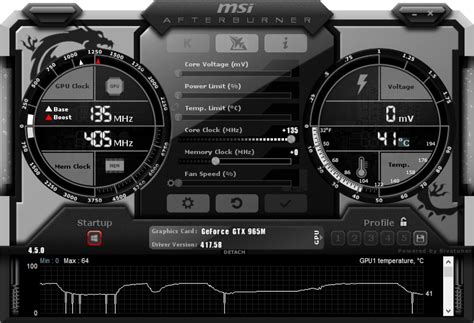
- Overclocking (Advanced): For experienced users, a modest GPU overclock can provide a few extra FPS. Proceed with caution and research safe overclocking guides for your specific card. Monitor temperatures closely.
- Monitor Refresh Rate: Ensure your monitor is set to its highest available refresh rate in Windows Display Settings (e.g., 144Hz, 240Hz).
- Clean Your PC: Dust accumulation can lead to overheating, causing your GPU to throttle performance. Regularly clean your case and GPU fans.
Conclusion
Optimizing your GPU for higher FPS in competitive games is a multi-faceted process that involves driver management, careful in-game setting adjustments, and leveraging your graphics card’s control panel. By systematically applying these tweaks, you can ensure your hardware is performing at its peak, providing you with the smooth, responsive gameplay needed to climb the ranks and dominate the competition.


