How to optimize GPU settings for max FPS in competitive gaming?
In the high-stakes world of competitive gaming, every frame per second (FPS) can make the difference between victory and defeat. A smooth, high-FPS experience provides better responsiveness, reduces input lag, and gives you a crucial advantage, allowing for quicker reactions and more precise aim. While a powerful GPU is the foundation, simply owning one isn’t enough; optimizing its settings is key to unlocking its full potential and ensuring you’re getting every possible frame out of your system.
Update Your Graphics Drivers Regularly
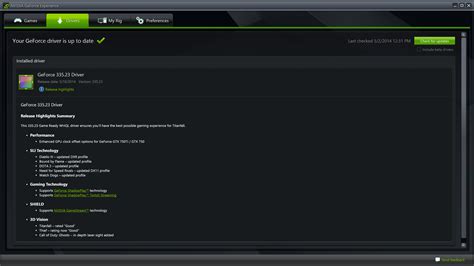
The very first step in any GPU optimization process is to ensure your graphics drivers are up to date. Both NVIDIA and AMD frequently release driver updates that include performance enhancements, bug fixes, and game-specific optimizations. Always download drivers directly from the official manufacturer’s website.
NVIDIA Control Panel Settings for Maximum FPS
NVIDIA users have a powerful tool at their disposal: the NVIDIA Control Panel. Access it by right-clicking on your desktop. Here are the key settings to adjust:
- Manage 3D Settings:
- Power Management Mode: Set to “Prefer Maximum Performance.” This prevents your GPU from downclocking during gameplay.
- Low Latency Mode: Experiment with “On” or “Ultra.” Ultra mode can significantly reduce input lag by limiting the number of frames queued by the CPU.
- Texture filtering – Quality: Set to “High Performance.”
- Vertical Sync: “Off” for competitive gaming to avoid input lag, especially if your monitor has G-Sync/FreeSync, which should be managed separately in global settings.
- Preferred refresh rate (for specific application): “Highest available.”
- Adjust desktop size and position: Ensure scaling is set to “No scaling” or “GPU scaling” with your monitor’s native resolution selected.
AMD Radeon Software Optimization
AMD users can achieve similar optimizations through the Radeon Software Adrenalin Edition. Open it by right-clicking on your desktop and selecting “AMD Radeon Software.”
- Gaming Tab: Select your game, or go to “Global Graphics.”
- Radeon Anti-Lag: Enable this to reduce input lag by dynamically adjusting CPU work to keep up with the GPU.
- Radeon Boost: If supported by your game, enabling this can dynamically lower resolution during fast motion, improving FPS.
- Image Sharpening: While it makes visuals crisper, it can add a slight performance overhead. Test it out.
- Wait for Vertical Refresh (V-Sync): Set to “Always Off” for competitive titles.
- Enhanced Sync: An alternative to V-Sync that aims to reduce tearing without the input lag penalty, but can cause stuttering for some. Test it.
- Power Efficiency: Disable this for maximum performance.
In-Game Graphics Settings: The Critical Tweaks
Even with optimal driver settings, in-game graphics options play a massive role. Prioritize these for FPS:
- Resolution: Always play at your monitor’s native resolution. Lowering it can make the game look blurry.
- Texture Quality: This depends on your VRAM. If you have 8GB+ VRAM, you can often keep this high without much FPS impact. Lower if struggling.
- Shadow Quality: Shadows are notoriously demanding. Reduce this to Medium or Low for significant FPS gains.
- Anti-Aliasing: MSAA is very demanding. FXAA or TAA are less impactful, but consider turning it off entirely if competitive advantage trumps visual smoothness.
- View Distance/Draw Distance: Lowering this can help, but be mindful of competitive visibility.
- Post-Processing Effects: Bloom, motion blur, depth of field, lens flare – turn these off! They offer no competitive advantage and consume resources.
- V-Sync: Disable in-game V-Sync.

Windows Optimization for Gaming
Your operating system also has settings that can impact performance:
- Game Mode: Ensure Windows Game Mode is enabled (Settings > Gaming > Game Mode). It optimizes your PC for gaming by prioritizing game processes.
- Power Plan: Set your Windows Power Plan to “High Performance” or “Ultimate Performance.”
- Background Apps: Disable unnecessary background applications (Settings > Privacy > Background apps).
- Notifications: Turn off notifications during gameplay.
Monitor and Display Settings
Confirm your monitor is running at its highest refresh rate. Go to Display Settings > Advanced display settings > Display adapter properties > Monitor tab, and select the highest refresh rate available.
Advanced Tweaks and Monitoring
For more experienced users:
- GPU Overclocking: Using tools like MSI Afterburner, you can safely boost your GPU’s clock speeds for extra performance. Always research and proceed with caution.
- Resizable BAR / Smart Access Memory (SAM): If your CPU, motherboard, and GPU support it, enable this in your BIOS for potential FPS gains.
- Monitoring Tools: Use MSI Afterburner or AMD Radeon Software’s performance overlay to monitor FPS, GPU usage, and temperatures while tweaking settings.
Optimizing your GPU for maximum FPS in competitive gaming is a multi-layered process involving driver settings, in-game options, and system-level tweaks. By systematically working through these recommendations, you can ensure your hardware is performing at its peak, providing you with the smoothest possible experience and a distinct edge over your opponents. Remember to test each change incrementally to understand its impact and find the sweet spot for your specific setup.