





How to optimize GPU settings for max FPS in competitive PC games?
The Quest for Frames: Why FPS Matters in Competitive Gaming
In the high-stakes world of competitive PC gaming, every frame per second (FPS) counts. Higher FPS translates to smoother gameplay, reduced input lag, and a more responsive experience, giving you a crucial edge over your opponents. While powerful hardware is a starting point, simply having a top-tier GPU isn’t enough; optimizing its settings is key to squeezing out every last frame. This guide will walk you through the essential steps to fine-tune your GPU for maximum FPS in your favorite competitive titles.
Step 1: Keep Your Drivers Up-to-Date
The foundation of any good GPU optimization strategy begins with your drivers. NVIDIA and AMD regularly release driver updates that include performance enhancements and bug fixes, specifically tailored for new game releases. Always ensure you are running the latest stable version of your graphics drivers.
- NVIDIA: Use GeForce Experience or download directly from NVIDIA’s website. Consider a ‘clean installation’ to remove old driver files.
- AMD: Use AMD Radeon Software or download from AMD’s website. Similarly, a factory reset option is available during installation for a clean slate.
Step 2: Optimize In-Game Graphics Settings
Before diving into your GPU control panel, tackle the most impactful settings directly within your game. Many competitive players prioritize performance over visual fidelity.
- Resolution: Lowering your resolution (e.g., from 4K to 1440p or 1080p) will significantly boost FPS. Many pros even play at 1920×1080 for maximum frames.
- Texture Quality: This impacts VRAM usage. If you have a modern GPU with ample VRAM (8GB+), you might keep this high. Otherwise, reduce it.
- Shadows: Shadows are notoriously demanding. Set them to Low or Medium.
- Anti-Aliasing (AA): While AA smooths jagged edges, it’s a huge performance hog. Consider turning it off or using less demanding options like FXAA or SMAA instead of MSAA.
- Post-Processing Effects: Things like motion blur, depth of field, bloom, and lens flares look cinematic but add latency and consume frames. Turn them off.
- Render Scale/Resolution Scale: If your game has this option, setting it to less than 100% (e.g., 80% or 90%) will render the game at a lower resolution internally and then upscale it, providing a significant FPS boost at the cost of some visual clarity.
![[Answered] How do I Force a Game to Run on my GPU?](/images/aHR0cHM6Ly90czQubW0uYmluZy5uZXQvdGg/aWQ9T0lQLnhrRzc2OEM4Z0xFc0NndkFDS3BSa3dIYUU4JnBpZD0xNS4x.webp)
Step 3: Fine-Tune Your GPU Control Panel (NVIDIA & AMD)
Both NVIDIA and AMD offer comprehensive control panels that allow for global and game-specific optimizations.
NVIDIA Control Panel Settings:
Right-click on your desktop and select ‘NVIDIA Control Panel’.
- Manage 3D Settings > Program Settings: Select your competitive game from the dropdown menu (or add it). Apply these settings specifically to that game.
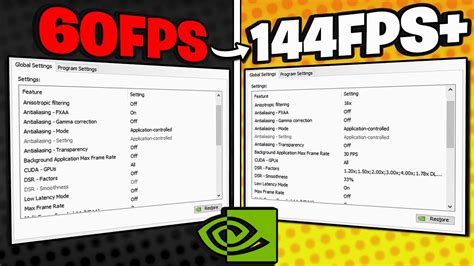
- Power Management Mode: Set to ‘Prefer maximum performance’. This ensures your GPU always runs at its highest clock speeds.
- Texture Filtering – Quality: Set to ‘High performance’.
- Low Latency Mode: Experiment with ‘On’ or ‘Ultra’. This aims to reduce input lag by limiting the number of frames queued by the CPU.
- Max Frame Rate: If you have a high refresh rate monitor (144Hz, 240Hz), you can set a frame limit slightly below your monitor’s refresh rate (e.g., 141 FPS for a 144Hz monitor) to maintain consistency and avoid screen tearing without V-Sync.
AMD Radeon Software Settings:
Right-click on your desktop and select ‘AMD Radeon Software’. Go to the ‘Gaming’ tab.
- Global Graphics > Performance > Tuning: Ensure your GPU is running at optimal speeds.
- Radeon Anti-Lag: Enable this to reduce input lag.
- Radeon Boost: Experiment with this feature, which dynamically lowers resolution during fast-motion scenes to improve FPS.
- Image Sharpening: While it can make visuals crisper, it might have a minor performance impact. Test if you prefer it on or off.
- Texture Filtering Quality: Set to ‘Performance’.
- Wait for Vertical Refresh (V-Sync): Turn this ‘Off’ or set to ‘Always Off’ to prevent input lag, especially if you have a FreeSync monitor.
Step 4: Windows Optimization for Gaming
Beyond your GPU settings, optimizing Windows can also contribute to higher FPS and a smoother experience.
- Game Mode: Ensure Windows Game Mode is enabled (Settings > Gaming > Game Mode).
- Hardware-accelerated GPU scheduling: (Settings > System > Display > Graphics Settings). If available and enabled, this can help reduce latency and improve performance on supported hardware. Restart your PC after enabling.
- Power Plan: Set your power plan to ‘High Performance’ or ‘Ultimate Performance’ (Settings > System > Power & Sleep > Additional power settings).
- Disable Background Apps: Close any unnecessary applications running in the background while gaming, as they consume CPU and RAM resources.
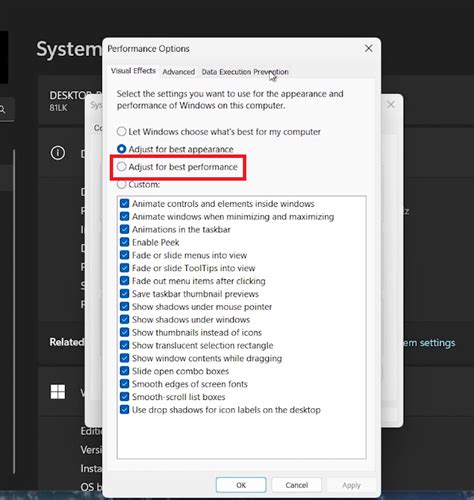
- Visual Effects: (Right-click ‘This PC’ > Properties > Advanced system settings > Performance Settings > Visual Effects). Select ‘Adjust for best performance’.
Conclusion: Test, Tweak, and Dominate
Optimizing your GPU for max FPS is an ongoing process of testing and tweaking. Every system and game is different, so what works perfectly for one might not be ideal for another. Take the time to experiment with these settings, observe the changes in FPS, and find the perfect balance that gives you the competitive edge. With a finely tuned GPU, you’ll not only see higher frame rates but also experience a noticeable improvement in responsiveness, helping you react faster and climb the ranks.


