





How to optimize my gaming PC for higher FPS in new AAA titles without expensive upgrades?
Unlock Your PC’s Hidden Potential
Many gamers believe that achieving higher Frame Rates Per Second (FPS) in the latest AAA titles automatically requires an expensive upgrade to their graphics card or processor. While new hardware certainly helps, there’s a surprising amount of performance you can squeeze out of your existing setup through smart optimization. This guide will walk you through the essential steps to boost your FPS and enhance your gaming experience without opening your wallet for costly components.
Driver Updates: The Foundation of Performance
The single most impactful, free upgrade you can make is ensuring your graphics drivers are up to date. NVIDIA, AMD, and Intel frequently release new drivers that include performance optimizations specifically for the latest game releases. Always download these directly from the manufacturer’s official website.
Beyond graphics drivers, also check for updates to your chipset drivers and audio drivers. While less critical for FPS, an outdated chipset driver can sometimes lead to system bottlenecks, and updated audio drivers can improve overall system stability.
Operating System Optimization for Gaming
Windows Game Mode and Background Apps
Windows 10 and 11 offer a ‘Game Mode’ designed to prioritize your game’s resources. Ensure this is enabled (Settings > Gaming > Game Mode). Additionally, review which applications are running in the background (Settings > Privacy > Background apps) and disable any unnecessary ones. These background processes consume CPU and RAM, which could otherwise be allocated to your game.
Power Plan Settings
Set your power plan to ‘High Performance’ or ‘Ultimate Performance’ (if available). This ensures your CPU and other components are running at their maximum clock speeds rather than conserving power, which is critical during gaming sessions. You can find this in the Control Panel under ‘Power Options’.
Mastering In-Game Graphics Settings
This is where you can make significant changes without touching your hardware. Every graphics setting has an impact on performance, and knowing which ones to tweak can lead to substantial FPS gains.
- Resolution: The higher the resolution, the more pixels your GPU has to render. Dropping from 4K to 1440p, or even 1080p, will yield the biggest FPS boost.
- Anti-Aliasing (AA): Techniques like MSAA or TAA smooth jagged edges but are very demanding. Consider FXAA or turning it down/off if your FPS is struggling.
- Shadow Quality: Shadows are notoriously performance-intensive. Reducing their quality or resolution can free up considerable resources.
- Volumetric Lighting/Fog: Realistic light rays and fog can be beautiful but are often very taxing on your GPU.
- Reflections: High-quality reflections, especially screen-space reflections, are another common FPS killer.
- Texture Quality: This impacts VRAM usage more than raw FPS. If you have enough VRAM (4GB+ for 1080p, 6GB+ for 1440p), you can often keep this high.

Experiment with settings. Start by lowering the most demanding options one by one until you reach a comfortable FPS, then gradually increase less demanding ones if performance allows. Utilize in-game benchmarks if available.
System Maintenance for Peak Performance
Disk Cleanup and Defragmentation
Regularly clean temporary files and cached data from your drives. If you’re still using a Hard Disk Drive (HDD) for your games, defragmenting it occasionally can improve load times, though its impact on in-game FPS is minimal. For Solid State Drives (SSDs), defragmentation is unnecessary and can reduce their lifespan; ensure Windows TRIM is enabled instead.
Thermal Management
Overheating components (CPU, GPU) will throttle their performance to prevent damage. Ensure your PC’s cooling system is efficient. Clean dust from fans and heatsinks regularly. Good airflow within your case is paramount. Consider replacing old thermal paste on your CPU if you’re comfortable doing so, as old paste can lose effectiveness.

Consider Software-Based Upscaling Technologies
Modern graphics cards, especially NVIDIA RTX and AMD Radeon RX series, offer upscaling technologies like DLSS (Deep Learning Super Sampling) and FSR (FidelityFX Super Resolution). These render games at a lower resolution and then intelligently upscale them to your target resolution, often with minimal visual degradation but significant FPS gains. If your hardware and game support these, enable them!

Monitoring and Fine-Tuning
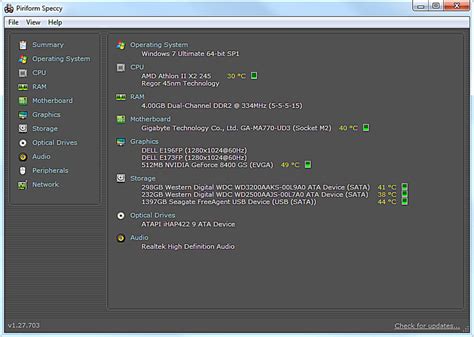
Tools like MSI Afterburner or HWMonitor allow you to monitor your CPU and GPU usage, temperatures, and clock speeds in real-time. This data is invaluable for identifying bottlenecks. If your GPU utilization is consistently at 99-100% and your FPS is low, your GPU is the limiting factor. If your CPU is at 99-100% and your GPU isn’t, your CPU is the bottleneck. Understanding this helps you focus your optimization efforts.
Conclusion
Optimizing your gaming PC for higher FPS in new AAA titles doesn’t always require a financial investment. By diligently updating drivers, tuning Windows settings, meticulously adjusting in-game graphics, and performing routine maintenance, you can significantly enhance your gaming experience. Take the time to experiment with these settings; the performance gains might surprise you and breathe new life into your existing gaming rig.


