





How to optimize my gaming PC for maximum FPS and lowest latency?
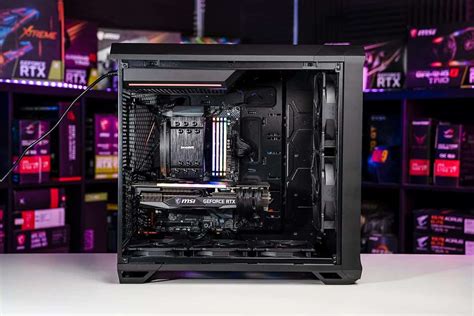
In the competitive world of PC gaming, every frame per second (FPS) and millisecond of latency can make a critical difference. Optimizing your gaming rig isn’t just about raw power; it’s about meticulously tuning hardware, software, and network settings to squeeze out every bit of performance. This guide will walk you through comprehensive steps to ensure your gaming PC delivers maximum FPS and the lowest possible latency, giving you the edge you need.
Start with Essential Driver Updates
The foundation of any high-performing PC lies in its drivers. Outdated graphics card drivers (NVIDIA, AMD, Intel) are common culprits for poor FPS and instability. Always download the latest stable versions directly from the manufacturer’s website. Don’t forget chipset drivers and sound drivers, as they can also impact system responsiveness. A clean installation of GPU drivers is often recommended to remove any lingering old files.
Optimize In-Game Settings for Performance
While high graphics look stunning, they can severely impact FPS. Most games offer a wide range of graphical options. Focus on adjusting settings that have the biggest impact on performance without sacrificing too much visual fidelity. Key settings to review include:
- Resolution: Match your monitor’s native resolution, but consider lowering it if FPS is critically low.
- Texture Quality: Impacts VRAM usage; higher VRAM means higher quality textures are possible.
- Shadow Quality: Often a major FPS killer. Lowering this can yield significant gains.
- Anti-Aliasing: Smooths jagged edges but is very demanding. Try less intensive methods like FXAA or TAA.
- View Distance/Draw Distance: How far objects are rendered. Can be reduced slightly.
- Post-Processing Effects: Bloom, motion blur, depth of field can be disabled for performance boosts.
Experiment with these settings, monitoring your FPS after each change, until you find a balance that suits your preferences and hardware capabilities.

Tweak Windows Settings for Gaming
Your operating system can have a profound impact on gaming performance. Windows 10/11 includes several features to help:
- Game Mode: Enable Game Mode in Windows settings (Settings > Gaming > Game Mode). This feature prioritizes your game and suppresses background tasks.
- Power Plan: Set your power plan to “High Performance” or “Ultimate Performance” (if available) to ensure your CPU and GPU aren’t throttled.
- Background Apps: Disable unnecessary background apps (Settings > Privacy > Background apps) that consume system resources.
- Notifications: Turn off notifications during gaming sessions to prevent interruptions and resource drain.
- Visual Effects: Reduce visual effects for a slight boost (search “adjust the appearance and performance of Windows”).
Network Optimization for Lowest Latency
Latency, or “ping,” is crucial for online gaming. Even with high FPS, high ping will lead to a frustrating experience. Here’s how to minimize it:
- Wired Connection: Always use an Ethernet cable instead of Wi-Fi. Wired connections are more stable and have lower latency.
- Router Quality of Service (QoS): If your router supports QoS, configure it to prioritize gaming traffic over other network activities.
- Close Background Applications: Ensure no other applications are consuming bandwidth (e.g., streaming, large downloads, cloud backups).
- Update Router Firmware: Keep your router’s firmware updated for optimal performance and security.
- Consider a Gaming VPN: In some rare cases, a VPN optimized for gaming might reroute your connection more efficiently, but often adds latency. Test it first.
Hardware Enhancements and Maintenance
Sometimes, software tweaks aren’t enough, and hardware considerations come into play.
- RAM Speed and Capacity: Ensure you have sufficient RAM (16GB is a good baseline) and that it’s running at its advertised speed (enable XMP/DOCP in BIOS).
- SSD Upgrade: If you’re still using an HDD for your OS and games, upgrading to an SSD (NVMe is best) will drastically improve load times and overall system responsiveness, though it generally doesn’t directly boost FPS in-game.
- CPU/GPU Overclocking: For advanced users, safely overclocking your CPU and GPU can provide noticeable performance gains. Proceed with caution and adequate cooling.
- Cooling: Overheating components will throttle performance. Ensure good airflow in your case and clean dust from fans and heatsinks regularly.

Regular System Maintenance
Keeping your system tidy is vital for sustained performance:
- Disk Cleanup: Use Windows’ built-in Disk Cleanup tool to remove temporary files and other unnecessary data.
- Defragmentation (for HDDs): If you still use an HDD, defragment it regularly. SSDs do not need defragmentation.
- Malware Scan: Regularly scan your system for viruses and malware, which can consume significant resources.
- Monitor Temperatures: Use monitoring software (e.g., MSI Afterburner, HWMonitor) to keep an eye on CPU and GPU temperatures to prevent thermal throttling.
Conclusion
Optimizing your gaming PC is an ongoing process that involves a combination of smart hardware choices, diligent software management, and network fine-tuning. By systematically applying the steps outlined above—from updating drivers and tweaking in-game settings to securing a wired internet connection and maintaining your system—you can unlock your PC’s full potential, ensuring a smoother, more responsive, and ultimately more enjoyable gaming experience. Remember to test changes incrementally and find the balance that works best for your specific setup.


