





How to optimize my gaming PC for stable FPS and prevent overheating?
Achieving a smooth, consistent gaming experience with high frame rates (FPS) and preventing your system from overheating is crucial for any PC gamer. Overheating can lead to performance throttling, system instability, and even shorten the lifespan of your components. This guide will walk you through essential hardware and software optimizations to keep your gaming PC running at its best.
Hardware Optimization: The Foundation of Performance
The physical condition and setup of your PC are fundamental to its performance and thermal management. Start by addressing the basics.

1. Keep it Clean and Clear
- Dust Removal: Dust is an insulator and a major culprit for poor heat dissipation. Regularly clean your PC’s interior using compressed air, focusing on fans, heatsinks (CPU and GPU), and power supply unit (PSU).
- Cable Management: Messy cables obstruct airflow. Route cables neatly behind the motherboard tray or out of the direct path of fans to improve air circulation.
- Optimal Fan Configuration: Ensure your case fans are set up for positive or neutral air pressure. Typically, front and bottom fans should intake cool air, while rear and top fans should exhaust hot air.
2. Enhance Your Cooling Solutions
- CPU Cooler: The stock cooler might be sufficient for basic use, but for gaming, an aftermarket air cooler or an All-in-One (AIO) liquid cooler will significantly improve CPU thermals.
- GPU Cooling: While GPUs come with their own cooling, ensure their fans are clean and functioning correctly. Consider upgrading your case’s airflow if your GPU frequently runs hot.
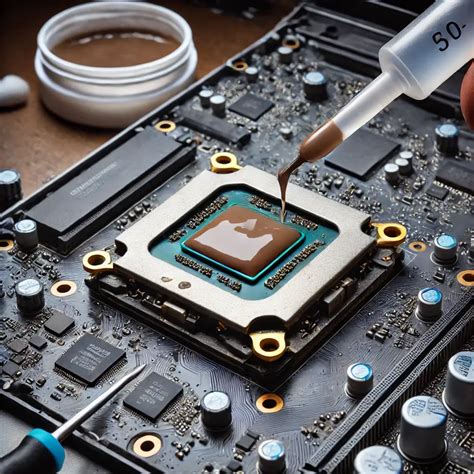
- Thermal Paste: Over time, thermal paste between your CPU/GPU and their heatsinks can dry out, reducing its effectiveness. Reapplying fresh, high-quality thermal paste every few years can make a noticeable difference.
3. Check Your Components
- RAM: Ensure RAM sticks are properly seated. Dual-channel memory configurations can offer a slight performance boost.
- SSD/NVMe: While storage drives don’t directly impact FPS as much as CPU/GPU, a fast SSD ensures quick game loading and responsiveness, reducing stuttering.
- Power Supply Unit (PSU): An underpowered or aging PSU can lead to instability. Ensure your PSU provides adequate and stable power to all components.
Software Optimization: Fine-Tuning for Peak Performance
Once your hardware is in order, software settings play a vital role in extracting maximum performance.
1. Keep Drivers Updated
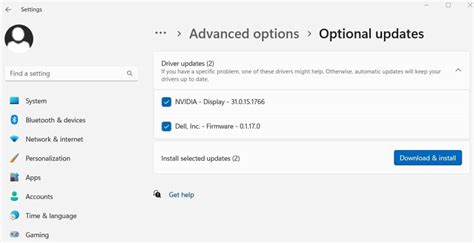
- Graphics Drivers: This is paramount. NVIDIA, AMD, and Intel regularly release new drivers that include performance optimizations and bug fixes for the latest games. Always download directly from the manufacturer’s website.
- Chipset Drivers: Update your motherboard’s chipset drivers from the motherboard manufacturer’s site to ensure optimal communication between components.
2. Optimize Operating System Settings
- Power Plan: Set your Windows power plan to “High Performance” or “Ultimate Performance” to ensure your CPU operates at its maximum potential.
- Disable Background Apps: Close unnecessary applications running in the background while gaming. Windows Task Manager can help identify resource hogs.
- Game Mode: Enable Windows Game Mode (Windows 10/11) as it prioritizes system resources for gaming.
- Visual Effects: For older systems, consider adjusting Windows’ visual effects for “Best performance” rather than “Best appearance.”

3. Fine-Tune In-Game Settings
This is where you balance visual fidelity with performance. Experiment with individual settings:
- Resolution: Lowering resolution significantly boosts FPS but reduces visual clarity.
- Texture Quality: Impacts VRAM usage. Adjust based on your GPU’s memory.
- Shadows & Reflections: Often the most demanding settings; reducing them can yield significant FPS gains.
- Anti-aliasing: Can be very resource-intensive. Experiment with different types (e.g., TAA, FXAA, MSAA).
- V-Sync/FreeSync/G-Sync: V-Sync caps FPS to your monitor’s refresh rate to prevent screen tearing but can introduce input lag. FreeSync/G-Sync monitors dynamically match FPS to the refresh rate, offering the best of both worlds.
4. Monitor Your System
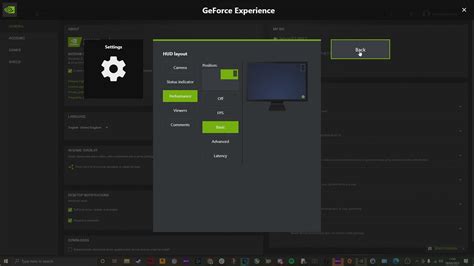
Use monitoring tools like MSI Afterburner (for GPU), HWMonitor, or Core Temp (for CPU) to keep an eye on temperatures, clock speeds, and FPS while gaming. This data helps identify bottlenecks and verify the effectiveness of your optimizations.
Advanced Tips for Maximum Stability
- Overclocking (with caution): If you have good cooling, gently overclocking your CPU and/or GPU can provide extra performance. However, this increases heat and power consumption, so proceed with research and caution.
- Undervolting: Conversely, undervolting aims to run components at lower voltages while maintaining stable clock speeds. This can reduce heat and power consumption without a significant performance loss.
Optimizing your gaming PC is an ongoing process, not a one-time fix. Regular maintenance, driver updates, and thoughtful adjustment of settings will ensure stable FPS, prevent overheating, and extend the life of your valuable hardware. Enjoy a smoother, more immersive gaming experience!


