





How to optimize NVIDIA/AMD GPU settings for max FPS in new AAA titles?
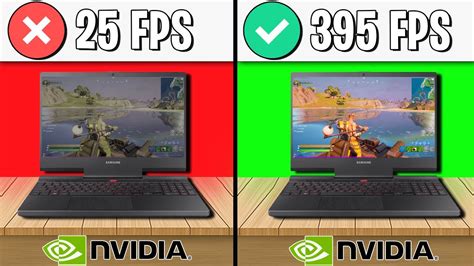
Unleash Your GPU’s Full Potential
For PC gamers, achieving the highest possible frame rates (FPS) in demanding new AAA titles is often the ultimate goal. While raw hardware power plays a significant role, optimizing your graphics card settings can make a substantial difference, pushing your system to its limits and ensuring a smoother, more immersive gaming experience. This guide will walk you through essential steps for both NVIDIA and AMD GPUs to squeeze out every last frame.
General Optimization Strategies (NVIDIA & AMD)
Before diving into vendor-specific settings, a few universal best practices apply to all graphics cards:
- Keep Drivers Updated: This is paramount. Both NVIDIA and AMD frequently release game-ready drivers that include performance optimizations and bug fixes for the latest titles. Always download the newest stable version directly from their official websites.
- Manage Background Applications: Close any unnecessary programs running in the background. Discord, web browsers, streaming software, or even other game launchers can consume CPU, RAM, and GPU resources that could be better used by your game.
- Windows Power Plan: Ensure your Windows power plan is set to ‘High Performance’ or ‘Ultimate Performance’. This prevents the system from throttling your hardware to save power.
- Monitor Your Temperatures: Overheating can lead to thermal throttling, reducing your GPU’s performance. Use monitoring software (like MSI Afterburner or HWMonitor) to keep an eye on your GPU and CPU temperatures during gaming sessions. Ensure adequate case airflow.
NVIDIA Control Panel Optimization
NVIDIA users can fine-tune their experience through the NVIDIA Control Panel:
- Open NVIDIA Control Panel: Right-click on your desktop and select ‘NVIDIA Control Panel’.
- Manage 3D Settings: Navigate to ‘Manage 3D settings’ > ‘Global Settings’. You can also create specific profiles for individual games under the ‘Program Settings’ tab.
- Key Settings to Adjust:
- Image Scaling: Set to ‘Off’ for maximum FPS. If you want to use NVIDIA’s upscaling tech, enable it and adjust to your preference.
- Low Latency Mode: Set to ‘Ultra’ for competitive games to reduce input lag. For single-player, ‘On’ or ‘Off’ might be fine.
- Power Management Mode: Set to ‘Prefer maximum performance’. This ensures your GPU runs at its highest clock speeds consistently.
- Shader Cache Size: Set to ‘Unlimited’ or a high value (e.g., 100 GB) to allow the GPU to store more compiled shaders, reducing in-game stutter.
- Texture filtering – Quality: Set to ‘High performance’ or ‘Performance’ for a slight FPS boost at the expense of texture clarity.
- Vertical sync: Set to ‘Off’ unless you experience severe screen tearing and don’t have G-Sync. If you have a G-Sync monitor, ensure G-Sync is enabled globally.
- Apply Changes: Don’t forget to click ‘Apply’ after making adjustments.

AMD Radeon Software Optimization
AMD users can leverage the powerful Radeon Software (Adrenalin Edition) to optimize their GPUs:
- Open Radeon Software: Right-click on your desktop and select ‘AMD Radeon Software’.
- Gaming Tab: Go to the ‘Gaming’ tab, then ‘Graphics’. Here you can set global graphics profiles or create specific game profiles.
- Key Settings to Adjust:
- Radeon Anti-Lag: Enable this for competitive gaming to reduce input latency.
- Radeon Boost: Enable this. It dynamically lowers resolution during fast-motion scenes to improve FPS, often without noticeable quality loss.
- Radeon Image Sharpening (RIS): Set to ‘Off’ for maximum FPS. If you use it, a value between 60-80% is usually recommended.
- Radeon Chill: Disable this. It’s designed to save power and reduce heat by capping FPS, which is counter-productive for max FPS.
- Advanced Options:
- Texture Filtering Quality: Set to ‘Performance’ for a slight FPS gain.
- Tessellation Mode: Set to ‘Override application settings’ and ‘Max Tessellation Level’ to 8x or 16x for potentially higher FPS in tessellation-heavy games.
- Wait for Vertical Refresh: Set to ‘Always off’ unless you have FreeSync enabled and want to avoid tearing.
- Apply Changes: Ensure settings are applied globally or to specific game profiles.

In-Game Settings: The Final Frontier
Even after optimizing your GPU drivers, in-game settings are crucial. Experimentation is key, as each game’s engine reacts differently to various settings:
- Resolution: The biggest FPS killer. Lowering resolution (e.g., from 4K to 1440p, or 1440p to 1080p) will yield massive FPS gains.
- Texture Quality: Impacts VRAM usage. Adjust based on your GPU’s VRAM capacity.
- Shadows: Often very demanding. Lowering shadow quality or resolution can free up significant FPS.
- Anti-Aliasing: Resource-intensive. Options like FXAA or TAA are less demanding than MSAA. Consider disabling it or using a less intensive method if struggling.
- Post-Processing Effects: Volumetric fog, depth of field, motion blur, and ambient occlusion can be performance hogs. Disable or reduce them for better FPS.
- Draw Distance/View Distance: Reducing this can help, especially in open-world games.
- V-Sync: Disable it if you have a high refresh rate monitor with G-Sync/FreeSync enabled, or if you prefer tearing over input lag.
Use an in-game FPS counter (available through Steam, NVIDIA GeForce Experience, AMD Radeon Overlay, or third-party tools like MSI Afterburner) to monitor the impact of each setting change.

Conclusion
Optimizing your GPU settings for maximum FPS in new AAA titles is a blend of driver maintenance, control panel tweaks, and careful in-game adjustments. There’s no one-size-fits-all solution, so be prepared to experiment. By systematically working through these steps for your NVIDIA or AMD graphics card, you’ll be well on your way to a smoother, more responsive, and ultimately more enjoyable gaming experience. Happy gaming!


