





How to optimize NVIDIA/AMD settings for max gaming FPS?

Unleashing Your Gaming PC’s Full Potential
Achieving the highest possible frames per second (FPS) is a primary goal for many PC gamers, as it leads to a smoother, more responsive, and ultimately more enjoyable experience. While hardware is a significant factor, carefully tweaking your graphics card’s software settings can provide a substantial performance boost without spending a dime. Both NVIDIA and AMD offer comprehensive control panels that allow users to fine-tune various aspects of their GPU’s operation. This guide will walk you through the essential settings to optimize for maximum FPS.
Navigating Your Graphics Control Panel
Before diving into specific settings, it’s crucial to understand the power held within your graphics driver’s control panel. This software interface is your gateway to managing how your GPU interacts with games and applications. By default, many settings are balanced for quality and performance, but with a few targeted adjustments, you can prioritize raw speed.
Accessing these panels is straightforward: right-click on your desktop and select either “NVIDIA Control Panel” or “AMD Radeon Software” (or similar phrasing).
NVIDIA Control Panel Optimization for Maximum FPS
For NVIDIA users, the control panel offers a wealth of options. Focus on these key settings within “Manage 3D settings,” often under the “Global Settings” tab for widespread impact, or “Program Settings” for game-specific tweaks:
- Low Latency Mode: Set to Ultra. This aims to reduce input lag by submitting frames just-in-time for the GPU to process, ideal for competitive gaming.
- Max Frame Rate: Consider setting this slightly below your monitor’s refresh rate (e.g., 141 FPS for a 144Hz monitor) to maintain consistent frame times and avoid tearing without V-Sync. Alternatively, leave it off for uncapped FPS if you prefer.
- Power Management Mode: Set to Prefer maximum performance. This ensures your GPU always operates at its highest clock speeds, preventing downclocking during less demanding scenes.
- Texture Filtering – Quality: Set to High performance. This reduces the visual quality of textures slightly in favor of faster processing.
- Shader Cache Size: Set to Unlimited or a high value. This allows your GPU to store more compiled shaders, reducing stuttering and load times in games.
- Vertical Sync (V-Sync): Generally, set to Off for maximum FPS, as it can introduce input lag and cap frame rates to your monitor’s refresh rate. Use G-Sync/FreeSync if available, or consider ‘Fast Sync’ as an alternative if screen tearing is an issue.
- Image Scaling: Keep Off for maximum native resolution performance.

AMD Radeon Software Optimization for Maximum FPS
AMD users can leverage the “Radeon Software” to boost their in-game performance. Navigate to the “Gaming” tab and then “Global Graphics” to apply changes across all games, or “Games” for specific titles. Here are the crucial settings:
- Radeon Anti-Lag: Enable this. Similar to NVIDIA’s Low Latency Mode, Anti-Lag helps reduce input lag by intelligently pacing the CPU work to ensure the GPU is always ready.
- Radeon Boost: Enable this. Radeon Boost dynamically reduces resolution during fast-motion scenes, offering significant FPS increases with minimal perceived visual degradation.
- Radeon Chill: Disable this. Radeon Chill limits your FPS to a set range to save power and reduce heat, which is counterproductive when seeking max FPS.
- Image Sharpening: Disable this for maximum raw performance. While it can make games look crisper, it adds a slight processing overhead.
- Enhanced Sync: Generally, set to Off for maximum FPS. Similar to V-Sync, it tries to eliminate tearing but can introduce some latency. Use FreeSync if available.
- Graphics Profile: Set to eSports or Standard and then manually tweak for performance. The eSports profile often prioritizes performance.

General Optimization Tips for Both NVIDIA and AMD
Beyond the specific driver settings, several universal optimizations can further enhance your gaming FPS, regardless of your GPU manufacturer:
Keep Your Drivers Updated
Always ensure your graphics drivers are up-to-date. Both NVIDIA and AMD frequently release new drivers with performance optimizations for the latest games. Use the GeForce Experience or Radeon Software to check for updates.
Optimize In-Game Settings
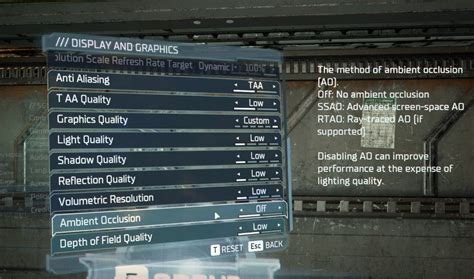
The most impactful changes often come from within the game itself. Prioritize these settings:
- Resolution: Lowering this has the biggest impact on FPS.
- Render Scale/Resolution Scale: If available, reducing this slightly (e.g., 80-90%) renders the game at a lower resolution internally and then upscales, offering a good balance.
- Shadows: Shadows are notoriously resource-intensive. Lowering their quality or disabling them can yield significant FPS gains.
- Anti-Aliasing: Technologies like MSAA are very demanding. Opt for less intensive methods like FXAA, TAA, or turn it off if you need more frames.
- Volumetric Clouds/Fog: These can be very taxing. Reduce their quality or turn them off.
Manage Background Applications
Close any unnecessary applications running in the background while gaming. Discord, web browsers with many tabs, streaming software, or active downloads can consume valuable CPU, RAM, and even GPU resources.
Windows Game Mode and Power Plan
Ensure Windows Game Mode is enabled (Settings > Gaming > Game Mode). This prioritizes your game’s resources. Also, set your Windows Power Plan to “High performance” or “Ultimate Performance” (accessible via Control Panel > Power Options) to prevent CPU throttling.
Testing and Fine-Tuning Your Settings
Optimization is not a one-time process; it requires testing. After making changes, launch your favorite game and use an FPS counter (like the one built into Steam, GeForce Experience, Radeon Overlay, or tools like MSI Afterburner) to monitor performance. Experiment with one setting at a time to understand its impact. What works best can vary significantly between different games and hardware configurations.

By diligently applying these NVIDIA and AMD specific settings, coupled with general PC hygiene and in-game adjustments, you’ll be well on your way to squeezing every last frame out of your gaming rig. Enjoy the smoother gameplay!


