





How to optimize Windows 10 for maximum gaming performance & FPS?
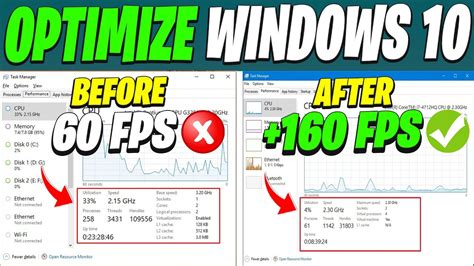
Are you looking to squeeze every last frame per second (FPS) out of your Windows 10 gaming rig? While a powerful graphics card and CPU are crucial, optimizing your operating system can make a significant difference in overall gaming performance. This guide will walk you through essential settings and tweaks to ensure your Windows 10 PC is running at its peak for gaming.
Enable Game Mode and Adjust Graphics Settings
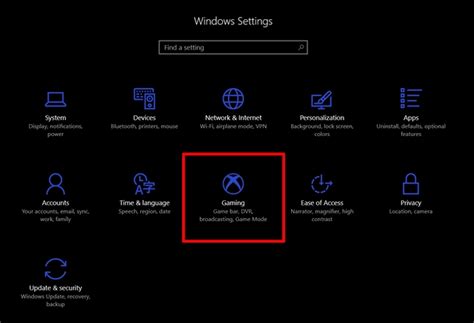
Windows 10 includes a built-in ‘Game Mode’ designed to prioritize your game. When activated, it helps reduce background activity and allocates more system resources to your game. To enable it, go to Settings > Gaming > Game Mode and toggle it On. While you’re there, ensure your display settings are correct, especially your monitor’s refresh rate.
Beyond Game Mode, Windows 10 offers granular control over graphics performance for individual applications. Navigate to Settings > System > Display > Graphics settings. Here, you can add your game executables and set their preference to ‘High performance’ to ensure your dedicated GPU is always used, especially if you have a laptop with integrated graphics.
Optimize Power Plan for Performance
By default, Windows 10 might use a ‘Balanced’ power plan, which conserves energy but can limit performance. For gaming, you want maximum power. Go to Control Panel > Hardware and Sound > Power Options. Select ‘High performance’ or, even better, ‘Ultimate Performance’ if your system offers it (often hidden, you might need to enable it via Command Prompt: powercfg -duplicatescheme e9a42b02-d5df-448d-aa00-03f147496701 and then refresh Power Options).
Disable Background Apps and Notifications
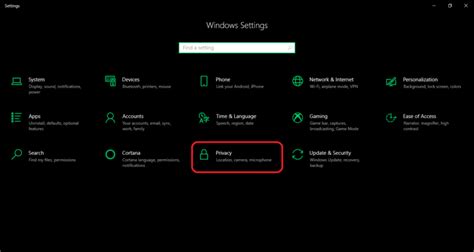
Background apps consume valuable CPU, RAM, and network resources. To disable them, go to Settings > Privacy > Background apps. Turn off ‘Let apps run in the background’ entirely, or selectively disable apps you don’t need running in the background. Similarly, intrusive notifications can pull you out of the game and affect performance. Head to Settings > System > Notifications & actions and disable ‘Get notifications from apps and other senders’ or configure them to be less disruptive.
Update Graphics Drivers and Optimize Storage
Outdated graphics drivers are a common cause of poor gaming performance and stability issues. Always ensure you have the latest drivers from your GPU manufacturer (NVIDIA, AMD, Intel). Visit their official websites regularly to download and install updates. Using third-party driver update tools is generally not recommended.
Your storage device also plays a role. If you have an SSD, ensure your games are installed on it for faster loading times. For HDDs, regular defragmentation (right-click drive > Properties > Tools > Optimize) can help, but it’s generally not needed for SSDs. Also, ensure you have sufficient free space, as a full drive can slow down your system.
Adjust Visual Effects and Manage Startup Programs
Windows 10’s visual effects, while aesthetically pleasing, consume system resources. You can turn them down for a performance boost. Search for ‘Adjust the appearance and performance of Windows’ in the Start menu. In the ‘Performance Options’ window, select ‘Adjust for best performance’ or customize by unchecking unnecessary animations and shadows.
Too many programs launching with Windows can hog resources from the start. Press Ctrl + Shift + Esc to open Task Manager, then go to the ‘Startup’ tab. Disable any non-essential programs from launching with your system. Be careful not to disable critical system components.

Additional Tips for Maximizing FPS
- Close Unnecessary Programs: Before launching a game, close web browsers, chat applications, and any other software running in the background.
- Update Windows: Keep your operating system up-to-date. Microsoft often releases performance improvements and bug fixes.
- Monitor Temps: Overheating components can throttle performance. Use monitoring software to check CPU and GPU temperatures.
- Clean Your PC: Regularly clean your PC’s interior to prevent dust buildup, which can lead to overheating.
- Disable Nagle’s Algorithm (Advanced): For online gaming, disabling Nagle’s Algorithm via Registry Editor can reduce network latency, but proceed with caution and back up your registry first.
Conclusion
Optimizing Windows 10 for gaming is an ongoing process, but by implementing these tweaks, you can significantly enhance your gaming experience, enjoy higher FPS, and reduce lag. Remember that the impact of each setting may vary based on your hardware and specific games. Experiment with these options to find the perfect balance for your system and dive into a smoother, more responsive gaming world.


