How to optimize Windows 10 for maximum gaming performance & FPS?
Unlock Your Gaming Potential: Why Optimize Windows 10?
For PC gamers, every frame per second (FPS) counts. While powerful hardware is a solid foundation, an unoptimized Windows 10 operating system can bottleneck even the most robust gaming rig. By fine-tuning your system settings, you can free up valuable resources, reduce input lag, and achieve a smoother, more responsive gaming experience. This guide will walk you through the crucial steps to optimize Windows 10 for peak gaming performance and maximum FPS.
Maximize Your FPS with Key Windows Settings
Windows 10 includes several built-in features designed to enhance gaming, alongside other settings that can be tweaked for better performance.
Enable Game Mode: Windows Game Mode prioritizes your game by allocating CPU and GPU resources to it, while also suppressing Windows Update activities and notifications. To enable it, go to Settings > Gaming > Game Mode and toggle it On.
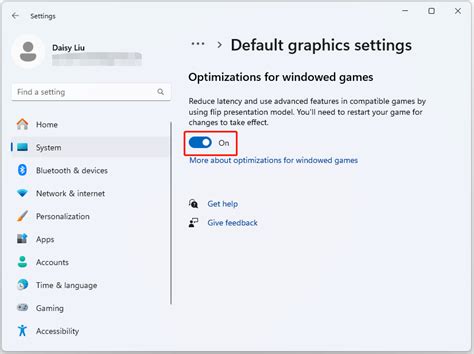
Adjust Graphics Settings: Navigate to Settings > System > Display > Graphics settings. Here, you can enable Hardware-accelerated GPU scheduling (if supported by your hardware) which can reduce latency and improve performance. Additionally, you can specify performance preferences for individual games by adding them and setting them to “High performance”.
Set Power Plan to High Performance: By default, Windows often uses a balanced power plan. For gaming, switching to “High performance” (or “Ultimate Performance” if available) ensures your CPU and other components operate at their maximum potential without throttling. Access this via Control Panel > Hardware and Sound > Power Options.
Tweak Background Processes and Visuals
Unnecessary background tasks and visual effects can consume precious system resources that could otherwise be used for gaming.
Disable Notifications and Focus Assist: Notifications can be distracting and use minor CPU cycles. Go to Settings > System > Notifications & actions and turn off notifications. For more control, use Focus Assist (Settings > System > Focus Assist) to silence notifications during specific times or when playing games.
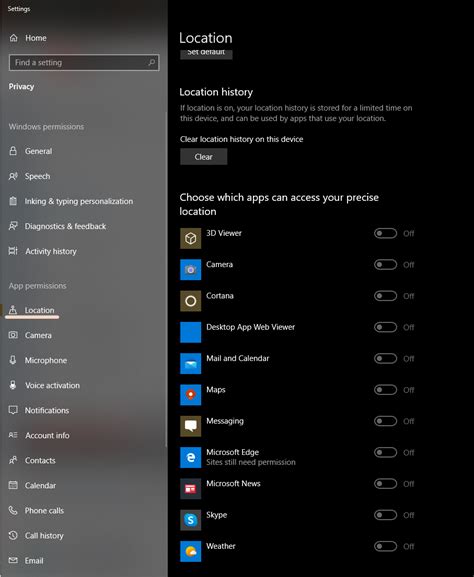
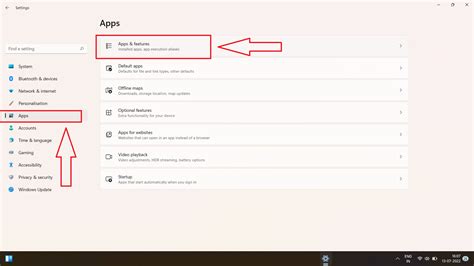
Manage Startup Apps and Background Apps: Many applications launch automatically with Windows and continue to run in the background. Open Task Manager (Ctrl+Shift+Esc), go to the “Startup” tab, and disable any non-essential programs. Similarly, go to Settings > Privacy > Background apps and toggle off apps that don’t need to run in the background.
Adjust Visual Effects for Performance: Windows 10’s aesthetic features, like animations and shadows, can slightly impact performance. Search for “Adjust the appearance and performance of Windows” in the Start menu. In the Performance Options window, select “Adjust for best performance” or manually customize by unchecking unnecessary visual effects.
Essential Driver and System Maintenance
Keeping your drivers updated and your system clean is fundamental for stable and high-performing gaming.
Update Graphics Drivers: This is arguably the most critical step. NVIDIA, AMD, and Intel frequently release driver updates that include performance optimizations for new and existing games. Always download the latest drivers directly from your GPU manufacturer’s website.
Update Chipset and Other System Drivers: While less frequent, keeping your motherboard’s chipset drivers, audio drivers, and network drivers up to date can also contribute to overall system stability and performance. Check your motherboard manufacturer’s website for the latest versions.
Disk Cleanup and Storage Optimization: Regularly run Disk Cleanup to remove temporary files and other junk. For SSDs, ensure TRIM is enabled (it usually is by default) to maintain performance; never defragment an SSD. For traditional HDDs, defragmentation can improve load times, though its impact on in-game FPS is usually minimal.
Advanced Tips for Peak Performance
A few more steps can help squeeze out every last drop of performance from your gaming rig.
Verify Monitor Refresh Rate: Ensure your monitor is running at its advertised refresh rate (e.g., 144Hz, 240Hz) in Windows settings. Go to Settings > System > Display > Advanced display settings > Display adapter properties for Display [monitor number] > Monitor tab, and select the highest available refresh rate.
Consider In-Game Settings: While not a Windows optimization, remember that your in-game settings have the biggest impact on FPS. Experiment with lower texture quality, shadow details, anti-aliasing, and other graphics options to find the best balance between visual fidelity and performance for each game.

Check Antivirus/Security Software: Some antivirus programs can consume significant resources or even interfere with games. Ensure your security software has a “gaming mode” or consider temporarily disabling real-time scanning during gaming sessions (at your own risk, and only for trusted games).
Conclusion
Optimizing Windows 10 for gaming is an ongoing process, not a one-time fix. Regularly updating drivers, managing background processes, and tweaking settings will ensure your PC delivers the best possible gaming experience. By implementing these tips, you’ll not only enjoy higher frame rates but also a more stable and responsive system, giving you the competitive edge and immersion you crave.