





How to optimize Windows 11 for max FPS in competitive games?
Competitive gaming demands every possible frame per second (FPS) to ensure the smoothest gameplay, lowest input lag, and a decisive edge over opponents. While high-end hardware is crucial, a properly optimized Windows 11 operating system can significantly impact your in-game performance. This guide will walk you through essential settings and tweaks to squeeze every last frame out of your system, transforming your Windows 11 PC into a lean, mean, gaming machine.
Essential Windows 11 Performance Settings
Windows 11 comes with several features designed to enhance gaming, but some default settings might be holding you back. Adjusting these core system configurations is your first step towards maximizing FPS.
Enable Game Mode
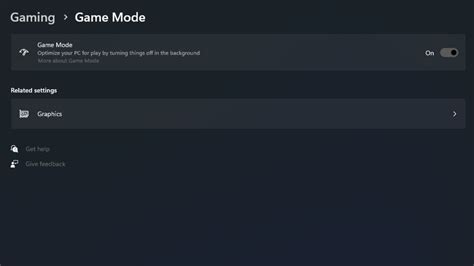
Game Mode is a built-in feature that prioritizes CPU and GPU resources for your game, minimizing background processes and system interruptions. To enable it:
- Go to Settings > Gaming > Game Mode.
- Toggle Game Mode to On.
Adjust Graphics Settings for Performance
Windows 11 allows you to specify performance preferences for individual applications and enable hardware-accelerated GPU scheduling.
- Hardware-accelerated GPU scheduling: This feature can reduce latency and improve performance on supported hardware.
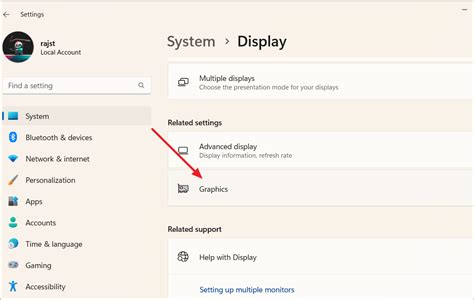
- Go to Settings > System > Display > Graphics.
- Click on Change default graphics settings.
- Toggle Hardware-accelerated GPU scheduling to On. (Requires a restart).
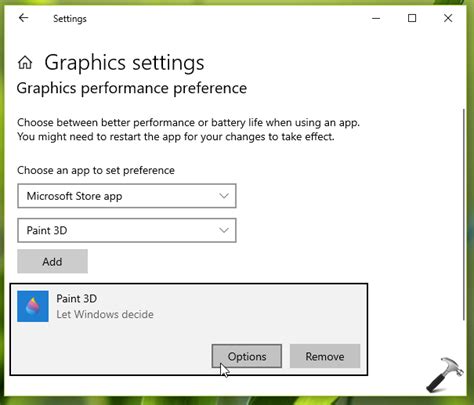
- Per-app Graphics Performance:
- In Settings > System > Display > Graphics, under “Add an app,” select “Desktop app” and browse for your game’s executable.
- Once added, click Options and choose High performance.
Optimize Power Plan
Ensure your PC is always running at its full potential by setting your power plan to “High performance” or “Ultimate Performance” (if available).
- Search for “Power & sleep settings” in the Start menu.
- Click on Additional power settings.
- Select High performance or create a custom plan based on it. Some motherboard utilities also offer “Ultimate Performance” profiles.
Disable Unnecessary Background Apps & Notifications
Background apps consume valuable CPU, RAM, and network resources. Notifications can also cause disruptive pop-ups and minor performance dips.
- Background Apps: Go to Settings > Apps > Apps & features. For apps you don’t need running in the background, click the three dots, select “Advanced options,” and set “Let this app run in background” to “Never.” For older apps, search “Background apps” in the Start menu.
- Notifications: Go to Settings > System > Notifications and toggle off “Notifications” for most apps, or disable “Get notifications from apps and other senders” entirely while gaming.
Manage Startup Programs
Too many programs launching with Windows can significantly slow down your boot time and consume resources unnecessarily. Use Task Manager to manage these.
- Press Ctrl + Shift + Esc to open Task Manager.
- Go to the Startup tab.
- Disable any non-essential programs by selecting them and clicking Disable.
Keep Drivers Updated
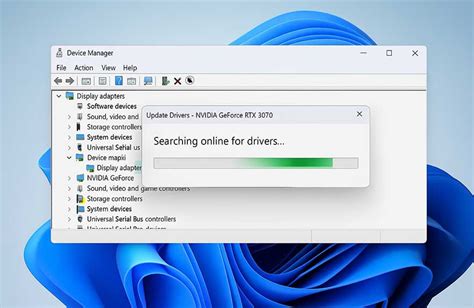
Outdated graphics card drivers are one of the most common causes of poor gaming performance. Always ensure you have the latest drivers from your GPU manufacturer (NVIDIA, AMD, Intel).
- NVIDIA: Use GeForce Experience.
- AMD: Use AMD Radeon Software Adrenalin Edition.
- Intel: Use Intel Driver & Support Assistant.
Also, ensure your chipset and other peripheral drivers are up to date by checking your motherboard manufacturer’s website.
Optimize Visual Effects for Performance
Windows 11’s visual flair can come at a small performance cost. Sacrificing some aesthetics can free up resources for your games.
- Search for “Adjust the appearance and performance of Windows” in the Start menu.
- In the “Performance Options” window, select Adjust for best performance.
- Alternatively, select Custom and uncheck animations, fading effects, and other visual elements that aren’t critical. Keep “Smooth edges of screen fonts” checked for readability.
Disk Cleanup and Storage Management
A cluttered drive, especially your system drive, can impact performance. Regular cleanup is crucial.
- Disk Cleanup: Search for “Disk Cleanup” in the Start menu. Select your C: drive, check temporary files, downloads, and other non-essential items, then click “Clean up system files” for more options.
- Storage Sense: Go to Settings > System > Storage and toggle Storage Sense to On. Configure it to automatically free up space by deleting temporary files and managing your Recycle Bin.
- Defragmentation (HDD only): If you still use an HDD, defragmentation can help. Search for “Defragment and Optimize Drives” in the Start menu. For SSDs, Windows automatically optimizes them, and manual defragmentation is unnecessary and can reduce lifespan.
Network Optimization for Online Gaming
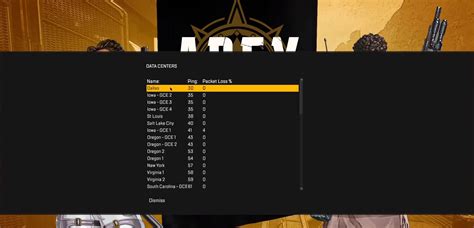
While not directly an FPS tweak, stable and low-latency internet is vital for competitive online gaming. Optimize your network settings to minimize ping and packet loss.
- Use a Wired Connection: Ethernet is always superior to Wi-Fi for gaming due to lower latency and greater stability.
- Disable Nagle’s Algorithm (Advanced): This can reduce network latency in some games. This involves registry edits and should be done cautiously. (Search for specific guides if you are comfortable with advanced tweaks).
- Quality of Service (QoS): If your router supports it, prioritize your gaming PC’s network traffic to ensure bandwidth for your game.
In-Game Settings Optimization
Even after all system optimizations, your in-game settings are paramount. Reduce demanding settings like shadows, anti-aliasing, and complex post-processing effects. Experiment with resolutions and render scales to find the sweet spot between visual quality and performance for each game.
Conclusion
Optimizing Windows 11 for maximum FPS in competitive games is an ongoing process of tweaking and monitoring. By systematically applying these adjustments – from enabling Game Mode and updating drivers to managing background processes and optimizing in-game settings – you can significantly boost your frame rates and ensure a smoother, more responsive, and ultimately more competitive gaming experience. Regularly revisit these settings, especially after major Windows updates or driver releases, to maintain peak performance.


