





How to optimize Windows 11 for max FPS in competitive gaming?
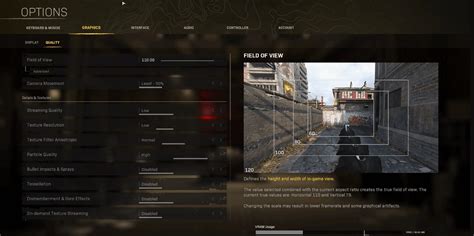
Competitive gaming demands every ounce of performance your system can deliver. While high-end hardware is a strong foundation, an unoptimized Windows 11 installation can bottleneck even the most powerful rig, leading to frustrating frame drops and input lag. This guide will walk you through essential steps to fine-tune your Windows 11 setup, ensuring you get maximum Frames Per Second (FPS) and a buttery-smooth gaming experience.
1. Keep Your Drivers and Windows Up-to-Date
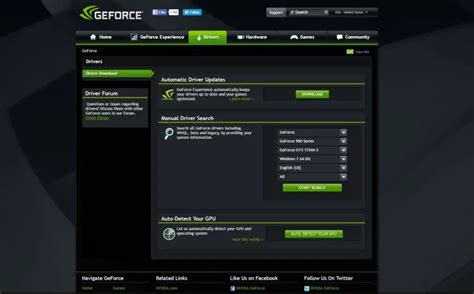
This is perhaps the most critical first step. Outdated drivers, especially for your graphics card, can significantly hinder performance. Always ensure you’re running the latest official drivers from NVIDIA, AMD, or Intel. Similarly, while some Windows updates can occasionally introduce issues, staying generally updated often brings performance improvements and crucial security patches.
- Graphics Drivers: Download directly from the manufacturer’s website. Consider using DDU (Display Driver Uninstaller) for a clean installation when updating major versions.
- Chipset Drivers: Update from your motherboard manufacturer’s website.
- Windows Updates: Regularly check “Settings > Windows Update” to ensure you’re current.
2. Optimize Windows 11 System Settings
Windows 11 comes with several features that can be tweaked for better gaming performance.
Enable Game Mode
Game Mode is designed to optimize your PC for gaming by prioritizing game processes and reducing background activity. Go to “Settings > Gaming > Game Mode” and ensure it’s turned On.
Adjust Graphics Settings
This section is crucial for systems with dedicated GPUs. Navigate to “Settings > System > Display > Graphics.”
- Hardware-accelerated GPU scheduling: Turn this on. It can reduce latency and improve performance, especially on newer hardware.
- Game Specific Settings: You can add specific games here and set them to “High performance” mode, ensuring they use your dedicated GPU.
Set Power Plan to High Performance
A balanced power plan might save energy but can restrict your CPU’s full potential. Go to “Control Panel > Hardware and Sound > Power Options.” Select “High Performance” or “Ultimate Performance” if available (often found in newer Windows 11 installations or enabled via Command Prompt: powercfg -duplicatescheme e9a42b02-d5df-448d-aa00-03f147494563 then activate it). Remember to restart your PC after changing the power plan.
Disable Unnecessary Background Apps & Notifications
Background processes consume valuable CPU and RAM. Go to “Settings > Apps > Apps & features,” click the three dots next to unnecessary apps, select “Advanced options,” and set “Let this app run in background” to “Never.” Also, disable notifications from “Settings > System > Notifications” to avoid distractions and system interruptions during gameplay.
3. Fine-Tune Your Graphics Card Control Panel
Beyond Windows settings, your graphics card’s control panel offers deeper optimizations.
NVIDIA Control Panel (for NVIDIA GPUs)
- Manage 3D settings:
- Low Latency Mode: Set to “Ultra” for minimal input lag.
- Max Frame Rate: Consider setting a cap just below your monitor’s refresh rate (e.g., 141 FPS for a 144Hz monitor) to reduce tearing and maintain consistent frame times.
- Texture Filtering – Quality: Set to “High Performance.”
- Power Management Mode: Set to “Prefer Maximum Performance.”
- Vertical Sync: Set to “Off” (unless you experience severe tearing and don’t have G-Sync/FreeSync).
AMD Adrenalin Software (for AMD GPUs)
- Gaming Tab:
- Radeon Anti-Lag: Enable for reduced input latency.
- Radeon Chill: Disable, as it limits FPS to save power.
- Radeon Image Sharpening: Can be enabled for visual clarity without significant performance cost.
- Enhanced Sync/FreeSync: Enable if your monitor supports it for tear-free gaming.
- Texture Filtering Quality: Set to “Performance.”

4. Streamline Startup and Remove Bloatware
A clean system starts fast and runs efficiently.
Disable Unnecessary Startup Programs
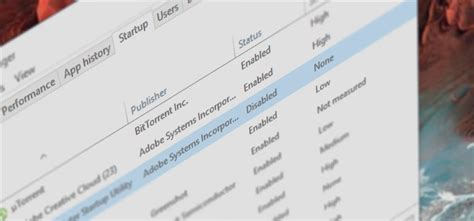
Many applications launch automatically with Windows, consuming resources in the background. Open Task Manager (Ctrl+Shift+Esc), go to the “Startup” tab, and disable any programs you don’t need running immediately. Be cautious not to disable essential system services.
Uninstall Bloatware
Your PC might come pre-installed with software you’ll never use. These “bloatware” applications can run background processes and consume resources. Go to “Settings > Apps > Apps & features” and uninstall any software you don’t recognize or need.
5. Network Optimization for Competitive Play
While not directly FPS-related, network performance is crucial for competitive gaming.
- Wired Connection: Always prefer an Ethernet connection over Wi-Fi for stability and lower ping.
- Quality of Service (QoS): If your router supports it, prioritize your gaming PC’s traffic to ensure a stable connection.
- Disable Network-Intensive Tasks: Pause large downloads, streaming, or cloud backups while gaming.
6. Advanced Tweaks (Use with Caution)
These steps are for advanced users and should be approached carefully, as incorrect modifications can cause system instability.
- Registry Edits: Some guides suggest registry tweaks, but these often have minimal impact and carry risks. Research thoroughly before making any changes.
- BIOS/UEFI Settings:
- Enable XMP/DOCP: Ensure your RAM is running at its advertised speed.
- Enable Resizable BAR/Smart Access Memory (SAM): If your CPU and GPU support it, this can offer performance gains.
- Debloating Scripts: Third-party scripts exist to remove more Windows features. While effective, they can sometimes remove desired functionality or introduce instability. Use at your own risk.

Conclusion: Sustaining Peak Performance
Optimizing Windows 11 for competitive gaming is an ongoing process. Regularly update drivers, re-check settings after major Windows updates, and maintain a clean system by uninstalling unused apps and managing startup programs. By diligently following these steps, you’ll ensure your PC is consistently delivering its maximum FPS, giving you the edge you need to dominate in your favorite competitive titles.



