





How to optimize Windows 11 for max gaming FPS?
Unleashing Your Gaming Rig: Optimizing Windows 11 for Peak FPS
Windows 11, with its sleek interface and new features, can be a fantastic platform for gaming. However, out-of-the-box settings aren’t always geared for maximum performance. To squeeze every possible frame per second (FPS) out of your system, a few tweaks and optimizations are essential. This guide will walk you through the most effective steps to ensure your Windows 11 PC delivers the best possible gaming experience.
1. Keep Your Drivers Updated
This is arguably the most crucial step for any gaming PC. Outdated or corrupted drivers, especially for your graphics card, can severely limit performance. Always ensure you have the latest drivers for your:
- Graphics Card (GPU): Visit NVIDIA, AMD, or Intel’s official websites directly to download the latest Game Ready or Adrenalin drivers. Perform a clean installation if possible.
- Chipset: Check your motherboard manufacturer’s website for the latest chipset drivers. These are vital for system stability and component communication.
- Audio and Network: While less impactful on FPS, updated audio and network drivers can prevent glitches and ensure smooth online play.
2. Activate Game Mode and Tweak Graphics Settings
Windows 11 includes dedicated features designed to prioritize gaming performance:
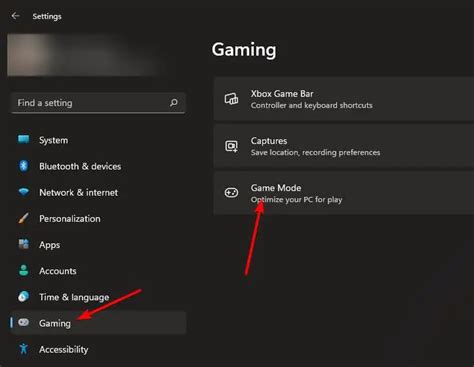
- Game Mode: Navigate to
Settings > Gaming > Game Modeand ensure it’s turned On. This feature aims to optimize your PC for gaming by suspending background processes and allocating resources to your game. - Graphics Settings: Go to
Settings > System > Display > Graphics. Here, you can add specific games (or browse for them) and set their preference to “High performance.” Additionally, ensure Hardware-accelerated GPU scheduling is enabled if your hardware supports it. This can reduce latency and improve performance in some titles. - Variable Refresh Rate (VRR): If you have a compatible monitor and GPU, ensure VRR (G-Sync or FreeSync) is enabled in both your graphics card control panel and Windows display settings for smoother gameplay.
3. Optimize Power Plan and Background Processes
Managing how your system uses power and what runs in the background can significantly impact gaming performance.
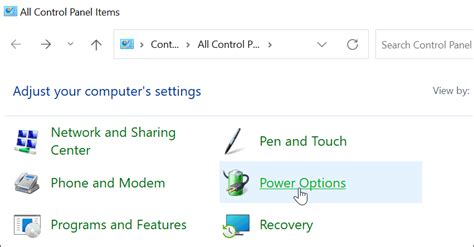
- Power Plan: Search for “Edit power plan” in the Windows search bar, then click “Power Options” and choose High performance or Ultimate Performance (if available). While gaming, this ensures your CPU and GPU operate at their maximum clock speeds.
- Disable Background Apps: Go to
Settings > Apps > Apps & features(orInstalled apps). Review the list and uninstall any applications you don’t use. For apps you keep, check their background permissions by clicking the three dots next to the app, selecting “Advanced options,” and setting “Let this app run in background” to Never for non-essential apps. - Turn Off Notifications: Distractions and background activity from notifications can cause stuttering. Go to
Settings > System > Notificationsand toggle them off, or customize them to only allow essential alerts.
4. Tweak Visual Effects and Storage
Some Windows visual flair can consume resources that are better spent on your game.
- Adjust Visual Effects for Best Performance: Search for “Adjust the appearance and performance of Windows” in the search bar. In the Performance Options window, select Adjust for best performance. This will disable animations and other visual effects, freeing up system resources.
- Disk Cleanup: Periodically run Disk Cleanup (search for it) to remove temporary files, old Windows update files, and other junk that can clutter your drive.
- Defragment Drives (HDDs) / Trim (SSDs): For traditional Hard Disk Drives (HDDs), defragmentation can improve read/write speeds. For Solid State Drives (SSDs), ensure TRIM is enabled (Windows 11 does this automatically for SSDs during optimization) to maintain performance over time. Search for “Defragment and Optimize Drives.”
5. Advanced Tips & System Maintenance
- Disable Startup Programs: Many applications launch automatically with Windows, consuming precious RAM and CPU cycles. Open Task Manager (Ctrl+Shift+Esc), go to the “Startup” tab, and disable any non-essential programs.
- Manage Windows Updates: While crucial for security, unexpected updates can impact gaming. Go to
Settings > Windows Update > Advanced optionsand set “Pause until” to a convenient date or configure “Active hours” to prevent restarts during gaming sessions. - Disable Mouse Acceleration (Enhance Pointer Precision): For precise aiming in games, it’s generally recommended to disable “Enhance pointer precision” in mouse settings (search for “Mouse settings”, then “Additional mouse settings” > “Pointer Options” tab).
Conclusion
By systematically applying these optimizations, you can significantly improve your Windows 11 gaming performance, leading to higher FPS, smoother gameplay, and a more enjoyable experience. Remember that a clean and well-maintained system is always the best foundation for peak gaming performance. Regularly check for driver updates, keep your storage tidy, and ensure your settings are always geared towards the best possible frame rates. Happy gaming!
![How to Optimize Your PC for Gaming? 12 Easy Methods [2025]](/images/aHR0cHM6Ly90czIubW0uYmluZy5uZXQvdGg/aWQ9T0lQLnJzSGdXT0dFQThzZTdzM3hTV2E2bmdIYUU4JnBpZD0xNS4x.webp)


