





How to optimize Windows 11 for max gaming FPS and low latency?
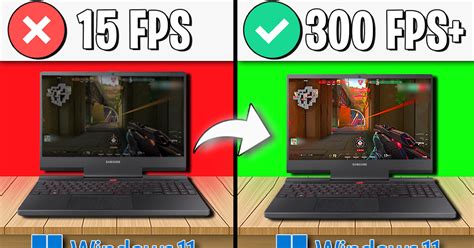
Windows 11, with its modern interface and underlying optimizations, can be a fantastic platform for gaming. However, out-of-the-box settings aren’t always tuned for peak performance. To truly squeeze every frame per second (FPS) and reduce input latency, a few tweaks are necessary. This guide will walk you through the essential steps to optimize your Windows 11 PC for the best possible gaming experience.
Essential Windows 11 Game Settings
Starting with the basics, Windows 11 has built-in features designed to improve gaming. Ensuring these are correctly configured is your first step.
Enable Game Mode
Game Mode is a feature that prioritizes your game, preventing Windows Update from installing drivers and sending notifications during gameplay. It also helps optimize system resources for your game.
- Go to Settings > Gaming > Game Mode.
- Ensure the toggle for Game Mode is set to On.
Optimize Graphics Settings
Windows 11 offers advanced graphics options that can significantly impact performance and latency, especially for compatible hardware.
- Go to Settings > System > Display > Graphics.
- Enable Hardware-accelerated GPU scheduling: This feature can reduce input lag and improve performance by allowing the GPU to manage its own video memory. Restart your PC after enabling.
- Enable Variable refresh rate (VRR): If you have a compatible monitor (G-Sync or FreeSync), enabling VRR helps prevent screen tearing and input lag.
- For specific games, you can add them to the list and set their Graphics preference to High performance.
System Performance Tweaks
Beyond game-specific settings, optimizing your overall system performance can free up valuable resources for your games.
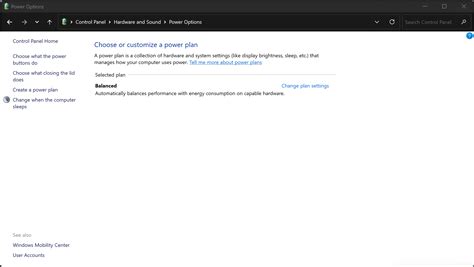
Adjust Power Plan
Ensure your PC isn’t throttling performance to save power.
- Search for Edit power plan in the Windows search bar and open it.
- Click on Change advanced power settings.
- Under Power Options, select High performance or Ultimate Performance (if available) from the dropdown menu.
Disable Background Apps & Notifications
Unnecessary processes and constant notifications can consume CPU cycles and distract you.
- Go to Settings > Apps > Apps & features and uninstall any apps you don’t use.
- Go to Settings > System > Notifications and toggle off notifications for apps that don’t need to alert you.
- Use Focus Assist (Settings > System > Focus assist) to silence notifications during gaming.
Manage Startup Apps
Many applications launch automatically with Windows, slowing down boot times and consuming resources in the background.
- Right-click on the Taskbar and select Task Manager.
- Go to the Startup tab.
- Disable any non-essential applications that you don’t need running immediately after startup.
Driver Updates and System Health
Keeping your system healthy and drivers up-to-date is fundamental for stable and high-performance gaming.
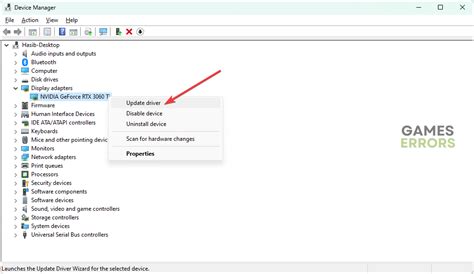
Update Graphics Drivers
This is arguably the most crucial step. Graphics card manufacturers (NVIDIA, AMD, Intel) frequently release game-ready drivers that offer significant performance improvements and bug fixes for new titles.
- Visit your GPU manufacturer’s website or use their dedicated software (GeForce Experience, AMD Adrenalin Software) to download and install the latest drivers.
Keep Windows Up-to-Date (Carefully)
While Windows updates can bring performance enhancements and security fixes, some updates can occasionally cause issues. It’s generally good practice to keep Windows updated, but be mindful of any immediate performance drops after an update.
Disable Unnecessary Visual Effects
Windows 11’s fancy animations can consume resources better used by your game.
- Search for Adjust the appearance and performance of Windows and open it.
- Under the Visual Effects tab, select Adjust for best performance or customize by unchecking unwanted effects.
Clean Up Disk Space
A cluttered hard drive can impact loading times and overall system responsiveness.
- Use Storage Sense (Settings > System > Storage) or Disk Cleanup to remove temporary files, old downloads, and other junk.
Advanced Optimizations for Enthusiasts
For those looking to go the extra mile, these advanced tips can further reduce latency and boost FPS, though they might require a bit more technical comfort.
Disable VBS (Virtualization-Based Security)
VBS, including features like Memory Integrity (HVCI), adds a layer of security by isolating critical parts of the OS. While beneficial for security, it can incur a performance overhead in gaming.
- Go to Settings > Privacy & security > Windows Security > Device security > Core isolation details.
- Toggle off Memory integrity. (Note: Disabling this reduces a security layer.)
Tweak Network Settings
For online gaming, network latency is crucial.
- Consider using a wired Ethernet connection instead of Wi-Fi.
- Disable QoS Packet Scheduler if you experience network lag (Network Connections > Properties of your adapter > uncheck).
- Experiment with custom DNS servers like Google DNS (8.8.8.8, 8.8.4.4) or Cloudflare (1.1.1.1, 1.0.0.1).
BIOS/UEFI Settings (XMP/DOCP, ReBAR)
Accessing your motherboard’s BIOS/UEFI can unlock additional performance.
- Enable XMP/DOCP: Allows your RAM to run at its advertised speeds, significantly impacting CPU-bound games.
- Enable ReBAR (Resizable BAR) / Smart Access Memory (SAM): For compatible hardware (NVIDIA RTX 30/40 series + Intel 10th-gen+ or AMD RX 6000/7000 series + AMD Ryzen 3000+), this allows the CPU direct access to the GPU’s entire video memory, potentially boosting FPS.
Monitor and Maintain
Optimization is an ongoing process. Regularly check your system and make adjustments as needed.
Regularly Monitor Performance
Use tools like MSI Afterburner, HWiNFO, or Windows Task Manager to monitor CPU, GPU, and RAM usage during gaming. This helps identify bottlenecks.
Avoid Over-Optimizing
While tweaking can yield benefits, be careful not to disable critical services or security features unless you understand the implications. Always create a system restore point before making significant changes.
Conclusion
By systematically applying these optimizations, you can transform your Windows 11 gaming experience. From simple Game Mode activation to advanced BIOS tweaks, each step contributes to higher FPS and lower latency, ensuring you get the most out of your hardware. Remember to test changes incrementally and find the balance that works best for your specific system and games.


