





How to optimize Windows 11 for max gaming FPS and reduce input lag?
Unlock Peak Gaming Performance on Windows 11
Windows 11 brings a sleek interface and some under-the-hood improvements, but out-of-the-box, it’s not always configured for maximum gaming performance. Bloatware, background processes, and default settings can all contribute to lower frame rates (FPS) and noticeable input lag. By fine-tuning your system, you can ensure your hardware is fully utilized, providing a smoother, more responsive gaming experience.
This guide will walk you through essential steps to optimize Windows 11 for competitive gaming, covering everything from system settings to driver configurations. Let’s dive in and transform your PC into a gaming powerhouse.
1. Keep Drivers and Windows Updated
One of the most crucial steps for optimal gaming performance is ensuring all your drivers and your operating system are up to date.
- Graphics Drivers: Always download the latest drivers directly from NVIDIA, AMD, or Intel. These updates often include game-specific optimizations and bug fixes that significantly impact FPS.
- Chipset Drivers: Update your motherboard’s chipset drivers from your motherboard manufacturer’s website. These improve communication between your CPU, GPU, and other components.
- Windows Updates: While some updates can occasionally cause issues, keeping Windows 11 updated is generally beneficial for security and performance. Ensure you’re on the latest stable build.
2. Adjust Power Plan Settings
Windows 11’s default balanced power plan often limits CPU and GPU performance to save energy. Switching to a high-performance plan can provide a noticeable boost.
- Go to Settings > System > Power & battery.
- Under Power mode, select Best performance.
- For more advanced options, search for “Edit power plan” in the Windows search bar, then click Change advanced power settings. Here, ensure your CPU minimum processor state is set to 100%. Some users also create or enable an ‘Ultimate Performance’ plan if available (often requires a small PowerShell command).
3. Optimize Graphics Settings
Windows 11 offers several built-in graphics optimizations that can significantly improve gaming performance.
-
Enable Game Mode
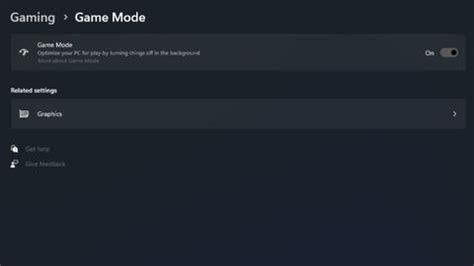
Game Mode prioritizes your game’s resources, preventing Windows Update from installing drivers or sending restart notifications during gameplay.
- Go to Settings > Gaming > Game Mode and toggle it On.
-
Enable Hardware-accelerated GPU Scheduling
This feature allows your GPU to manage its own VRAM, potentially reducing latency and improving performance. It requires a compatible GPU and driver.
- Go to Settings > System > Display > Graphics > Change default graphics settings and toggle Hardware-accelerated GPU scheduling to On.
-
Variable Refresh Rate (VRR)
If you have a compatible monitor (G-Sync, FreeSync) and GPU, enable VRR to eliminate screen tearing and reduce input lag.
- In the same Change default graphics settings menu, toggle Variable refresh rate to On.
-
Graphics Performance Preference
You can set specific performance profiles for individual games or applications.
- Go to Settings > System > Display > Graphics.
- Browse and add your game’s executable, then click Options and select High performance.
4. Disable Unnecessary Background Processes and Visual Effects
Every process running in the background consumes CPU cycles, RAM, and potentially network bandwidth, which can impact your game.
-
Manage Background Apps
- Go to Settings > Apps > Apps & features. Review the list for applications you don’t use often, click the three dots, and select Advanced options to set their background app permissions to Never.
- Alternatively, for less used apps, simply uninstall them.
-
Disable Startup Programs
- Open Task Manager (Ctrl+Shift+Esc), go to the Startup apps tab, and disable any non-essential programs from launching with Windows.
-
Disable Visual Effects
Windows 11’s fancy animations and transparency effects can slightly tax your GPU.
- Search for “Adjust the appearance and performance of Windows” in the search bar.
- In the Performance Options window, select Adjust for best performance or manually uncheck items like “Animate windows when minimizing and maximizing,” “Fade or slide menus into view,” and “Show shadows under windows.”
![[200+] Windows 11 Backgrounds | Wallpapers.com](/images/aHR0cHM6Ly90czQubW0uYmluZy5uZXQvdGg/aWQ9T0lQLmNSTjBzX0NTbnRud1FOVXJ4eEFpZXdIYUVYJnBpZD0xNS4x.webp)
5. Reduce Input Lag Specific Settings
Input lag can be incredibly frustrating. Here are a few settings to help minimize it:
-
Disable Mouse Acceleration (Enhance Pointer Precision)
This setting makes your cursor move further depending on how fast you move your mouse, leading to inconsistent aiming.
- Search for “Mouse settings” and click Additional mouse settings.
- Go to the Pointer Options tab and uncheck Enhance pointer precision.
-
High Polling Rate Mouse
If your mouse supports it, ensure it’s set to a high polling rate (e.g., 1000Hz) via its companion software for faster response times.
-
Disable Sticky Keys, Filter Keys, and Toggle Keys
These accessibility features can introduce slight delays.
- Go to Settings > Accessibility > Keyboard and ensure all these options are turned Off.
-
Game Bar and Xbox Services
While Game Bar can be useful for some, it can add overhead for others. If you don’t use it, consider disabling it.
- Go to Settings > Gaming > Xbox Game Bar and toggle it Off.
- You can also disable related services in the Services app (search for ‘Services’, look for Xbox services and disable them).
6. Network Optimizations (for Online Gaming)
For online gamers, a stable and fast network connection is key.
-
Disable QoS Packet Scheduler
This feature reserves bandwidth for certain tasks, which can sometimes impact game performance. While generally minor, some users prefer to disable it.
- Search for “View network connections.” Right-click your active network adapter, select Properties, and uncheck QoS Packet Scheduler.
-
Use a Wired Connection
Whenever possible, use an Ethernet cable instead of Wi-Fi for lower latency and more stable connections.
Conclusion
Optimizing Windows 11 for gaming is an ongoing process. By systematically adjusting these settings, you can significantly improve your gaming FPS and responsiveness. Remember to test changes one by one to identify which optimizations yield the best results for your specific hardware and games. Regular driver updates and occasional system clean-ups will help maintain peak performance. Happy gaming!


