





How to optimize Windows 11 for max gaming FPS & input lag?
Unlock Peak Performance: Optimizing Windows 11 for Gaming
Windows 11, while offering a modern interface, can sometimes come with background processes and default settings that hinder optimal gaming performance. To achieve the highest possible Frame Rates Per Second (FPS) and reduce pesky input lag, a few key adjustments are necessary. This guide will walk you through the essential steps to fine-tune your Windows 11 machine specifically for gaming.
Power & Performance Settings for Maximum FPS
One of the most impactful changes you can make is ensuring your system is set to prioritize performance over power efficiency.
1. High-Performance or Ultimate Performance Power Plan
- Go to Start > Search > Control Panel.
- Navigate to Hardware and Sound > Power Options.
- Select High performance. If you don’t see it, click “Show additional plans.” For even better results, some users can enable the “Ultimate Performance” plan via Command Prompt (Admin):
powercfg -duplicatescheme e9a42b02-d5df-448d-aa00-03f147496701then select it in Power Options.
2. Enable Game Mode
Windows 11’s Game Mode is designed to optimize your PC for gaming by dedicating system resources to your game. It helps prevent Windows Update from installing drivers and sending notifications during gameplay.
- Go to Settings > Gaming > Game Mode.
- Ensure Game Mode is toggled On.
3. Hardware-accelerated GPU Scheduling
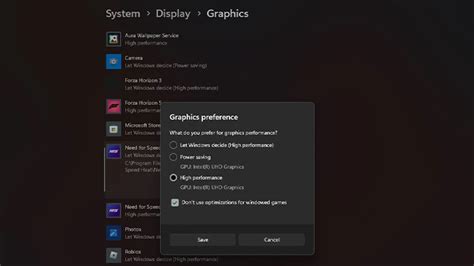
This feature can reduce latency and improve performance by allowing your GPU to manage its own video memory. It requires a compatible GPU (NVIDIA GTX 10-series or newer, AMD Radeon 5000-series or newer) and updated drivers.
- Go to Settings > System > Display > Graphics > Change default graphics settings.
- Toggle Hardware-accelerated GPU scheduling to On. Restart your PC for changes to take effect.
4. Variable Refresh Rate (VRR)
For monitors supporting VRR (like G-Sync or FreeSync), enabling this can provide smoother gameplay by syncing your monitor’s refresh rate to your GPU’s frame output.
- Go to Settings > System > Display > Graphics > Change default graphics settings.
- Toggle Variable refresh rate to On.
Minimize Background Processes & Visual Clutter
Every unnecessary background task consumes CPU and RAM, potentially impacting your game’s performance and increasing input lag.
1. Disable Visual Effects
Windows 11’s fancy animations and visual effects, while aesthetically pleasing, can consume system resources.
- Go to Start > Search > Adjust the appearance and performance of Windows.
- In the Performance Options dialog, select Adjust for best performance.
- Alternatively, you can choose Custom and selectively enable only the effects you desire (e.g., “Smooth edges of screen fonts”).
2. Manage Startup Apps
Many applications launch automatically with Windows, slowing down your boot time and consuming resources.
- Right-click on the Start button > Task Manager.
- Go to the Startup apps tab.
- Disable any non-essential applications that don’t need to run on startup.
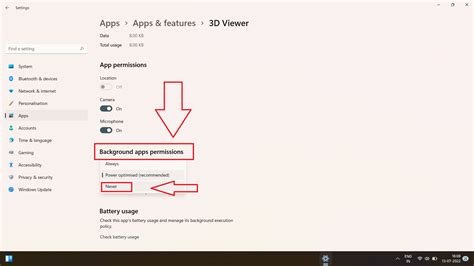
3. Turn Off Background Apps
Some apps continue to run in the background even when you’re not actively using them.
- Go to Settings > Apps > Apps & features.
- For specific apps, click the three dots next to their name, select Advanced options, and set Let this app run in background to Never (for apps you don’t need running).
4. Disable Notifications
Constant pop-up notifications can be distracting and slightly impact performance.
- Go to Settings > System > Notifications.
- Toggle Notifications to Off or customize which apps can send them.
Driver & Software Maintenance
Keeping your system up-to-date with the latest drivers is crucial for both performance and stability.
1. Update Graphics Drivers
Always download the latest drivers directly from NVIDIA, AMD, or Intel’s websites, not through Windows Update, as these often contain crucial game-specific optimizations.
- NVIDIA: nvidia.com/drivers
- AMD: amd.com/support
- Intel: downloadcenter.intel.com
2. Update Chipset Drivers
Keeping your motherboard’s chipset drivers updated can improve system communication and overall stability. Visit your motherboard manufacturer’s website.
3. Windows Updates (Strategically)
While important for security, major Windows feature updates can sometimes introduce new bugs or compatibility issues. Consider pausing updates during intense gaming periods, but ensure you eventually install critical security patches.
![[Windows 11/10] Windows Update | Resmi Desteği | ASUS Türkiye](/images/aHR0cHM6Ly90czIubW0uYmluZy5uZXQvdGg/aWQ9T0lQLjZ6U3ZfUzVKMktlQ3dpS2RlcXpEbWdIYUZ5JnBpZD0xNS4x.webp)
Reduce Input Lag & Network Latency
Input lag can be the difference between victory and defeat, while network latency affects online responsiveness.
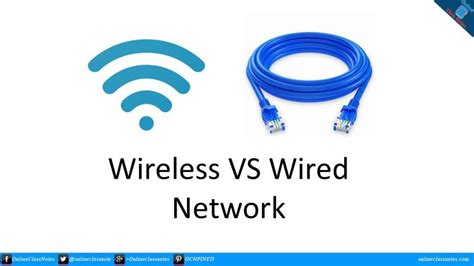
1. Use a Wired Ethernet Connection
Wi-Fi introduces inherent latency and can be susceptible to interference. A wired Ethernet connection provides a more stable and faster link to your router.
2. Optimize Mouse Polling Rate
A higher mouse polling rate (Hz) means your mouse reports its position more frequently, leading to lower input lag. Most gaming mice allow you to adjust this via their software (e.g., 500Hz or 1000Hz).
3. Disable Nagle’s Algorithm (Advanced)
Nagle’s Algorithm bundles small packets of data to improve network efficiency, but can introduce slight latency. Disabling it can reduce input lag in some online games. This involves editing the Windows Registry and should be done with caution.
Display Settings for Clarity & Smoothness
Ensure your display is configured correctly to match your hardware’s capabilities.
1. Set Native Resolution & Max Refresh Rate
Always game at your monitor’s native resolution and highest refresh rate for the sharpest image and smoothest motion.
- Go to Settings > System > Display.
- Under Scale & layout, ensure Display resolution is set to (Recommended).
- Click Advanced display. Select your monitor and ensure Refresh rate is set to its maximum (e.g., 144 Hz, 240 Hz).
2. HDR Settings
While HDR can enhance visual fidelity, it can sometimes introduce a slight performance hit or input lag depending on the game and monitor. Consider enabling it only for games that truly benefit and when performance isn’t a critical concern.
Conclusion
By systematically applying these optimizations, you can transform your Windows 11 gaming experience, achieving higher FPS, reducing input lag, and ensuring a smoother, more responsive gameplay. Remember that consistent driver updates and mindful management of background processes are key to maintaining peak performance over time. Enjoy your enhanced gaming!


