





How to optimize Windows 11 for max gaming FPS & reduce input lag?

Windows 11 is a powerful operating system, but out-of-the-box settings aren’t always tuned for maximum gaming performance. To squeeze every frame per second (FPS) out of your system and achieve the lowest possible input lag, a few strategic adjustments are necessary. This guide will walk you through the essential steps to transform your Windows 11 machine into a gaming powerhouse.
Essential Windows Settings for Gaming
The first step in optimizing your system is to configure core Windows settings specifically for gaming. These built-in tools can significantly impact performance.
Enable Game Mode
Windows 11’s Game Mode is designed to prioritize your game, allocating system resources more efficiently. Go to Settings > Gaming > Game Mode and ensure it’s toggled On.
Graphics Settings & Hardware-accelerated GPU Scheduling
This feature can reduce latency and improve performance in some games. Navigate to Settings > System > Display > Graphics. Here, you can add specific games to ensure they use your dedicated GPU and enable Hardware-accelerated GPU scheduling if your system supports it. You can also set specific apps to “High performance” mode.
Focus Assist & Notifications
Distractions can cause micro-stutters and interrupt gameplay. Turn off Focus Assist and disable unnecessary notifications. Go to Settings > System > Focus assist and set it to Off, or configure it to activate only when playing games.
Power Plan Settings
Ensure your PC is running on a “High Performance” or “Ultimate Performance” power plan. Search for “Edit power plan” in the Start menu, then click “Power Options” and select the desired plan. If “Ultimate Performance” isn’t visible, you might need to enable it via Command Prompt (Admin) using the command: powercfg -duplicatescheme e9a42b02-d5df-448d-aa00-03f147496701.
![Buy Windows 11 Pro Key – Windows 11 License [Cheap Price]](/images/aHR0cHM6Ly90czMubW0uYmluZy5uZXQvdGg/aWQ9T0lQLmdnZ2xzNW1XeU9POUhERVkxTjFSalFIYUhhJnBpZD0xNS4x.webp)
Driver & Software Optimization
Up-to-date drivers and efficient software management are crucial for peak gaming performance and stability.
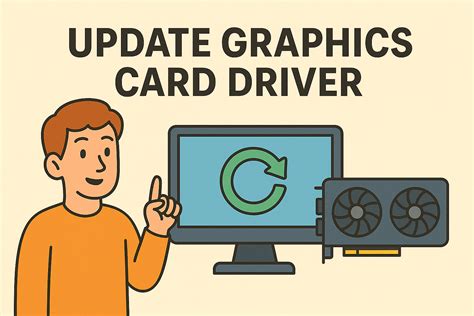
Update Graphics Drivers
Your graphics card driver is arguably the most critical component for gaming FPS. Always download the latest drivers directly from NVIDIA, AMD, or Intel’s official websites. Perform a clean installation, especially when switching between major driver versions, to avoid conflicts.
Update Chipset Drivers
While less frequent, outdated chipset drivers can also hinder performance. Visit your motherboard manufacturer’s website to download the latest chipset drivers for your specific model. This ensures optimal communication between your CPU, GPU, and other components.
Disable Unnecessary Startup Programs
Many applications launch automatically with Windows, consuming valuable RAM and CPU cycles in the background. Open Task Manager (Ctrl+Shift+Esc), go to the “Startup” tab, and disable any non-essential programs. Be cautious not to disable critical system services.
Manage Background Apps
Windows 11 allows apps to run in the background, updating or sending notifications. Go to Settings > Apps > Apps & features. Click the three dots next to an app, select “Advanced options,” and set “Background app permissions” to Never for apps you don’t need running constantly.
System Performance & Storage
A lean and fast system is a happy system. Optimize your storage and reduce visual clutter for better performance.
Optimize Storage Drives
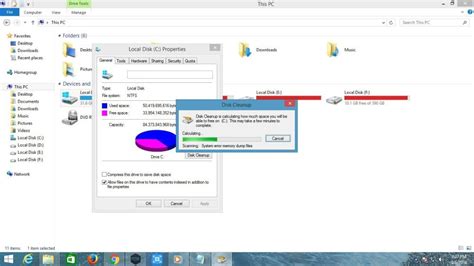
For SSDs, ensure TRIM is enabled (it usually is by default). For HDDs, regular defragmentation can improve load times. Search for “Defragment and Optimize Drives” in the Start menu to manage your drives.
Disable Visual Effects
Windows 11’s fancy animations and visual effects consume resources. Search for “Adjust the appearance and performance of Windows” in the Start menu. In the “Performance Options” window, select “Adjust for best performance” or customize by unchecking unnecessary animations.
Disable Xbox Game Bar & DVR
While useful for some, the Xbox Game Bar and its DVR features can consume resources. If you don’t use them, turn them off. Go to Settings > Gaming > Xbox Game Bar and toggle it Off.

Network & Input Lag Reduction
Reducing input lag goes beyond FPS. It involves optimizing how your system processes and transmits your actions.
Use Ethernet Over Wi-Fi
A wired Ethernet connection provides a more stable, faster, and lower-latency connection than Wi-Fi, which is crucial for online gaming. If possible, always opt for an Ethernet cable.
Disable Nagle’s Algorithm (Advanced)
Nagle’s Algorithm is a network optimization that bundles small packets of data to reduce overhead, but it can introduce minor latency in games. Disabling it requires a registry edit and should be done with caution. Search online for detailed guides if you choose to proceed.
Optimize Mouse Polling Rate & Debounce
Ensure your gaming mouse is set to its highest polling rate (e.g., 1000 Hz) via its software. This reduces the delay between your mouse movements and on-screen actions. Similarly, some keyboards allow debounce time adjustments to reduce input delay.

Advanced & Maintenance Tips
For those looking for an extra edge and long-term performance.
BIOS/UEFI Settings
Explore your motherboard’s BIOS/UEFI settings. Ensure XMP (eXtreme Memory Profile) is enabled for your RAM to run at its advertised speeds. If your system supports it, enable Resizable BAR (ReBAR) for potential GPU performance gains in supported titles.
Keep Windows Up-to-Date (Strategically)
While updates can sometimes introduce issues, they often include performance improvements and security patches. Allow major updates, but consider pausing minor ones during critical gaming periods. Always check for driver compatibility after significant Windows updates.
Monitor Your System
Use tools like MSI Afterburner, HWiNFO, or Task Manager to monitor CPU/GPU usage, temperatures, and frame rates. This helps identify bottlenecks and ensure your optimizations are working as intended.
Conclusion
Optimizing Windows 11 for gaming is an ongoing process. By systematically adjusting these settings and maintaining good system hygiene, you can significantly boost your FPS and reduce input lag, leading to a much more responsive and enjoyable gaming experience. Remember to test changes one by one to understand their impact and find the sweet spot for your specific hardware.


