





How to optimize Windows 11 for max gaming FPS with a mid-range GPU?

Even with a mid-range GPU, Windows 11 offers numerous settings and optimizations that can significantly boost your gaming performance and frame rates. Squeezing out every last frame per second (FPS) often comes down to meticulously configuring your operating system. This guide will walk you through the essential steps to fine-tune your Windows 11 system for maximum gaming FPS.
1. Update Your Drivers Regularly
This is perhaps the most critical step. Outdated drivers are a common bottleneck for gaming performance. Always ensure your:
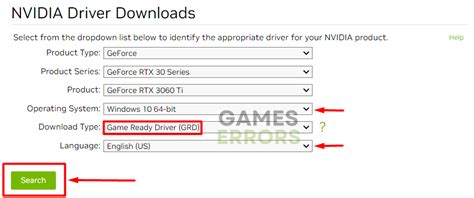
- Graphics Drivers: Download the latest drivers directly from NVIDIA, AMD, or Intel’s official websites. These updates often include performance enhancements and bug fixes for new games.
- Chipset Drivers: Update your motherboard’s chipset drivers from your motherboard manufacturer’s website or the chipset vendor (Intel/AMD).
- Audio Drivers: While less impactful on FPS, updated audio drivers can prevent conflicts and ensure stable system performance.
2. Tweak Windows 11 Gaming Settings
Enable Game Mode
Windows 11’s Game Mode is designed to optimize your PC for gaming by prioritizing game processes and suspending background activities. To enable it:
- Go to Settings > Gaming > Game Mode.
- Toggle Game Mode to ‘On’.
Utilize Graphics Settings
This is where you can tell Windows to prioritize your GPU for specific applications.
- Go to Settings > System > Display > Graphics.
- Turn on Hardware-accelerated GPU scheduling (if available). This can reduce latency and improve performance. A restart might be required.
- Under ‘Add an app’, select ‘Desktop app’ and click ‘Browse’ to navigate to your game’s executable file (.exe).
- Once added, click ‘Options’ for that game and set it to ‘High performance’.
3. Optimize Power and Background Processes
Set Power Plan to Ultimate Performance
The ‘Ultimate Performance’ power plan (or ‘High Performance’) ensures your CPU and GPU always run at their maximum potential, preventing throttling.
- Search for ‘Edit power plan’ in the Windows search bar and open it.
- Click ‘Power Options’ in the address bar.
- Select ‘Ultimate Performance’ (you might need to enable it via a Command Prompt command first:
powercfg -duplicatescheme e9a42b02-d5df-448d-aa00-03f147496701). If not available, choose ‘High Performance’.
Disable Background Apps and Notifications
Unnecessary background apps and notifications consume precious CPU, RAM, and GPU resources.
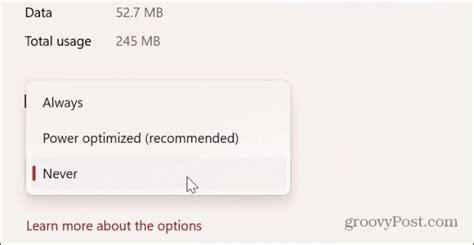
- Background Apps: Go to Settings > Apps > Installed apps. Click the three dots next to apps you don’t need running in the background, select ‘Advanced options’, and set ‘Let this app run in background’ to ‘Never’.
- Notifications: Go to Settings > System > Notifications and turn off notifications for apps, especially during gaming sessions.
Manage Startup Programs
Many applications automatically launch with Windows, slowing down your system. To manage them:
- Press Ctrl + Shift + Esc to open Task Manager.
- Go to the ‘Startup apps’ tab.
- Disable any unnecessary programs with high impact that you don’t need running immediately after boot.
4. System Clean-up and Visual Performance
Disk Optimization and Cleanup
Keeping your storage clean and optimized improves load times and overall system responsiveness.
- For SSDs: Ensure TRIM is enabled (it usually is by default). Avoid defragmentation, as it’s not needed and shortens SSD lifespan.
- For HDDs: Regularly defragment your drive. Search for ‘Defragment and Optimize Drives’ in Windows search.
- Disk Cleanup: Use the built-in ‘Disk Cleanup’ tool to remove temporary files, old Windows updates, and other junk files.
![9 Best Google Optimize Alternatives For 2025 [Compared]](/images/aHR0cHM6Ly90czEubW0uYmluZy5uZXQvdGg/aWQ9T0lQLm8wZ1hGQlBGUVlDT191eHNvMnoxQndIYUQ0JnBpZD0xNS4x.webp)
Adjust Visual Effects for Performance
Windows’ fancy visual effects can consume resources that could otherwise go to your games.
- Search for ‘Adjust the appearance and performance of Windows’ and open it.
- Under the ‘Visual Effects’ tab, select ‘Adjust for best performance’. This will disable most animations and visual flair, but boost system responsiveness.
5. Advanced Optimizations and BIOS Settings
Disable Unnecessary Services and Apps
Advanced users can disable services that aren’t critical. Be cautious, as disabling essential services can cause system instability.
- Services: Search for ‘Services’ (services.msc) and disable services you know you don’t need (e.g., Print Spooler if you don’t have a printer, Fax).
- Xbox Game Bar & DVR: If you don’t use these features, disabling them can free up resources. Go to Settings > Gaming > Xbox Game Bar and toggle it off.
BIOS/UEFI Tweaks
Accessing your motherboard’s BIOS/UEFI settings can offer further performance gains:
- Enable XMP/DOCP: This ensures your RAM runs at its advertised speed, significantly impacting performance.
- Resize BAR (Re-Sizeable BAR): If your GPU and motherboard support it, enabling Resize BAR can improve performance by allowing the CPU to access the entire GPU frame buffer.
6. In-Game Settings and Monitoring
Finally, remember that in-game settings are your primary levers for FPS control. Don’t be afraid to experiment:
- Lower Resolution: Dropping from 1440p to 1080p, or even 900p, yields massive FPS gains.
- Reduce Graphics Presets: Start with ‘Medium’ or ‘Low’ settings and gradually increase individual options like textures or anti-aliasing until you find a balance.
- Monitor FPS: Use tools like MSI Afterburner, NVIDIA’s GeForce Experience overlay, or AMD’s Radeon Software to monitor your FPS and GPU usage in real-time. This helps identify bottlenecks and the impact of your changes.

Conclusion
Optimizing Windows 11 for gaming with a mid-range GPU is a continuous process. By systematically applying these tweaks – from keeping drivers updated to fine-tuning system and in-game settings – you can unlock a significantly smoother and more enjoyable gaming experience. Regular maintenance, including disk cleanups and re-evaluating background processes, will help ensure your system stays primed for maximum FPS.


