





How to optimize Windows 11 for max gaming performance and lower input lag?

Unleash Your Gaming PC’s Full Potential
Windows 11, while offering a modern interface, can sometimes introduce overhead that impacts gaming performance and increases input lag. For competitive gamers and enthusiasts alike, every frame and millisecond counts. This comprehensive guide will walk you through a series of optimizations, from basic system tweaks to advanced settings, ensuring your Windows 11 machine delivers the smoothest, most responsive gaming experience possible.
Essential Driver Updates
Outdated drivers are a common culprit for performance issues. Ensure your system drivers are always current.
Graphics Drivers
Your GPU drivers are paramount. Visit NVIDIA, AMD, or Intel’s official websites to download and install the latest drivers for your graphics card. These updates often include game-specific optimizations and performance improvements.
Chipset and Other Drivers
Don’t overlook chipset drivers, audio drivers, and network card drivers. Keeping these up-to-date can improve system stability and reduce potential bottlenecks. Use your motherboard manufacturer’s website or dedicated tools for this.
Optimize Windows 11 Settings for Gaming
Windows 11 has several built-in features that, when configured correctly, can significantly boost gaming performance.
Enable Game Mode
Game Mode prioritizes your game’s CPU and GPU resources, suspending background tasks. To enable it:
- Go to Settings > Gaming > Game Mode.
- Toggle Game Mode to On.
![Turn Off or On Game Mode on Windows 11 [Proven Methods]](/images/aHR0cHM6Ly90czMubW0uYmluZy5uZXQvdGg/aWQ9T0lQLnNMQ0VsOWhBWGNoWUFXVVB5RU5NZkFIYUVPJnBpZD0xNS4x.webp)
Adjust Graphics Settings
Windows 11 offers advanced graphics options that can make a difference.
- Hardware-accelerated GPU scheduling: This feature, when supported by your hardware, can reduce latency and improve performance. Find it under Settings > System > Display > Graphics > Change default graphics settings. Toggle it On.
- Per-app Graphics Performance: You can set specific performance preferences for individual games. In the Graphics settings, browse for your game’s executable, select it, and choose High performance.
Power Plan Configuration
Ensure your PC is running at its maximum power potential.
- Search for “Choose a power plan” in the Windows search bar.
- Select High performance or, if available, Ultimate Performance. (Ultimate Performance might need to be enabled via a PowerShell command:
powercfg -duplicatescheme e9a42b02-d5df-448d-aa00-03f500000000).
Disable Background Apps and Notifications
Background processes and constant notifications can consume valuable resources.
- Go to Settings > Apps > Apps & features and uninstall any unnecessary applications.
- Check Settings > Privacy & security > Background apps and disable apps you don’t need running in the background.
- Turn off notifications under Settings > System > Notifications, or at least disable notifications for non-essential apps.
System Cleanup and Optimization
Keeping your system lean can prevent slowdowns.
Disk Cleanup and Defragmentation
For SSDs, avoid defragmentation as it shortens their lifespan; ensure TRIM is enabled. For traditional HDDs, regular defragmentation can improve load times.
- Search for “Disk Cleanup” and run it to remove temporary files.
- Search for “Defragment and Optimize Drives” for HDD optimization.
Disable Startup Programs
Many applications launch automatically with Windows, slowing down boot times and consuming RAM. Open Task Manager (Ctrl+Shift+Esc), go to the Startup tab, and disable non-essential programs.
Network and Peripheral Optimizations
Even your network and input devices can affect your gaming experience.
Optimize Network Settings
A stable and fast internet connection is crucial for online gaming. Consider:
- Ethernet over Wi-Fi: A wired connection is almost always more stable and faster.
- QoS (Quality of Service): If your router supports it, prioritize your gaming PC’s traffic.
- DNS Server: Switching to a faster DNS server (e.g., Google DNS or Cloudflare DNS) can sometimes reduce lookup times.
Adjust Mouse Polling Rate and Monitor Refresh Rate
- Mouse Polling Rate: For a more responsive mouse, set its polling rate to the highest possible (e.g., 1000Hz) through its dedicated software.
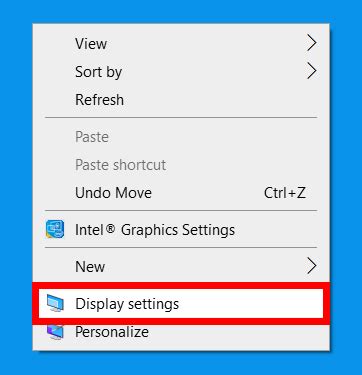
- Monitor Refresh Rate: Ensure your monitor is set to its highest refresh rate (e.g., 144Hz, 240Hz). Go to Settings > System > Display > Advanced display, and select the highest available refresh rate.
Conclusion
Optimizing Windows 11 for gaming is an ongoing process. By systematically applying these tweaks, you can significantly enhance your gaming performance, reduce input lag, and enjoy a smoother, more immersive experience. Remember to test changes one by one to identify what works best for your specific hardware and games, and regularly update your drivers for continuous peak performance.



