





How to optimize Windows 11 for max gaming performance & low input lag?
Unleash Your PC’s Full Gaming Potential
Windows 11, while offering a sleek interface and modern features, can sometimes hold back your gaming performance if not properly configured. From resource-hogging background processes to sub-optimal display settings, there are many factors that can impact your frame rates and introduce frustrating input lag. This guide will walk you through the essential steps to fine-tune your Windows 11 system, ensuring you get the maximum possible performance and the lowest latency for a superior gaming experience.
Core Windows Settings for Gamers
Enable Game Mode
Game Mode in Windows 11 is designed to prioritize your gaming experience by dedicating system resources to your game and preventing Windows Update drivers from installing. To enable it:
- Go to
Settings > Gaming > Game Mode. - Toggle Game Mode to On.
Disable Background Apps & Notifications
Unnecessary background processes consume valuable CPU and RAM, while notifications can cause distracting pop-ups and micro-stutters. Minimize these interruptions:
- Go to
Settings > System > Notificationsand turn off notifications for apps you don’t need during gaming. - Review
Startup Appsvia Task Manager (Ctrl+Shift+Esc>Startup appstab) and disable anything non-essential.
Adjust Focus Assist
Focus Assist (formerly Quiet Hours) helps minimize distractions by suppressing notifications. Set it to activate automatically:
- Go to
Settings > System > Focus assist. - Choose Alarms only or Priority only and configure rules for when it should turn on, such as when you’re playing a game.
Graphics and Display Optimization
Enable Hardware-accelerated GPU Scheduling
This feature can reduce latency and improve performance by allowing your GPU to manage its own memory more directly, rather than relying on the CPU. It requires a compatible GPU (NVIDIA GTX 10-series or newer, AMD Radeon RX 5000 series or newer) and updated drivers.
- Go to
Settings > System > Display > Graphics > Change default graphics settings. - Toggle Hardware-accelerated GPU scheduling to On.

Set Graphics Performance Preference for Games
You can tell Windows to specifically prioritize performance for individual games, which is especially useful on systems with integrated and dedicated GPUs.
- Go to
Settings > System > Display > Graphics. - Under ‘Add an app’, select Desktop app, click Browse, and navigate to your game’s executable file (e.g.,
.exe). - Once added, click Options and select High performance.
Ensure High Refresh Rate and VRR are Active
If you have a high refresh rate monitor (120Hz, 144Hz, 240Hz, etc.), make sure it’s set correctly in Windows:
- Go to
Settings > System > Display > Advanced display. - Select the highest available Refresh rate for your monitor.
Also, ensure Variable Refresh Rate (VRR) technologies like G-Sync or FreeSync are enabled in your GPU control panel (NVIDIA Control Panel or AMD Radeon Software) and on your monitor’s OSD settings.
Power Management and Drivers
Set Power Plan to High Performance
The default balanced power plan often conserves energy, which can reduce performance during gaming. Switch to High Performance:
- Search for Edit power plan in the Windows search bar and open it.
- Click Power Options in the address bar.
- Select High performance. If not visible, click Show additional plans.

Update Your Drivers Regularly
Outdated drivers are a common cause of performance issues and instability. Always keep your essential drivers up-to-date, especially your graphics card drivers.
- Graphics Drivers: Download the latest drivers directly from NVIDIA, AMD, or Intel’s websites. Perform a clean installation if possible.
- Chipset Drivers: Get these from your motherboard manufacturer’s website.
- Other Peripherals: Ensure drivers for your mouse, keyboard, and audio devices are current.
Storage and Network Optimization
Optimize Storage Drives
Ensure your games are installed on an SSD (Solid State Drive) for faster loading times and smoother gameplay. For all drives:
- Run Disk Cleanup (search for it in Windows) to remove temporary files.
- Use Storage Sense (
Settings > System > Storage) to automatically free up space. - For HDDs, regularly defragment your drive (search for Defragment and Optimize Drives). Do NOT defragment SSDs.
Prioritize Wired Network Connection
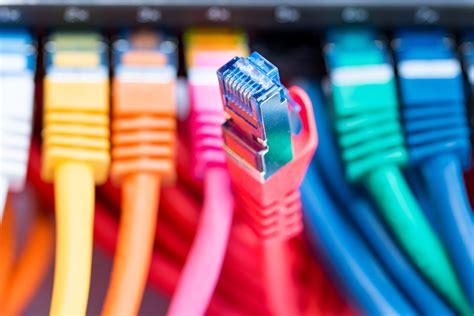
For competitive online gaming, a wired Ethernet connection is always superior to Wi-Fi. It offers lower latency and greater stability, significantly reducing ping and packet loss.
- If possible, always use an Ethernet cable directly from your router to your PC.
- If Wi-Fi is your only option, ensure you’re on a 5GHz network and as close to your router as possible.
Advanced Tweaks and Best Practices
Disable Visual Effects
Windows 11’s fancy visual effects can consume GPU resources. Reduce them for a slight performance boost:
- Search for Adjust the appearance and performance of Windows.
- Under the Visual Effects tab, select Adjust for best performance or customize by unchecking unnecessary options like ‘Animate windows when minimizing and maximizing’ or ‘Fade or slide menus into view’.
Keep Windows Updated (But Strategically)
While often beneficial, new Windows updates can sometimes introduce bugs or performance regressions. Generally, keeping your OS updated is recommended for security and feature improvements. However, if an update negatively impacts your gaming, you might consider pausing updates for a short period until patches are released.
Clean Gaming Setup
Beyond software, a clean physical setup can aid performance. Ensure good airflow in your PC case to prevent thermal throttling, and keep your desk tidy to avoid distractions and ensure comfortable play.
Conclusion
Optimizing Windows 11 for gaming is an ongoing process, but by following these steps, you’ll significantly enhance your gaming performance and reduce input lag. Remember that the ideal settings can vary based on your specific hardware and games, so don’t be afraid to experiment and find what works best for you. Regular maintenance, including driver updates and system cleanups, will help ensure your PC remains a top-tier gaming machine.


