





How to optimize Windows 11 settings for maximum gaming FPS?
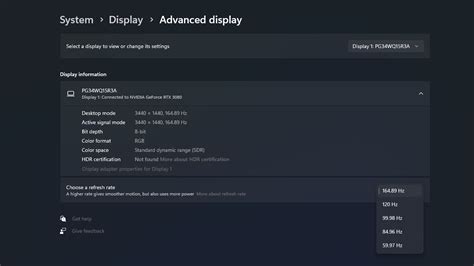
Unleashing Your PC’s Full Gaming Potential on Windows 11
Windows 11 brings a sleek interface and some under-the-hood improvements, but out-of-the-box settings aren’t always optimized for competitive gaming. To squeeze every last frame per second (FPS) out of your system, a few tweaks are necessary. This guide will walk you through the essential settings to modify for a smoother, more responsive gaming experience.
Optimizing Core Gaming Features
Windows 11 includes dedicated features designed to enhance gaming. Ensuring these are correctly configured is your first step towards higher FPS.
- Enable Game Mode: This feature prioritizes your game’s resources, reducing background process interference. To enable it, go to
Settings > Gaming > Game Modeand toggle itOn. - Hardware-Accelerated GPU Scheduling: This setting can reduce input lag and improve performance by allowing your GPU to manage its own VRAM more efficiently. Find it under
Settings > System > Display > Graphics > Change default graphics settingsand toggleHardware-accelerated GPU schedulingOn. A restart is often required. - Graphics Performance Preference: For individual games, you can tell Windows to use your dedicated GPU or prioritize performance. Go to
Settings > System > Display > Graphics, browse for your game (or select it from the list), clickOptions, and chooseHigh performance.

Fine-Tuning Power and Background Processes
Unnecessary background tasks and inefficient power management can significantly impact your game’s performance.
- Power Plan: Switch to a ‘High performance’ or ‘Ultimate Performance’ power plan. Go to
Settings > System > Power & battery > Power modeand selectBest performance. For more granular control, search for ‘Edit power plan’ in the Start menu, navigate toPower Options, and select ‘High Performance’. - Disable Background Apps: Many apps run in the background, consuming CPU and RAM. To manage them, go to
Settings > Apps > Apps & features, click the three dots next to an app, selectAdvanced options, and set ‘Let this app run in background’ toNeverfor non-essential applications. - Manage Startup Apps: Prevent unnecessary programs from launching with Windows. Open
Task Manager(Ctrl+Shift+Esc), go to theStartup appstab, and disable any programs you don’t need immediately after booting. - Disable Notifications and Focus Assist: Notifications can interrupt gameplay. Go to
Settings > System > Notificationsand turn off notifications for apps you don’t need. Consider enablingFocus Assist(found in the Quick Settings panel orSettings > System > Focus) during gaming sessions to silence alerts.
Streamlining Visuals and System Security
While Windows 11 looks great, some visual effects consume resources that could be better spent on your game. Certain security features, though important, can also have a minor performance overhead.
- Adjust for Best Performance: Reduce visual effects. Search for ‘Adjust the appearance and performance of Windows’ in the Start menu. In the ‘Performance Options’ window, select
Adjust for best performance, then re-enable only the visual effects you truly want (e.g., ‘Smooth edges of screen fonts’). - Disable Virtualization-Based Security (VBS) / Memory Integrity: VBS, including Memory Integrity, is an important security feature but can sometimes impact gaming performance (typically a minor 1-5% FPS drop). If maximizing FPS is your absolute priority and you understand the security implications, you can disable it. Find it under
Settings > Privacy & security > Windows Security > Device security > Core isolation details. Turn off ‘Memory integrity’. A reboot will be required.
Keeping Drivers Current and Storage Optimized
Outdated drivers and cluttered storage can choke your system’s performance.
- Update Graphics Drivers: This is arguably the most critical step for gaming performance. Always keep your GPU drivers updated to the latest version directly from NVIDIA, AMD, or Intel’s websites. These updates often include game-specific optimizations.
- Update Chipset Drivers: Don’t forget your motherboard’s chipset drivers, available from your motherboard manufacturer’s website.
- Optimize Storage:
- SSDs: Ensure TRIM is enabled (it usually is by default). Search for ‘Defragment and Optimize Drives’ and check the status of your SSDs.
- HDDs: Regularly defragment your hard disk drives to improve load times.
- Disk Cleanup: Use Windows’ built-in Disk Cleanup tool to remove temporary files and other clutter (search ‘Disk Cleanup’ in the Start menu).

Additional Tips for Maximum FPS
- Keep Windows Up-to-Date: While some updates can introduce issues, major Windows updates often include performance improvements and bug fixes.
- Monitor Temperatures: Overheating components (CPU, GPU) will throttle performance. Ensure your cooling solution is adequate and your system is clean of dust.
- Close Unnecessary Programs: Before launching a demanding game, manually close any applications running in the background, especially web browsers with many tabs.
- In-Game Settings: Don’t forget to optimize your game’s internal graphics settings. Reducing shadows, anti-aliasing, and resolution can significantly boost FPS.

Conclusion
By diligently applying these Windows 11 optimization tips, you can significantly boost your gaming FPS and enjoy a much smoother and more responsive experience. Remember that a clean, well-maintained system, combined with up-to-date drivers and smart settings, is the foundation for peak gaming performance. Regularly review these settings as Windows updates can sometimes reset them, ensuring your PC is always ready for action.


