





How to optimize Windows for maximum FPS and minimal input lag in competitive games?
Unleashing Your PC’s Full Potential: A Gamer’s Guide to Windows Optimization
In the highly competitive world of online gaming, every millisecond and every frame counts. While powerful hardware is essential, a well-optimized Windows operating system can be the secret weapon that gives you the edge. This guide will walk you through various settings and tweaks to ensure your PC delivers maximum Frames Per Second (FPS) and minimal input lag, allowing you to react faster and perform better in your favorite competitive titles.
Core Windows Settings for Peak Performance
1. Power Plan: Ultimate Performance
Windows’ default power plans often prioritize energy saving over raw performance. For gaming, you want to ensure your CPU and GPU are always running at their maximum potential. Navigate to Control Panel > Hardware and Sound > Power Options. Select “High Performance.” If you don’t see it, click “Show additional plans.” Some systems, especially newer ones, may also offer an “Ultimate Performance” plan, which is even better if available.
2. Game Mode: Enable It
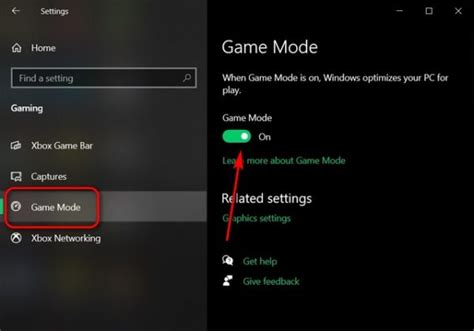
Windows Game Mode aims to optimize your PC for gaming by prioritizing game processes and reducing background activity. To enable it, go to Settings > Gaming > Game Mode and toggle it “On.” While its impact can sometimes be debated, for most systems, it provides a slight benefit.
3. Graphics Settings: Hardware-Accelerated GPU Scheduling
This feature, introduced in Windows 10 (version 2004) and improved in Windows 11, can potentially reduce input lag and improve performance by allowing your GPU to manage its own VRAM more efficiently. Go to Settings > System > Display > Graphics > Change default graphics settings and toggle “Hardware-accelerated GPU scheduling” to “On.” You may also want to ensure “Variable refresh rate optimization” is enabled if you have a compatible monitor.
4. Disable Unnecessary Startup and Background Apps
Many applications automatically launch with Windows or run in the background, consuming valuable CPU, RAM, and GPU resources. Disable anything you don’t need while gaming:
- Startup Apps: Press Ctrl + Shift + Esc to open Task Manager, go to the “Startup” tab, and disable non-essential programs.
- Background Apps: Go to Settings > Privacy > Background apps (Windows 10) or Settings > Apps > Apps & features > More options (three dots) > Advanced options for individual apps (Windows 11) and toggle off those you don’t need running. Alternatively, for Windows 11, some apps can be managed via Settings > Apps > Installed apps.
- Notifications & Focus Assist: Disable notifications during gaming sessions. Go to Settings > System > Focus assist (Windows 10) or Settings > System > Focus (Windows 11) and set it to “Alarms only” or “Off” when gaming.
5. Adjust Visual Effects for Performance
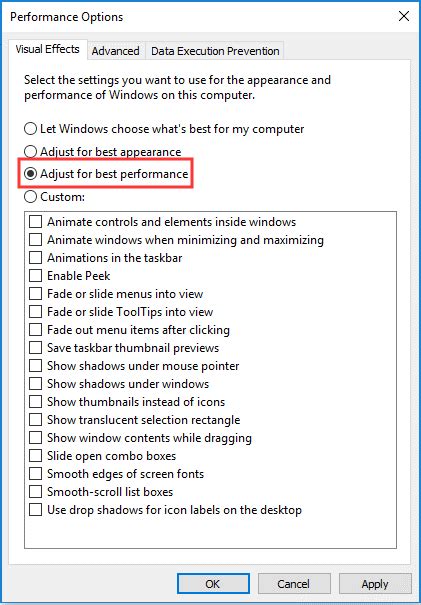
Windows includes various visual flair elements that consume resources. While modern PCs can handle most, tweaking them can free up a tiny bit of performance. Right-click “This PC,” select “Properties,” then “Advanced system settings,” and under “Performance,” click “Settings.” Choose “Adjust for best performance” or customize the list, disabling animations and shadows.
Driver Management and System Maintenance
1. Keep Graphics Drivers Up-to-Date
This is arguably the most critical step for gaming performance. Always download the latest stable drivers directly from NVIDIA, AMD, or Intel’s websites. Perform a clean installation if possible.
2. Update Other Essential Drivers
Don’t forget chipset, network, and audio drivers. Outdated drivers can lead to instability or suboptimal performance. Visit your motherboard manufacturer’s website for the latest chipset drivers.
3. Windows Updates: Manage Wisely
While important for security, Windows updates can sometimes introduce bugs or occur at inconvenient times. Consider pausing updates during peak gaming periods via Settings > Update & Security > Windows Update (Windows 10) or Settings > Windows Update (Windows 11).
4. Storage Optimization
- SSDs: Ensure TRIM is enabled (it usually is by default). You can check via
fsutil behavior query DisableDeleteNotifyin Command Prompt. If it returns 0, TRIM is enabled. - HDDs: If you still use an HDD for games, regular defragmentation can help. Search for “Defragment and Optimize Drives” in Windows. However, for competitive gaming, an SSD is highly recommended.
Advanced Tweaks for Competitive Gamers
1. NVIDIA/AMD Control Panel Settings
Dive into your graphics card’s control panel for game-specific or global optimizations:
- NVIDIA Control Panel:
- Manage 3D settings > Power management mode: Prefer maximum performance.
- Low Latency Mode: Ultra (for minimal input lag, though can increase GPU usage slightly).
- Vertical Sync: Off (unless you use G-Sync/FreeSync and want to cap FPS below refresh rate).
- AMD Radeon Software:
- Radeon Anti-Lag: Enabled.
- Radeon Chill: Disabled (unless you want to cap FPS for power saving).
- Enhanced Sync: Off.
- Texture Filtering Quality: Performance.
2. Mouse Settings: Disable Pointer Precision
Enhanced Pointer Precision (mouse acceleration) can hinder muscle memory in competitive games. Go to Settings > Devices > Mouse > Additional mouse options > Pointer Options and uncheck “Enhance pointer precision.” While here, ensure your mouse’s polling rate is set to 1000Hz via its dedicated software for minimal input delay.
3. Network Optimization
- Disable QoS Packet Scheduler: Some users report minor improvements by disabling QoS. Go to Network and Sharing Center > Change adapter settings, right-click your active network adapter, select “Properties,” and uncheck “QoS Packet Scheduler.” Use caution, as its impact is often negligible.
- Update Network Drivers: Ensure your Ethernet or Wi-Fi adapter has the latest drivers.
- Close Bandwidth-Hogging Apps: Ensure no downloads, streaming, or cloud backups are running during gaming.
4. Consider Windows Debloating (Use with Caution)
Advanced users might consider using third-party tools or scripts to remove more Windows bloatware. However, this carries risks and should only be attempted by those comfortable with system recovery. For most users, the steps above offer significant gains with minimal risk.
Conclusion
Optimizing Windows for competitive gaming isn’t a one-time task but an ongoing process. Regularly updating drivers, managing background processes, and tweaking settings can ensure your system consistently performs at its peak. By following these steps, you’ll not only enjoy higher FPS and reduced input lag but also a smoother, more responsive gaming experience that can genuinely elevate your gameplay.


