





How to optimize Windows for maximum gaming FPS and minimize input lag?

Unleashing Your PC’s Gaming Potential
Whether you’re a casual gamer or a competitive eSports enthusiast, maximizing your PC’s gaming performance is crucial for an immersive and responsive experience. A well-optimized Windows operating system can significantly boost your frame rates (FPS) and slash frustrating input lag, giving you a competitive edge. This guide will walk you through essential settings and tweaks to transform your machine into a gaming powerhouse.
Essential Windows Settings for Gamers
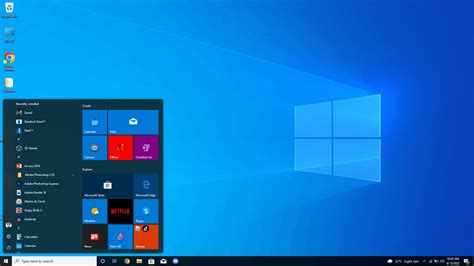
Start by configuring Windows’ built-in features designed to prioritize gaming performance:
- Game Mode: Navigate to
Settings > Gaming > Game Modeand ensure it’s turned On. This feature tells Windows to prioritize your game, allocating system resources more efficiently. - Graphics Settings: In
Settings > System > Display > Graphics Settings, enable Hardware-accelerated GPU scheduling. This can reduce latency and improve performance in supported games. Also, add your high-performance games here and set them to High performance. - Power Plan: Go to
Control Panel > Hardware and Sound > Power Options. Select High Performance or, if available, Ultimate Performance. Balanced mode saves power but can limit CPU and GPU clocks, hurting FPS. - Visual Effects: Search for “Adjust the appearance and performance of Windows” in the Start menu. In the Visual Effects tab, choose Adjust for best performance. This disables non-essential animations and visual flair that consume resources.
- Notifications and Focus Assist: During gaming, notifications can cause micro-stutters or input interruptions. Enable Focus Assist (
Settings > System > Focus Assist) and set it to activate automatically when playing games.
Driver Management and System Cleanup
Outdated or bloated software can silently drag down your system’s performance.
- Graphics Drivers: Always keep your NVIDIA, AMD, or Intel graphics drivers updated to the latest stable version. These updates often include game-specific optimizations and performance improvements. Download directly from the manufacturer’s website.
- Chipset Drivers: Don’t overlook your motherboard’s chipset drivers. Keeping them current ensures optimal communication between your CPU, RAM, and other components.
- Background Apps: Disable unnecessary background applications that consume CPU, RAM, or network bandwidth. Go to
Settings > Apps > Apps & featuresand restrict background activity for non-essential apps. Also, reviewTask Manager > Startuptab and disable programs you don’t need to run at boot. - Bloatware Removal: Uninstall any pre-installed software (bloatware) that you don’t use. These often run in the background and waste resources.
Minimizing Input Lag: Network and Peripherals
Input lag is the delay between your action and its on-screen representation. Reducing it is key for competitive gaming.
- Wired Connection: For online gaming, always use an Ethernet cable instead of Wi-Fi. A wired connection provides lower latency, higher stability, and faster speeds.
- Mouse Polling Rate: High-end gaming mice allow you to adjust their polling rate (e.g., 1000Hz). A higher polling rate means the mouse reports its position more frequently to the PC, reducing input lag. Ensure your mouse software is set to the highest stable rate.
- Keyboard Responsiveness: Similarly, some gaming keyboards offer adjustable polling rates. Keep your keyboard firmware updated and settings optimized through its proprietary software.
- Monitor Refresh Rate: Ensure your monitor is set to its highest refresh rate in Windows Display Settings (
Settings > System > Display > Advanced display settings). Mismatched refresh rates can lead to visual lag or screen tearing.
Disk & Storage Optimization
How your storage drives are configured can impact game load times and overall system responsiveness.
- SSD Advantage: Install your operating system and your most frequently played games on a Solid State Drive (SSD). SSDs offer significantly faster read/write speeds than traditional Hard Disk Drives (HDDs), drastically reducing loading times.
- Defragmentation: If you still use an HDD for games, regularly defragment it (search for “Defragment and Optimize Drives”). However, never defragment an SSD, as it can reduce its lifespan without offering performance benefits.
- Temporary Files: Periodically clean out temporary files, browser caches, and system junk using Windows’ built-in Disk Cleanup tool or a reliable third-party utility. This frees up disk space and can improve overall system snappiness.

Advanced Tweaks for Peak Performance
For those looking to squeeze every last drop of performance, consider these advanced options:
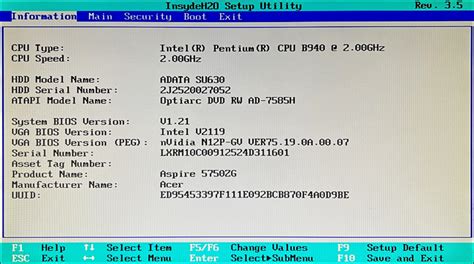
- BIOS/UEFI Settings: Restart your PC and enter your motherboard’s BIOS/UEFI (usually by pressing Del or F2 during boot).
- Enable XMP/DOCP: Ensure your RAM is running at its advertised speed by enabling its XMP (Intel) or DOCP (AMD) profile.
- Disable Virtualization: If you don’t use virtual machines, disabling Intel VT-d or AMD-V can sometimes free up minor resources.
- Overclocking (with caution): If you have an unlocked CPU and/or a high-end GPU, mild overclocking can provide a noticeable FPS boost. Only attempt this if you’re knowledgeable about cooling and stability, as it can potentially damage hardware if done incorrectly.
- Disable Mouse Acceleration: In Windows mouse settings, disable “Enhance pointer precision.” This ensures a direct 1:1 movement ratio, which is vital for muscle memory in competitive games.
Conclusion: Sustaining Optimal Performance
Optimizing Windows for gaming is an ongoing process, not a one-time task. Regularly update your drivers, clean out unnecessary files, and review your settings to ensure your system remains in peak condition. By following these steps, you’ll not only enjoy higher FPS and reduced input lag but also a more stable and enjoyable gaming experience overall. Dive into your favorite titles with confidence, knowing your PC is performing at its best!


