





How to optimize Windows for peak gaming performance and FPS?
To truly get the most out of your gaming rig, optimizing your Windows operating system is just as crucial as having powerful hardware. While top-tier components lay the foundation, software inefficiencies can bottleneck performance, leading to frustrating frame drops and an overall less enjoyable experience. This guide will walk you through essential Windows settings and tweaks designed to squeeze every last frame per second (FPS) and enhance your gaming performance.
Keep Your Drivers Updated
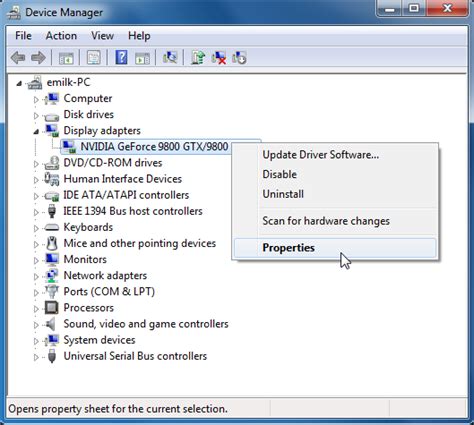
The first and most fundamental step in optimizing for gaming is ensuring all your drivers are up to date, especially your graphics card driver. Graphics drivers are constantly refined by manufacturers to improve performance, fix bugs, and optimize for new game releases.
- Graphics Card Drivers: Visit NVIDIA, AMD, or Intel’s official websites to download the latest drivers for your GPU. Avoid relying solely on Windows Update for this.
- Chipset Drivers: Update your motherboard’s chipset drivers from your motherboard manufacturer’s website.
- Other Drivers: Ensure sound card, network card, and other peripheral drivers are current.
Adjust Power Options for Performance
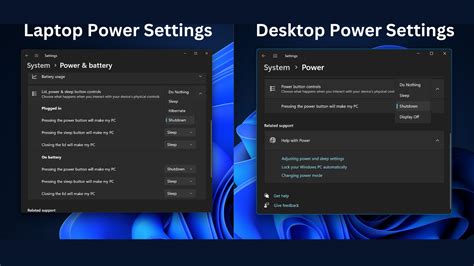
Windows’ default power plans often prioritize energy saving over raw performance. For gaming, you want your CPU and GPU operating at their maximum potential.
- Go to Control Panel > Hardware and Sound > Power Options.
- Select “High performance” or “Ultimate Performance” (if available). If not, create a custom plan based on high performance.
- Click “Change plan settings” and then “Change advanced power settings.” Ensure that “Processor power management” is set to 100% for both minimum and maximum processor state.
Optimize Game Mode and Graphics Settings
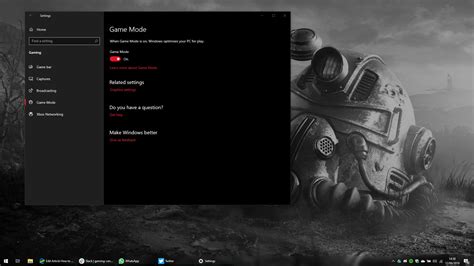
Windows 10 and 11 offer a dedicated Game Mode designed to improve gaming performance by prioritizing system resources for your game. Additionally, specific graphics settings can be tweaked.
- Enable Game Mode: Go to Settings > Gaming > Game Mode and toggle it on.
- Graphics Settings: In Settings > System > Display > Graphics (or Gaming > Graphics in older versions), you can set specific performance preferences for individual applications. Add your game executables and set them to “High performance.”
- Variable Refresh Rate (VRR): If your monitor supports it (e.g., G-Sync, FreeSync), enable it in your graphics card control panel and Windows display settings for smoother gameplay.
Disable Unnecessary Background Apps & Notifications
Background processes consume valuable CPU, RAM, and disk I/O, which can negatively impact gaming. Reducing these can free up resources.
- Background Apps: Go to Settings > Privacy > Background apps (Windows 10) or Settings > Apps > Apps & features, then manage individual app permissions (Windows 11) and disable those you don’t need running in the background.
- Notifications: Turn off unnecessary notifications via Settings > System > Notifications & actions to prevent distractions and resource usage during gameplay.
- Startup Programs: Use Task Manager (Ctrl+Shift+Esc) > Startup tab to disable non-essential programs from launching with Windows.
Tweak Visual Effects and Clean Up Your System
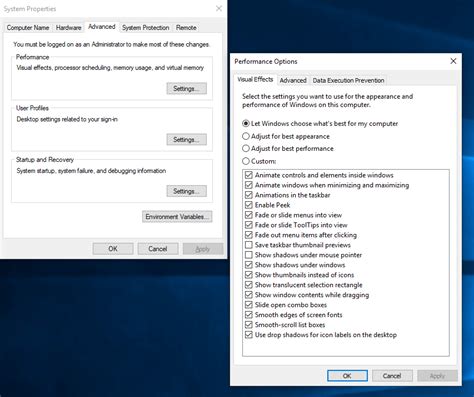
While modern PCs can handle visual flair, some older or less powerful systems can benefit from reducing Windows’ visual effects. Regular system maintenance is also key.
- Visual Effects: Search for “Adjust the appearance and performance of Windows” in the Start menu. In the “Visual Effects” tab, select “Adjust for best performance” or customize by unchecking unnecessary animations.
- Disk Cleanup & Defragmentation: Regularly run Disk Cleanup to remove temporary files. If you have an HDD, defragment your drive; for SSDs, ensure TRIM is enabled (Windows handles this automatically).
- Uninstall Bloatware: Remove any pre-installed software or applications you don’t use, as these can hog resources.
Conclusion
Optimizing Windows for peak gaming performance is an ongoing process, not a one-time fix. By consistently applying these tweaks—keeping drivers updated, managing power settings, enabling Game Mode, and minimizing background processes—you can ensure your system is always primed for the best possible gaming experience. Remember that a balanced approach is key; focus on what genuinely impacts your specific setup and games. Happy gaming!


