





How to optimize Windows & GPU drivers for max gaming FPS and low latency?

Achieving the highest possible FPS and the lowest latency is every PC gamer’s dream. While powerful hardware is a great start, software optimization plays an equally crucial role in squeezing out every last drop of performance. This comprehensive guide will walk you through essential Windows settings and GPU driver tweaks to ensure your gaming experience is as smooth and responsive as possible.
Optimizing Windows for Peak Gaming Performance
Your operating system, Windows, is the foundation of your gaming experience. Tweaking its settings can significantly impact your FPS and overall responsiveness.
1. Activate Game Mode
Windows Game Mode prioritizes your game by allocating system resources and preventing background processes from interfering. To enable it:
- Go to Settings > Gaming > Game Mode.
- Ensure the toggle is set to ‘On’.
2. Adjust Focus Assist Settings
Focus Assist (previously Quiet Hours) prevents intrusive notifications and alerts that can pull you out of a game or cause performance hitches.
- Go to Settings > System > Focus Assist.
- Set it to ‘On’ when you’re playing a game, or configure automatic rules.
3. Set Power Plan to High Performance/Ultimate Performance
A balanced power plan can limit your CPU and GPU. Switching to a performance-oriented plan ensures your hardware runs at its maximum clock speeds.
- Search for ‘Edit power plan’ in the Windows search bar and click ‘Power Options’.
- Select ‘High performance’ or ‘Ultimate Performance’ (if available, often needs to be enabled via Command Prompt:
powercfg -duplicatescheme e9a42b02-d5df-448d-aa00-03f147496701).
4. Manage Startup Apps and Background Processes
Too many programs running in the background consume valuable CPU, RAM, and GPU resources. Disable unnecessary startup items and close background apps before gaming.
- Open Task Manager (Ctrl+Shift+Esc), go to the ‘Startup’ tab, and disable unneeded programs.
- In Settings > Privacy > Background apps, turn off apps you don’t use regularly.
5. Disable Visual Effects
While aesthetically pleasing, some Windows visual effects can consume resources. For maximum FPS, prioritize performance over flair.
- Search for ‘Adjust the appearance and performance of Windows’.
- Select ‘Adjust for best performance’.
6. Enable Hardware-Accelerated GPU Scheduling (HAGS)
This feature can potentially reduce latency and improve performance by allowing the GPU to manage its own VRAM more efficiently. Available on Windows 10 (version 2004 or later) and Windows 11 with compatible GPUs and drivers.
- Go to Settings > System > Display > Graphics settings.
- Toggle ‘Hardware-accelerated GPU scheduling’ to ‘On’.
GPU Driver Optimization: NVIDIA & AMD
Your graphics card drivers are critical. Keeping them updated and configured correctly is paramount for performance and stability.
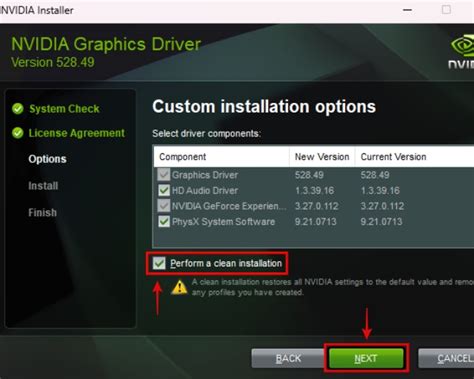
1. Keep Drivers Updated (Clean Installation)
Always use the latest stable drivers directly from NVIDIA or AMD’s website. For best results, perform a clean installation to remove old files and prevent conflicts.
- Download the latest driver.
- Use a tool like Display Driver Uninstaller (DDU) in Safe Mode to completely remove old drivers.
- Install the new drivers.
2. NVIDIA Control Panel Settings
Open the NVIDIA Control Panel by right-clicking on your desktop.
- Adjust image settings with preview: Select ‘Use my preference emphasizing:’ and drag the slider to ‘Performance’.
- Manage 3D settings:
- Image Sharpening: Off or GPU Scaling only if preferred.
- Low Latency Mode: ‘Ultra’ for maximum input lag reduction.
- Power management mode: ‘Prefer maximum performance’.
- Shader Cache Size: ‘Driver Default’ or ‘Unlimited’.
- Texture filtering – Quality: ‘High Performance’.
- Vertical sync: ‘Off’ (unless you experience screen tearing and don’t use G-Sync/FreeSync). Use G-Sync/FreeSync where available.
3. AMD Adrenalin Software Settings
Open AMD Radeon Software from your desktop or system tray.
- Go to the ‘Gaming’ tab, then ‘Global Graphics’.
- Radeon Anti-Lag: ‘Enabled’ to reduce input latency.
- Radeon Boost: ‘Enabled’ (if supported by the game) for dynamic resolution scaling to boost FPS during fast motion.
- Radeon Image Sharpening (RIS): ‘Enabled’ with a moderate sharpness percentage (e.g., 80%) for clearer visuals with minimal performance impact.
- Wait for Vertical Refresh (VSync): ‘Always Off’ (unless you experience tearing and don’t use FreeSync). Use AMD FreeSync where available.
- Advanced Settings:
- Texture Filtering Quality: ‘Performance’.
- Tessellation Mode: ‘Override application settings’ and set ‘Max Tessellation Level’ to 8x or 16x, or ‘Off’ if issues arise.

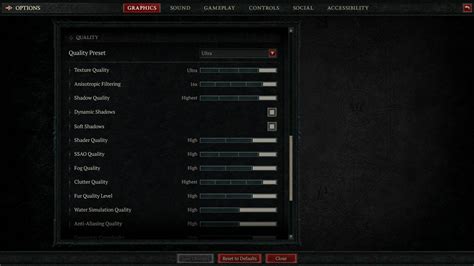
In-Game Settings and Overlays
Beyond your system, individual game settings play a massive role. Experiment with them to find the right balance.
1. Prioritize Performance Over Aesthetics
Lower settings like shadows, anti-aliasing, and post-processing effects often provide the largest FPS gains with minimal visual degradation. Start with medium settings and adjust upwards or downwards for your target FPS.
2. Disable Unnecessary Overlays
Overlays from Steam, Discord, Xbox Game Bar (if not used), or other third-party software can consume resources and sometimes introduce input lag. Disable them if they’re not essential for your gaming experience.
3. Fullscreen Optimization
For some games, disabling Windows’ Fullscreen Optimizations can improve performance or reduce stuttering. Right-click the game’s executable > Properties > Compatibility tab > check ‘Disable fullscreen optimizations’.
Additional Tweaks for Ultimate Performance
- XMP Profile for RAM: Enable XMP (Extreme Memory Profile) in your motherboard’s BIOS/UEFI settings to ensure your RAM runs at its advertised speeds. This can significantly impact overall system performance.
- Disk Cleanup: Regularly clean temporary files and system clutter using Windows’ built-in Disk Cleanup utility.
- Defragmentation (HDDs only): If you still use a traditional HDD for games, occasional defragmentation can help. SSDs should not be defragmented.
- Close Browser Tabs: Web browsers, especially with many tabs open, can be massive resource hogs. Close them while gaming.
By diligently applying these Windows and GPU driver optimizations, you’ll notice a significant improvement in your gaming FPS and overall system responsiveness. Remember that the ideal settings can vary slightly depending on your specific hardware and games, so a bit of experimentation might be necessary to find your perfect sweet spot.


