





How to prevent gaming PC overheating for consistent high FPS?
Understanding the Enemy: Why Overheating Kills FPS
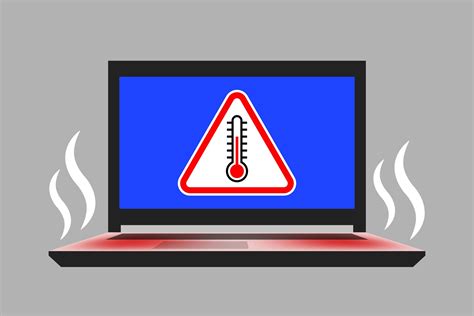
For PC gamers, consistent high frames per second (FPS) is the holy grail. Nothing breaks immersion or puts you at a competitive disadvantage faster than sudden frame drops or system crashes. Often, the silent culprit behind these performance woes is overheating. When your CPU or GPU gets too hot, it automatically ‘throttles’ its performance to prevent damage, leading directly to reduced FPS and stuttering gameplay. Preventing this isn’t just about system longevity; it’s about maintaining that buttery-smooth gaming experience you paid for.
Mastering Airflow: The Foundation of Cool Gaming
Optimize Case Fan Configuration
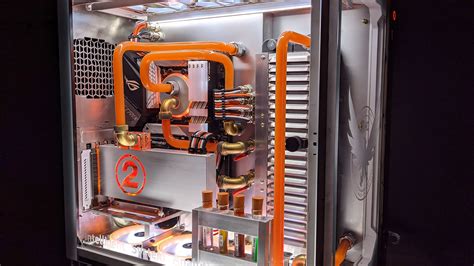
The first line of defense against heat buildup is proper airflow within your PC case. Think of it as a wind tunnel: you need cool air coming in and hot air being exhausted efficiently. Generally, an ‘intake at the front/bottom, exhaust at the rear/top’ configuration works best, following the natural convection of hot air rising. Ensure your case has enough fans, ideally a minimum of two intake and one exhaust fan, properly oriented. Experiment with fan speeds if your motherboard or software allows, finding a balance between cooling performance and noise.
Effective Cable Management
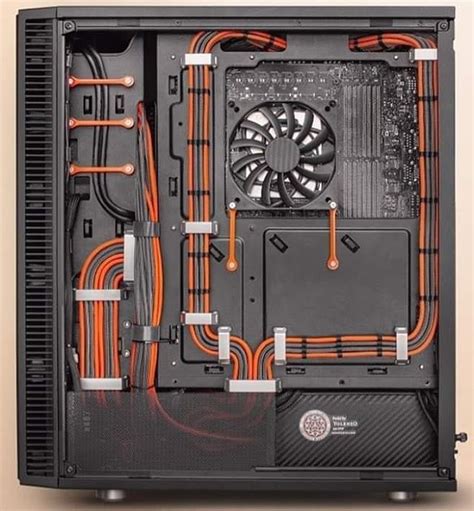
Cluttered cables aren’t just an eyesore; they’re a significant impediment to airflow. Tidy up your power cables, SATA cables, and any other internal wiring using zip ties or Velcro straps. Route them behind the motherboard tray or along the edges of the case to keep the main component area clear. This seemingly small detail can have a surprisingly large impact on air movement and component temperatures.
Targeted Cooling: CPU and GPU Solutions
Upgrade Your CPU Cooler
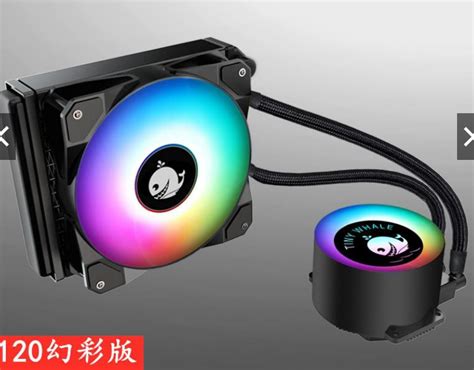
The stock cooler that comes with many CPUs is often barely adequate for basic tasks, let alone intense gaming sessions. Investing in an aftermarket CPU cooler is one of the best ways to combat overheating. Options range from powerful air coolers with large heatsinks and multiple fans to closed-loop liquid coolers (AIOs) that offer excellent thermal performance and often a cleaner aesthetic. Choose a cooler that fits your case and budget, and is rated for your CPU’s thermal design power (TDP).
Enhance GPU Cooling and Performance
Your graphics card is arguably the hottest component during gaming. While most GPUs come with robust factory cooling solutions, there are ways to optimize them. Ensure the GPU fans are unobstructed. For advanced users, undervolting your GPU can significantly reduce its power consumption and heat output with minimal impact on performance. Some high-end GPUs also allow for custom fan curves through software, letting you ramp up fan speeds at higher temperatures.
Regular Maintenance: Your PC’s Best Friend
Battling the Dust Bunnies
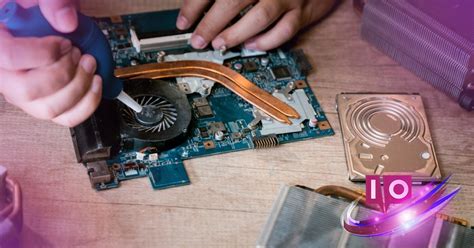
Dust is the mortal enemy of PC cooling. It accumulates on fan blades, heatsinks, and vents, forming an insulating layer that traps heat and hinders airflow. Make it a habit to clean your PC internally every 3-6 months. Use compressed air to blow out dust from fans, heatsinks, and case filters. Hold fans in place when spraying to prevent over-spinning and damage to bearings.
Reapplying Thermal Paste
Thermal paste creates a crucial interface between your CPU/GPU and its cooler, efficiently transferring heat. Over time, this paste can dry out and become less effective. If you’ve had your PC for several years, or if you’ve replaced your CPU cooler, reapplying fresh, high-quality thermal paste can significantly improve heat transfer. This is a delicate procedure, so if you’re unsure, consult a professional or watch detailed guides.
Environmental Factors and Monitoring
Room Temperature and PC Placement
The ambient temperature of your room directly affects how well your PC can cool itself. A cooler room means cooler intake air. Also, ensure your PC case isn’t crammed into a tight space, blocking its vents. Give it room to breathe, ideally on a desk or a stand with open space around it.
Utilize Monitoring Software
Knowledge is power. Use software like HWMonitor, MSI Afterburner (for GPU), or Core Temp (for CPU) to keep an eye on your component temperatures during gaming. This helps you identify if and when your system is overheating and allows you to gauge the effectiveness of your cooling solutions. Aim to keep CPU and GPU temperatures below 85°C (185°F) under load, with lower being better.
Consider Undervolting or Underclocking
For more advanced users, undervolting your CPU or GPU can reduce their power draw and heat generation without a significant performance loss. Underclocking (reducing clock speed) is a more extreme measure but can stabilize an otherwise unmanageable system, though at the cost of some performance.

Conclusion: Keep Your Frames High, Your Temps Low
Preventing gaming PC overheating is an ongoing process that combines smart hardware choices, diligent maintenance, and good environmental practices. By optimizing airflow, upgrading critical coolers, keeping your system dust-free, and monitoring temperatures, you can ensure your gaming rig runs cool, stable, and consistently delivers the high FPS needed for an uncompromised gaming experience. Don’t let heat be the bottleneck in your pursuit of peak performance!


