





How to properly set up G-Sync/FreeSync for tear-free gaming on my new monitor?
Understanding G-Sync and FreeSync
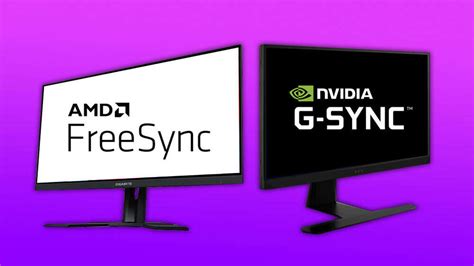
Screen tearing and stuttering can significantly detract from the immersion and responsiveness of PC gaming. These visual artifacts occur when your graphics card’s frame rate isn’t synchronized with your monitor’s refresh rate. NVIDIA’s G-Sync and AMD’s FreeSync (collectively known as Adaptive Sync technologies) solve this problem by allowing your monitor to dynamically adjust its refresh rate to match the frame rate output by your GPU. The result is buttery-smooth, tear-free gameplay, making a massive difference in how games feel.
While the core function is the same, G-Sync is NVIDIA’s proprietary hardware solution (requiring a G-Sync module in the monitor), whereas FreeSync is an open-standard technology built on VESA’s Adaptive Sync protocol, often found in a wider range of monitors. NVIDIA also offers ‘G-Sync Compatible’ which allows some FreeSync monitors to work with NVIDIA GPUs, though often with varying performance.
Check Your Hardware Compatibility
Before diving into the setup, ensure your system meets the basic requirements:
- Compatible Monitor: Your monitor must explicitly support G-Sync, G-Sync Compatible, or FreeSync. Check your monitor’s specifications or product page.
- Compatible Graphics Card:
- NVIDIA G-Sync/G-Sync Compatible: Requires an NVIDIA GeForce GTX 10-series or newer GPU.
- AMD FreeSync: Requires an AMD Radeon RX 200 series or newer GPU.
- Correct Cable: For G-Sync, a DisplayPort cable is almost always required. For FreeSync, DisplayPort is generally preferred, but some monitors also support FreeSync over HDMI. Always use a high-quality cable that supports the required bandwidth for your monitor’s resolution and refresh rate.
- Latest Drivers: Ensure your graphics card drivers are up to date. Visit NVIDIA’s or AMD’s official websites to download the latest versions.
Enable Adaptive Sync on Your Monitor (OSD)
The first crucial step is to enable Adaptive Sync directly on your monitor’s On-Screen Display (OSD). This setting might be labeled differently depending on your monitor brand:
- Turn on your monitor and PC.
- Using the physical buttons on your monitor (usually on the back, bottom, or side), open the OSD menu.
- Navigate through the menus (often under ‘Gaming’, ‘Display’, ‘Image’, or ‘Input’) to find a setting like ‘Adaptive Sync’, ‘FreeSync’, ‘G-Sync’, ‘VRR’ (Variable Refresh Rate), or ‘Sync’.
- Enable this setting. Save and exit the OSD.
If you skip this step, your graphics card won’t be able to detect or utilize the adaptive sync feature, regardless of your software settings.
Configure Your GPU Control Panel
For NVIDIA G-Sync / G-Sync Compatible:
- Right-click on your desktop and select ‘NVIDIA Control Panel’.
- In the left-hand pane, under ‘Display’, click on ‘Set up G-SYNC’.
- Check the box for ‘Enable G-SYNC, G-SYNC Compatible’.
- Select your desired monitor from the list (if you have multiple).
- Check the box for ‘Enable settings for the selected display model’.
- (Optional) For G-Sync Compatible monitors, you might also need to go to ‘Manage 3D settings’ and ensure ‘Monitor Technology’ is set to ‘G-SYNC Compatible’.
- Click ‘Apply’ to save your changes.
For AMD FreeSync:
- Right-click on your desktop and select ‘AMD Radeon Software’.
- Click on the ‘Gear’ icon in the top-right corner to open Settings.
- Navigate to the ‘Display’ tab.
- Locate ‘Radeon FreeSync’ and ensure it is set to ‘Enabled’.
- If you have multiple displays, ensure it’s enabled for the correct monitor.
- Close the Radeon Software.
Verify and Troubleshoot
Once configured, it’s a good idea to verify that Adaptive Sync is active:
- NVIDIA: In the NVIDIA Control Panel, under ‘Display’ -> ‘Set up G-SYNC’, click ‘Display’ in the top menu bar, then select ‘G-SYNC Indicator’. A small ‘G-SYNC’ overlay will appear in the corner of your screen when it’s active in a full-screen application.
- AMD: Many games or demos (like AMD’s Windmill Demo) have on-screen indicators, or you can often tell by simply launching a game and noticing the absence of tearing.
If you’re encountering issues:
- No Signal / Black Screen: Ensure you’re using DisplayPort for G-Sync. Try a different cable.
- Still Tearing: Double-check all steps: monitor OSD, GPU drivers, and GPU control panel settings. Ensure your cable is securely connected.
- Outdated Drivers: Reinstall your GPU drivers clean using DDU (Display Driver Uninstaller) if necessary.
Tips for Optimal Performance
- Cap Your Frame Rate: To get the most out of G-Sync/FreeSync, it’s often recommended to cap your in-game frame rate slightly below your monitor’s maximum refresh rate (e.g., if you have a 144Hz monitor, cap at 141-143 FPS). This prevents your GPU from exceeding the VRR range, which can reintroduce tearing or stutter. Many games have in-built frame rate limiters, or you can use your GPU’s control panel (NVIDIA Control Panel -> ‘Manage 3D settings’ -> ‘Max Frame Rate’ or AMD Radeon Software -> ‘Gaming’ -> ‘Graphics’ -> ‘Radeon Chill’ or ‘Frame Rate Target Control’).
- V-Sync Interaction: When G-Sync/FreeSync is active, you generally want V-Sync disabled in-game. However, some users prefer to enable V-Sync in the GPU control panel (not in-game) as a ‘fallback’ for when your frame rate exceeds the VRR range, preventing tearing above the refresh rate. Experiment to see what works best for you.
- Full Screen vs. Borderless Window: G-Sync/FreeSync often works best in exclusive full-screen mode. While it can work in borderless windowed mode, performance may vary.
Enjoy Tear-Free Gaming
With these steps, your G-Sync or FreeSync monitor should now be properly configured, delivering a visibly smoother and more enjoyable gaming experience. Say goodbye to distracting screen tears and stutter, and immerse yourself fully in your favorite games!


