





How to reduce input lag and boost FPS for competitive PC gaming?

The Quest for Low Latency and High FPS
In the high-stakes world of competitive PC gaming, every millisecond counts. Input lag can mean the difference between a headshot and a missed opportunity, while a low frame rate per second (FPS) can lead to choppy visuals, delayed reactions, and a significant disadvantage against opponents. Optimizing your system for peak performance isn’t just about having the latest hardware; it’s about fine-tuning every component and software setting to achieve a smooth, responsive, and visually fluid experience. This guide will walk you through essential strategies to reduce input lag and boost your FPS, giving you the edge you need to dominate.

Hardware Upgrades and Settings for Performance
Your hardware forms the backbone of your gaming experience. Investing wisely and configuring correctly are crucial steps.
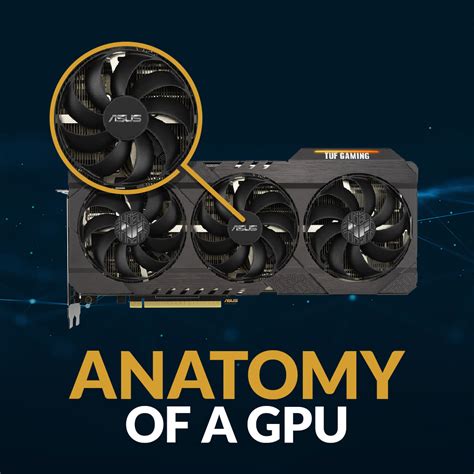
Graphics Card (GPU) Optimization
- Keep Drivers Updated: Always use the latest stable drivers from NVIDIA or AMD. These often include game-specific optimizations.
- Control Panel Settings: Access your GPU control panel (NVIDIA Control Panel or AMD Radeon Software). Set ‘Power Management Mode’ to ‘Prefer Maximum Performance’ and look for low-latency options like ‘NVIDIA Reflex Low Latency’ or ‘Radeon Anti-Lag’. Ensure V-Sync is off for competitive titles unless you’re experiencing severe screen tearing at very high FPS.
- GPU Overclocking: For experienced users, a stable GPU overclock can yield significant FPS gains, but proceed with caution and monitor temperatures.
Processor (CPU) and RAM
- CPU Performance: While many games are GPU-bound, a strong CPU (especially one with high single-core performance) is essential for handling game logic, physics, and background processes without bottlenecking your GPU. Ensure proper cooling to prevent thermal throttling.
- Sufficient RAM: Aim for at least 16GB of DDR4 RAM, running in dual-channel configuration, for modern competitive titles. Faster RAM (e.g., 3200MHz+) can also provide a measurable FPS boost.
Storage Solutions
An SSD (Solid State Drive) is non-negotiable for competitive gaming. Install your operating system and primary games on an NVMe or SATA SSD for drastically faster load times and overall system responsiveness. HDDs are too slow and can introduce micro-stutters and longer loading screens.
Monitor and Peripherals
- High Refresh Rate Monitor: A 144Hz or 240Hz monitor will display more frames per second, making motion clearer and giving you a visual advantage over lower refresh rate displays. Couple this with a low response time (1ms GTG).
- Wired Peripherals: Use a wired mouse and keyboard to minimize input lag compared to wireless alternatives. Look for gaming mice with high polling rates (1000Hz) for instant feedback.
Software & Operating System Optimizations
Even with top-tier hardware, sub-optimal software settings can cripple your performance.
Windows Settings for Gaming
- Game Mode: Enable ‘Game Mode’ in Windows Settings (Settings > Gaming > Game Mode). This prioritizes your game and suppresses background activities.
- Power Plan: Set your power plan to ‘High Performance’ or ‘Ultimate Performance’ (accessible via Control Panel > Hardware and Sound > Power Options) to ensure your CPU is always running at full speed.
- Disable Background Apps: Close all unnecessary applications running in the background, especially those that consume significant CPU, RAM, or network resources. Disable notifications and background app permissions.
- Xbox Game Bar: Disable it if you don’t use it, as it can sometimes consume resources.
In-Game Settings
This is often the quickest way to gain FPS. Prioritize competitive advantage over visual fidelity:
- Lower Graphics Presets: Start with ‘Low’ or ‘Medium’ settings for shadows, textures, anti-aliasing, and view distance.
- Resolution Scaling: Reduce render resolution below your native display resolution (e.g., 80% or 90%) if your GPU is struggling.
- Disable V-Sync: As mentioned, V-Sync introduces input lag. Only enable it if screen tearing is unbearable and your FPS far exceeds your monitor’s refresh rate.
- Check for FPS Caps: Ensure your game isn’t artificially capping your FPS below your monitor’s refresh rate or your desired maximum.
Network Optimization
Input lag isn’t just about your PC; your network connection plays a vital role in online gaming.
- Wired Ethernet Connection: Always use an Ethernet cable instead of Wi-Fi for a stable, lower-latency connection.
- Prioritize Gaming Traffic (QoS): If your router supports Quality of Service (QoS), configure it to prioritize gaming traffic over other network activities.
- Minimize Network Usage: Avoid streaming, downloading, or running other network-intensive tasks while gaming.

Advanced Tweaks and Best Practices
System Maintenance
- Keep Your System Clean: Physically clean your PC regularly to prevent dust buildup, which can lead to overheating and thermal throttling.
- Regular Software Cleanup: Uninstall unused programs, run disk cleanup, and ensure your SSD has TRIM enabled (usually automatic for Windows).
- Malware Scans: Periodically scan for malware, which can consume system resources and degrade performance.
Monitoring Tools
Use tools like MSI Afterburner, HWiNFO, or your game’s built-in FPS counter to monitor your frames per second, CPU/GPU usage, and temperatures. This helps you identify bottlenecks and confirm the effectiveness of your optimizations.
Conclusion: The Path to Dominance
Reducing input lag and boosting FPS for competitive PC gaming is an ongoing process of optimization. It requires a holistic approach, addressing both your hardware and software. By systematically implementing these strategies – from driver updates and in-game settings to power plans and network configurations – you can significantly enhance your gaming performance. Remember that finding the perfect balance between visual quality and performance is key, and continuous monitoring will help you maintain your edge on the digital battlefield. With a finely tuned machine, you’ll be faster, more reactive, and ultimately, more competitive.



