How to reduce input lag for competitive gaming setups?

The Quest for Zero Latency: Why Input Lag Matters
In the high-stakes world of competitive gaming, every millisecond counts. Input lag, the delay between your action (like a mouse click or key press) and its corresponding on-screen reaction, can be the difference between victory and defeat. While completely eliminating input lag is an impossible dream, significantly reducing it is an achievable goal that can give you a tangible edge over the competition. This guide delves into the various components of your gaming setup and the optimizations you can make to ensure your actions are registered as quickly as possible.
Monitor Optimizations for Quicker Responses
Your monitor is the primary display for your game, and it plays a critical role in how quickly you perceive action. Optimizing it is fundamental for low input lag.
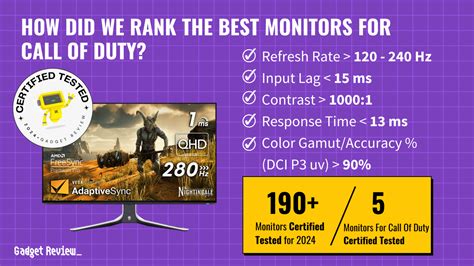
- High Refresh Rate & Low Response Time: Prioritize monitors with a high refresh rate (144Hz, 240Hz, or even 360Hz) and a low response time (1ms GTG or lower). A higher refresh rate means more frames are displayed per second, reducing the time between frames, while a low response time ensures pixels change color quickly, minimizing motion blur.
- Enable Gaming Mode: Most modern gaming monitors come with a ‘Gaming Mode’ or ‘Low Input Lag Mode’. Activating this mode typically bypasses certain image processing features that, while improving picture quality for casual use, add latency.
- VRR Technologies (G-Sync/FreeSync): While G-Sync and FreeSync primarily aim to eliminate screen tearing and stuttering, they can also contribute to a smoother, more responsive experience by ensuring frames are displayed as soon as they are rendered, provided your frame rate is within the VRR window. Ensure these are properly configured.
Choosing and Optimizing Peripherals
The devices you use to interact with your game are direct contributors to input lag. Careful selection and configuration are key.
- Wired Over Wireless: For competitive play, always opt for wired mice, keyboards, and headsets. Wireless connections, despite advances in technology, inherently introduce a small amount of latency and are susceptible to interference.
- High Polling Rate: Choose gaming mice and keyboards with a high polling rate (1000Hz or 1ms response time). A higher polling rate means the device reports its position or key press to the computer more frequently, reducing the time between your action and the signal reaching the PC.
- Mechanical Keyboards: Mechanical keyboards generally offer more consistent and faster actuation compared to membrane keyboards, and some even feature optical switches for near-instantaneous key detection.
PC Hardware and Software Tuning
Your computer’s internal components and software settings play a huge role in processing your inputs and rendering frames quickly.
- Sufficient CPU & GPU Power: Ensure your CPU and GPU are powerful enough to consistently run your game at a high frame rate (ideally above your monitor’s refresh rate) without major frame drops. A system struggling to render frames will inevitably introduce latency.
- Keep Drivers Updated: Regularly update your GPU, chipset, and peripheral drivers. Manufacturers frequently release updates that include performance optimizations and bug fixes.
- Windows Optimization:
- Game Mode: Enable Windows Game Mode (Windows 10/11) as it prioritizes system resources for your game.
- Power Plan: Set your Windows power plan to ‘High Performance’ or ‘Ultimate Performance’ to ensure your CPU and GPU are always running at their maximum clock speeds.
- Disable Background Processes: Close unnecessary background applications and services before launching your game. Every process consumes resources that could otherwise be dedicated to your game.
- In-Game Settings:
- Disable V-Sync: V-Sync synchronizes your game’s frame rate with your monitor’s refresh rate to prevent screen tearing, but it often introduces significant input lag. Only use it if tearing is unbearable and your monitor doesn’t support VRR.
- Fullscreen Exclusive Mode: Whenever possible, run games in Fullscreen Exclusive mode rather than borderless windowed. This gives the game direct control over the display output, potentially reducing latency.
- Graphic Settings: Lowering certain graphic settings, especially those taxing the GPU heavily, can help maintain a higher, more consistent frame rate, which directly contributes to lower input lag.
Network Considerations for Online Gaming
For online competitive games, your network connection is another potential source of latency.
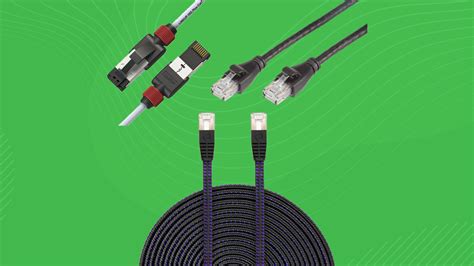
- Wired Ethernet Connection: Always use a wired Ethernet connection instead of Wi-Fi for online gaming. Ethernet provides a more stable connection with lower ping and less packet loss.
- Quality Router: Invest in a good quality router and ensure its firmware is up-to-date. Features like Quality of Service (QoS) can help prioritize game traffic over other network activities.
Conclusion: A Holistic Approach
Reducing input lag is not about a single magical fix, but rather a holistic approach involving careful hardware selection, meticulous software configuration, and disciplined setup practices. By systematically addressing each potential source of delay, from your monitor and peripherals to your PC’s internals and network connection, you can significantly tighten the responsiveness of your competitive gaming setup. The sum of these small optimizations will translate into a smoother, more immediate gaming experience, allowing your skills to shine without being hampered by technical limitations.