





How to reduce input lag for competitive gaming without breaking the bank?
Understanding Input Lag: Your Hidden Enemy
Input lag is the bane of every competitive gamer. It’s the dreaded delay between your action (like clicking a mouse or pressing a button) and that action registering on your screen. While high-end gear promises to minimize this, you don’t need to empty your wallet to achieve a more responsive gaming experience. By optimizing your existing hardware, software, and network, you can significantly reduce input lag and climb those leaderboards.

Hardware Optimizations: Smart Tweaks, Not Spending Sprees
Monitor Settings: Unlock Hidden Performance
Your monitor is a major contributor to input lag. Many modern displays, even budget ones, come with settings that can drastically improve responsiveness. Look for a ‘Game Mode’ in your monitor’s OSD (On-Screen Display) menu and enable it. This mode often bypasses image processing, reducing lag. Also, explore ‘Overdrive’ or ‘Response Time’ settings. While high settings can introduce inverse ghosting, finding the sweet spot can minimize pixel response time without visual artifacts. Ensure your refresh rate is set to the maximum your monitor supports (e.g., 144Hz, 75Hz) in your operating system’s display settings.
Peripherals: Wired is Your Friend
For competitive play, wired mice, keyboards, and controllers almost always outperform their wireless counterparts in terms of raw latency. If you’re using wireless peripherals, consider switching to a wired connection if available, especially for your mouse and primary input device. If a wired upgrade isn’t feasible, ensure your wireless devices are fully charged and their receivers are placed close to the device for optimal signal strength. Even a cheap, reputable wired gaming mouse can offer a significant improvement over a basic wireless office mouse.
Software & System Optimizations: Free Performance Gains
In-Game Settings: Graphics vs. Responsiveness
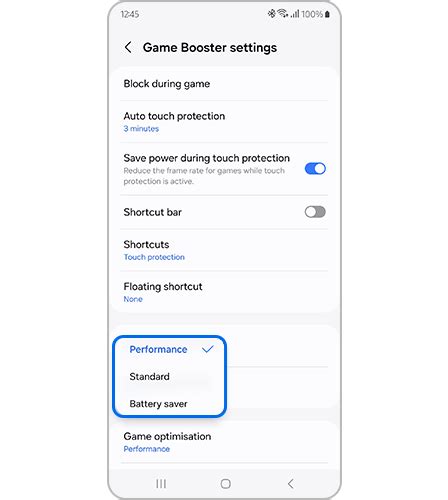
This is where many budget gamers can make huge strides. High graphics settings require more processing power, which can introduce latency. Lowering settings like shadows, anti-aliasing, and texture quality can free up GPU cycles, allowing for higher, more consistent frame rates – a key factor in reducing perceived input lag. Crucially, turn off V-Sync unless you experience severe screen tearing and cannot achieve your monitor’s refresh rate. V-Sync synchronizes frames with your monitor’s refresh rate but introduces significant input lag.
Operating System & Drivers: Keep Things Lean
Ensure your graphics drivers (NVIDIA, AMD, Intel) are always up to date. Driver updates often include performance optimizations that can directly impact latency. In Windows, enable ‘Game Mode’ (Settings > Gaming > Game Mode), which prioritizes your game’s resources. Close all unnecessary background applications, browser tabs, and widgets before gaming. Set your PC’s power plan to ‘High Performance’ (or ‘Ultimate Performance’ if available) to ensure your CPU and GPU aren’t throttling.
![[Answered] How do I Force a Game to Run on my GPU?](/images/aHR0cHM6Ly90czEubW0uYmluZy5uZXQvdGg/aWQ9T0lQLk1fbDVjcTA2ZkY0VTRZQU1TRGxaR3dIYUU4JnBpZD0xNS4x.webp)
Network Optimizations: Stabilize Your Connection
Wired Ethernet: The Gold Standard
For online competitive gaming, a stable, low-latency network connection is paramount. Ditch Wi-Fi whenever possible and connect your PC or console directly to your router using an Ethernet cable. This eliminates wireless interference and provides a much more consistent connection with lower ping (network lag). If running an Ethernet cable isn’t an option, consider Powerline adapters as a more reliable alternative to Wi-Fi.
Router & Background Processes: Prioritize Gaming
If your router supports Quality of Service (QoS), configure it to prioritize gaming traffic. This ensures your game’s data packets get preferential treatment over streaming video or large downloads. Also, ensure no other devices on your network are hogging bandwidth with downloads, updates, or streaming during your gaming sessions.

Ergonomics & Setup: Small Details, Big Impact
While less direct, your physical setup can play a minor role. Ensure your cables are organized and not excessively long, especially for input devices. Minimize the distance your mouse and keyboard travel to their respective ports. While not a dramatic change, a clean, organized setup can help maintain consistent performance and reduce the chances of cable-related issues. Remember, consistency in your setup contributes to muscle memory and overall performance.
Conclusion: Consistency is Key
Reducing input lag for competitive gaming doesn’t require a top-tier budget. By diligently applying these cost-effective hardware, software, and network optimizations, you can significantly enhance your responsiveness and reaction times. Regularly review your settings, keep your drivers updated, and maintain a clean system. The cumulative effect of these small changes will give you a noticeable edge, proving that smart optimization often trumps expensive upgrades.


